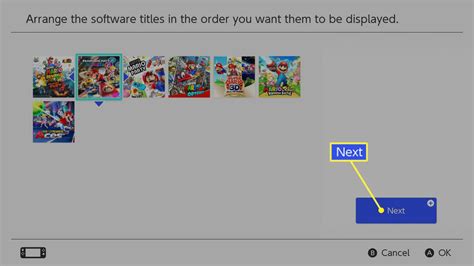
Switch full? Best way to free up space for new games, preserving save data?

Running out of space on your Nintendo Switch is a common problem for avid gamers. With a relatively modest internal storage of 32GB (or 64GB for the OLED model), it doesn’t take long for digital downloads, game updates, and screenshots to fill it up. The good news is there are effective ways to manage your storage, prioritize your games, and most importantly, keep your hard-earned save data intact.
Understanding Your Switch’s Storage
Before you start deleting things, it’s crucial to know what’s taking up the most space. You can easily check this through your console’s settings:
- Go to System Settings on your HOME Menu.
- Scroll down to ‘Data Management’.
- Select ‘Manage Software’ or ‘Manage Save Data/Screenshots and Videos’ to see a breakdown of your storage usage.
This menu will show you how much space is occupied by software (games, updates, DLC), save data, and media like screenshots and videos. Identifying the biggest culprits is the first step toward a cleaner, more organized Switch.
The Best Method: Archiving Software
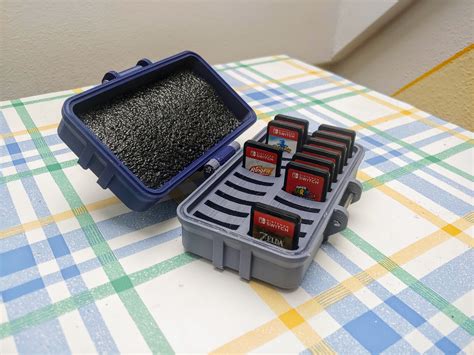
When it comes to freeing up space without losing your game progress, archiving is your best friend. Here’s why and how:
- What it does: Archiving removes the game’s core data from your system but keeps its icon on your HOME Menu and, crucially, preserves all your save data. This means if you decide to play the game again, you only need to redownload the game data, and you can pick up exactly where you left off.
- When to use it: Ideal for games you’ve completed, haven’t touched in a while, or don’t plan on playing in the immediate future but might want to revisit someday.
- How to archive: From the HOME Menu, highlight the game you want to archive, press the ‘+’ or ‘-‘ button, select ‘Manage Software’, then ‘Archive Software’.
Deleting Software: Use With Caution
Deleting software is a more drastic measure and should be used carefully, as it can sometimes remove save data if not managed properly.
- What it does: Deleting software removes the game’s data entirely from your system. By default, it also typically asks if you want to delete the save data. If you proceed without caution, your save data for that game could be lost.
- When to use it: Only delete a game if you are absolutely certain you won’t play it again, or if you know its save data is backed up via Nintendo Switch Online’s cloud saves (and you have an active subscription), or if the game’s saves are specifically stored on the game cartridge itself (rare for Switch).
- How to delete: From the HOME Menu, highlight the game, press ‘+’ or ‘-‘, select ‘Manage Software’, then ‘Delete Software’. Be mindful of the prompts regarding save data.
The MicroSD Card Solution
For most Switch users, expanding storage with a microSD card is the ultimate long-term solution.
- Why it’s essential: The Switch supports microSDXC cards up to 2TB, offering vast amounts of additional space for digital games, updates, and screenshots. Once installed, new downloads can automatically go to the microSD card.
- Moving data: While you can’t directly move existing game software from the internal memory to a microSD card, you can archive games from internal memory and then redownload them to the microSD card. Save data, however, always resides on the console’s internal memory and cannot be moved to an SD card.
- Recommendation: Invest in a high-speed microSD card (UHS-I compatible with a speed class of 10 or higher) from a reputable brand. Start with at least 128GB or 256GB, as games continue to grow in size.
Don’t Forget Screenshots and Videos
Often overlooked, captured screenshots and video clips can surprisingly consume a lot of space over time.
- Managing media: Go to ‘System Settings’ > ‘Data Management’ > ‘Manage Screenshots and Videos’. Here you can view and delete individual captures or entire albums.
- Transferring media: To free up space without losing your memories, you can transfer screenshots and videos to a microSD card (if you have one) or wirelessly transfer them to a smart device.
Leveraging Nintendo Switch Online for Cloud Saves
An active Nintendo Switch Online (NSO) subscription offers a critical safety net for your save data: cloud backups.
- How it works: For most games, your save data is automatically uploaded to the cloud, protecting it even if your console is lost, damaged, or you delete a game.
- Check your saves: You can manage and check the status of your cloud saves via ‘System Settings’ > ‘Data Management’ > ‘Save Data Cloud’.
- Important note: Not all games support cloud saves (e.g., Splatoon 2, Pokémon Sword/Shield, Animal Crossing: New Horizons). For these specific titles, your save data remains exclusively on your console’s internal memory, making archiving a safer choice than deleting.
A Step-by-Step Approach to Freeing Space:
- Check Your Storage: Identify the biggest space hoggers.
- Archive Unused Games: Prioritize games you’ve finished or rarely play, using the ‘Archive Software’ option. This is the safest way to preserve save data.
- Delete Screenshots and Videos: Clear out old media or transfer them off your device.
- Invest in a MicroSD Card: If you haven’t already, this is the most effective long-term solution for game storage.
- Ensure NSO Cloud Saves are Active: Double-check that your important game saves are backed up (for supported titles).
By systematically following these steps, you can efficiently manage your Nintendo Switch’s storage, ensuring you always have room for new adventures without the anxiety of losing your precious game progress.