





How do I maximize Switch storage for new game downloads?
The Nintendo Switch, an incredibly versatile console, offers a vast library of games, many of which are only available as digital downloads. However, with its standard internal storage of either 32GB or 64GB (on the OLED model), space can quickly become a precious commodity, especially after system updates, game installations, and downloaded content. Fortunately, there are several effective strategies to expand and manage your Switch’s storage, ensuring you always have room for the next big adventure.
Understanding Your Switch’s Storage Limitations
While 32GB or 64GB might sound sufficient for a few games, a significant portion is reserved for the system’s operating software. Game sizes can range from a few hundred megabytes to over 20GB, with many popular titles often exceeding 10GB. Add to that downloadable content (DLC), game updates, screenshots, and video captures, and your internal memory will fill up faster than you might expect. This is where external storage becomes not just an option, but a necessity.
![Nintendo Music |ST| [September 21] Zelda II: The Adventure of Link ...](/images/aHR0cHM6Ly90czMubW0uYmluZy5uZXQvdGg/aWQ9T0lGLjZKUHYyREh3b0xJMmpnU2lyclBvRkEmcGlkPTE1LjE=.webp)
The Essential Solution: MicroSD Cards
The primary and most effective way to expand your Nintendo Switch’s storage is by using a microSD card. The Switch supports microSD, microSDHC, and microSDXC cards, offering a massive potential for storage expansion.
Choosing the Right MicroSD Card
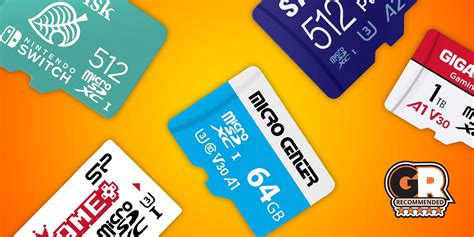
- Capacity: While the Switch theoretically supports up to 2TB microSDXC cards, current market availability typically goes up to 1TB. Consider your gaming habits; if you mostly download digital titles, a 256GB, 512GB, or even 1TB card will provide ample room. Prices for larger cards have become much more affordable.
- Speed: Speed is crucial for loading times. Look for cards with a ‘UHS-I’ (Ultra High Speed Phase I) rating and a ‘Class 10’ speed class. Specifically, cards marked with a ‘U1’ or ‘U3’ symbol (often inside a ‘U’ shape) indicate good performance for game data. U3 cards offer faster minimum write speeds and are generally recommended for optimal performance.
- Brands: Stick to reputable brands like SanDisk, Samsung, Kingston, or Lexar to ensure reliability and avoid counterfeit cards.
Installing and Formatting Your MicroSD Card
Installing a microSD card is straightforward:
- Turn off your Nintendo Switch completely (hold the Power button, then select ‘Power Options’ > ‘Turn Off’).
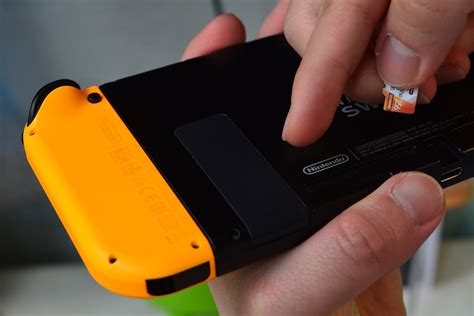
- Open the kickstand on the back of the console to reveal the microSD card slot.
- Insert the microSD card with the label facing down until it clicks into place.
- Close the kickstand and turn on your Switch. The console will automatically detect and format the card, making it ready for use.
New game downloads and most updates will now default to the microSD card, provided there’s space.
Smartly Managing Your Existing Data
Even with an expanded microSD card, smart data management can help keep your Switch tidy and performing well.
Archiving vs. Deleting Software
- Archiving Software: This option deletes the game data from your console (or microSD card) but keeps the game icon on your Home menu and, crucially, preserves your save data. You can re-download the game at any time from the eShop or your user page. This is ideal for games you might play again but don’t need installed right now.
- Deleting Software: This removes the game data, the icon, and any associated save data (unless you have Nintendo Switch Online cloud saves). Only use this for games you’re certain you’ll never play again or if you have a backup of your save data.
To manage software, navigate to System Settings > Data Management > Manage Software, then select the game you wish to manage.
Moving Data Between Internal Storage and MicroSD
While you can’t manually move save data (that’s tied to the user profile and often stored internally or in the cloud), you can move downloadable software data between internal storage and the microSD card. If you’ve filled up your internal memory before getting a microSD card, you can transfer games to the card to free up space. Go to System Settings > Data Management > Move Data Between System / microSD Card, then select the games you want to move.
Clearing Out Unnecessary Data
- Screenshots and Video Clips: These can accumulate quickly. Regularly review and delete unwanted captures from the Album app. You can also transfer them to a computer or post them to social media to free up space.
- Downloaded Update Data: Sometimes, game updates can take up significant space. While usually managed automatically, reviewing ‘Manage Software’ can show you if any large updates are lingering unnecessarily.
Optimizing Your Future Downloads
Consider these habits to keep your storage in check:
- Physical vs. Digital: If storage is a constant concern, buying physical game cartridges can save significant space on your microSD card, as the core game data is read directly from the cartridge. You’ll still need space for updates and DLC, but it’s often much less.
- Prioritize Large Downloads: Always ensure your microSD card is inserted and has sufficient space before downloading large digital titles. This prevents them from defaulting to the smaller internal storage.
- Nintendo Switch Online Cloud Saves: While not directly freeing up storage for game downloads, subscribing to Nintendo Switch Online allows you to back up most game save data to the cloud. This provides peace of mind if you ever need to delete a game or if your console is lost or damaged.

Conclusion
Maximizing your Nintendo Switch storage is primarily achieved through the smart use of a high-capacity microSD card. Beyond that, adopting good data management habits – archiving games you’re not actively playing, regularly clearing out media, and making informed choices about physical vs. digital purchases – will ensure you always have ample room for the growing library of Switch titles. With these strategies, you can focus less on managing space and more on enjoying your gaming experience.


