
What mobile game settings optimize battery life and performance?
The Balancing Act: Performance vs. Battery Life
Mobile gaming offers an incredible array of experiences, from quick puzzle breaks to immersive open-world adventures. However, one common challenge for all smartphone gamers is the trade-off between stunning visuals and smooth performance, and the ever-present concern of rapidly draining battery life. Optimizing your game settings isn’t just about making your game look good; it’s about extending your play sessions and ensuring a consistently enjoyable experience.
Understanding which settings to tweak, both within your games and on your device, can significantly impact how long you can play and how well your games run. Let’s dive into the specifics.

Graphics Settings: The Biggest Power Draw
Graphics settings are often the primary culprit behind both performance bottlenecks and excessive battery consumption. Modern mobile games can render incredibly detailed environments, but pushing those visuals to their limits requires substantial processing power from your device’s CPU and GPU.
Resolution
The screen resolution dictates how many pixels are rendered. Running a game at your device’s native resolution (e.g., 1080p, 1440p) consumes the most power. Lowering the in-game resolution setting, if available, or even your phone’s system display resolution, can significantly reduce the workload on your GPU, leading to better performance and longer battery life. While visuals might appear slightly less sharp, the performance gain can be substantial.
Texture Quality
Textures are the images applied to 3D models and surfaces within the game. Higher texture quality means more detailed images, which require more video memory (VRAM) and processing power to load and display. Reducing texture quality to medium or low can free up resources, making games run smoother and consume less energy, often with a barely noticeable visual downgrade on smaller mobile screens.
Shadow Quality and Anti-Aliasing
Shadows are notoriously resource-intensive. High-quality shadows require complex calculations to render accurately, and turning them down or off entirely can provide a noticeable boost in both frame rate and battery longevity. Similarly, Anti-Aliasing (AA) smooths out jagged edges on objects, but at the cost of significant processing power. Disabling or lowering AA is one of the most effective ways to improve performance and save battery without drastically impacting the overall visual experience.

Frame Rate (FPS)
Many games offer an FPS (frames per second) cap setting, often defaulting to 60 FPS or higher. While a higher frame rate makes gameplay feel smoother, it demands continuous peak performance from your device. Capping your FPS at 30 or 45 can provide a good balance between fluidity and power efficiency. Your device won’t have to work as hard to maintain a high frame rate, leading to less heat generation and extended battery life.
Beyond Graphics: Other In-Game Settings
While graphics are key, other in-game options can also affect performance and battery.
V-Sync and Rendering Scale
V-Sync (Vertical Synchronization) aims to prevent screen tearing by synchronizing the game’s frame rate with your display’s refresh rate. While useful, it can sometimes introduce input lag or cause performance dips if your device struggles to maintain the target frame rate. Experiment with turning it off if you experience issues. Rendering Scale, if present, allows you to render the game at a resolution higher or lower than your display’s native resolution, then scale it. Lowering this can be a more granular way to reduce rendering burden than simply changing the overall resolution.

System-Level Optimizations for Gaming
Your phone’s operating system and background processes also play a crucial role.
Game Boosters and Modes
Many Android devices and some iOS setups offer built-in ‘Game Mode’ or ‘Game Booster’ features. These modes typically prioritize game performance by clearing background apps, blocking notifications, optimizing CPU/GPU usage, and sometimes even managing screen refresh rates. Ensure these features are enabled and configured to your preference.
Background Apps and Notifications
Apps running in the background consume RAM, CPU cycles, and network resources, all of which detract from your game’s performance and battery life. Before a gaming session, close unnecessary background applications. Similarly, constant notifications can interrupt gameplay and wake your screen, draining battery. Utilize your device’s ‘Do Not Disturb’ mode or specific game mode settings to silence notifications while playing.
Screen Brightness and Refresh Rate
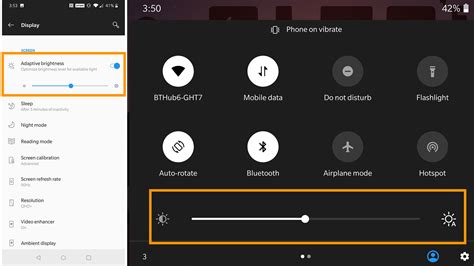
The screen is one of the biggest power consumers. Reducing your screen brightness, especially in well-lit environments, can noticeably extend battery life. If your phone has a high refresh rate display (90Hz, 120Hz), consider lowering it to 60Hz for less demanding games or when battery conservation is critical. This setting is usually found in your phone’s display settings.
Finding Your Sweet Spot
Optimizing mobile game settings is an iterative process. Start by making significant changes like reducing resolution and capping FPS, then fine-tune other settings like texture and shadow quality. Pay attention to how each adjustment impacts both performance and battery drain. What works best for one game or device might not be ideal for another.
By thoughtfully adjusting these settings, you can enjoy longer, smoother gaming sessions without constantly reaching for your charger, making your mobile gaming experience truly optimized for both fun and longevity.