Optimize Nintendo Switch storage: What’s the best SD card strategy?
Why Nintendo Switch Storage is a Constant Battle
The Nintendo Switch, a marvel of portable gaming, comes with a surprisingly modest amount of internal storage: 32GB for the original model and Switch Lite, and 64GB for the OLED model. While this might seem adequate for a few games, modern titles, especially digital downloads, can quickly eat through that space. Games like The Legend of Zelda: Tears of the Kingdom or Pokémon Scarlet and Violet can demand upwards of 15GB each, making additional storage not just a convenience, but a necessity for any avid Switch gamer.
This is where microSD cards become indispensable. Without one, you’ll constantly be deleting and redownloading games, a tedious process that interrupts your gaming flow. But with so many options available, what’s the best strategy for selecting and utilizing these tiny storage powerhouses?
Understanding MicroSD Card Types and Capacities
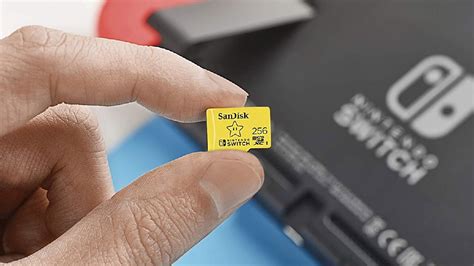
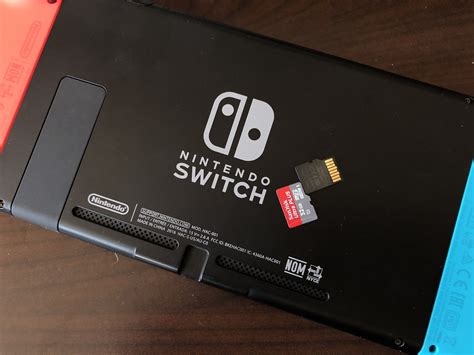
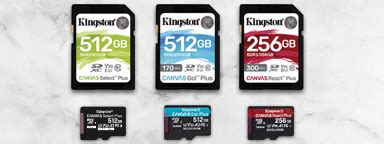
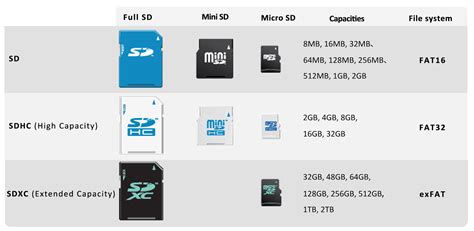
When buying a microSD card for your Switch, you’ll primarily encounter two types: microSDHC (High Capacity) and microSDXC (eXtended Capacity). The Switch is compatible with both, but there are differences to note. microSDHC cards range from 4GB to 32GB, while microSDXC cards pick up from 64GB and can go up to 2TB (though 1TB is currently the largest commercially available). For most users, a microSDXC card is the way to go due to its larger capacities, offering more breathing room for extensive game libraries.
Choosing the right capacity depends on your gaming habits. If you primarily play physical cartridges and only download a few digital titles, a 128GB or 256GB card might suffice. However, for those who embrace digital-only purchases or subscribe to Nintendo Switch Online’s game libraries, a 512GB or even 1TB card will offer peace of mind. Remember, it’s almost always better to overbuy on capacity than to run out too soon.
Speed Matters: Decoding SD Card Speed Ratings
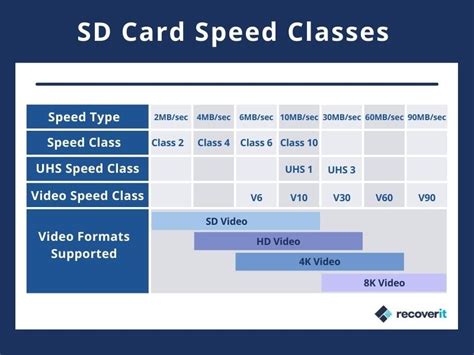
While capacity gets most of the attention, the speed of your microSD card is equally important. A faster card means quicker game loading times and smoother performance, especially for titles with extensive data streaming. Look for cards with an ‘UHS-I’ (Ultra High Speed-I) interface, which the Switch supports. Within UHS-I, you’ll see speed classes like U1 and U3.
- UHS Speed Class 1 (U1): Guarantees a minimum sequential write speed of 10 MB/s.
- UHS Speed Class 3 (U3): Guarantees a minimum sequential write speed of 30 MB/s.
For optimal performance, aim for a U3 rated card. You might also see ‘Video Speed Class’ ratings like V30, which also indicates a minimum write speed of 30 MB/s, or ‘Application Performance Class’ ratings like A1 or A2. While A1 and A2 are designed for running apps faster on Android devices, they generally correlate with good random read/write speeds, which can also benefit game loading on the Switch.
The Best SD Card Strategy: Balancing Price, Capacity, and Speed
The optimal SD card strategy involves finding the sweet spot for your needs. Here’s a breakdown:
- Prioritize Reputable Brands: Stick to trusted brands like SanDisk, Samsung, or Lexar. They offer reliability and performance consistency.
- Aim for U3 Speed: A U3 rated card (or V30) will provide the best balance of performance for the Switch. Avoid cheaper, slower cards as they can lead to noticeable loading delays.
- Consider Future Needs: Even if you don’t have many digital games now, you likely will in the future. A 256GB or 512GB card is a good starting point for most, while serious digital collectors should consider 1TB.
- Look for Sales: MicroSD cards frequently go on sale. If you’re not in a rush, waiting for a deal can save you a significant amount, especially on higher-capacity cards.
Tips for Managing Your Switch Storage
Once you have your ideal microSD card, effective management can extend its utility:
- Archive vs. Delete: When you need space, archiving a game removes its core data while keeping its save data on your internal storage. You can redownload it later without losing progress. Deleting a game removes both game and save data, so be careful.
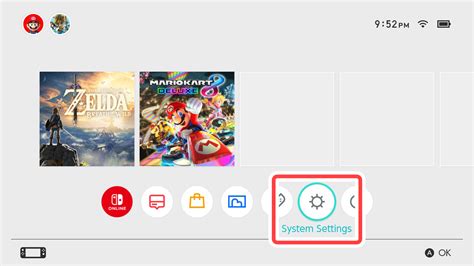
- Check Data Management Settings: Periodically visit the ‘Data Management’ section in your Switch settings to see what’s taking up space. You can easily archive or delete games from there.
- Consolidate Game Data: All game data for downloaded titles and physical cartridges (updates, DLC) will go to the SD card once inserted, provided there’s space. This helps keep your internal storage clear for essential system data and save files.
By implementing a thoughtful SD card strategy and regularly managing your data, you can ensure your Nintendo Switch always has room for new adventures, keeping the fun going without annoying storage limitations.