Nintendo Switch storage full? How to clear space for more games.
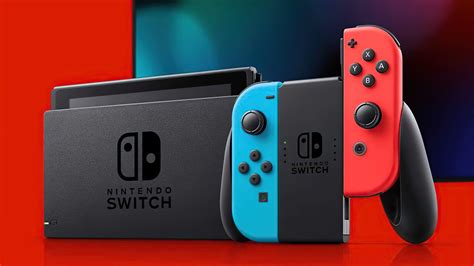
Few things are as frustrating for a gamer as hitting the ‘storage full’ wall right when a new, exciting title drops. The Nintendo Switch, with its modest internal storage, is particularly prone to this, especially for those who primarily download digital games. But don’t fret! Clearing space is often easier than you think, and with a few smart strategies, you can make sure your console always has room for the next big adventure.
Check Your Current Storage Status
Before you start deleting indiscriminately, it’s wise to see what’s actually taking up space. This gives you a clear picture and helps you prioritize what to remove.
- From the HOME Menu, select System Settings.
- Scroll down the left-hand menu and select Data Management.
- Here, you’ll see a breakdown of your console’s available space, including internal memory and any inserted microSD card. You can also view detailed information on Manage Software, Save Data Cloud, and Screenshots and Videos.
Archive Unplayed Games
This is often the quickest and least painful way to free up significant space. Archiving a game removes its core game data from your console but keeps its icon on your HOME Menu and, crucially, preserves your save data. You can re-download the game at any time if you decide to play it again.
- From the HOME Menu, highlight the game you wish to archive.
- Press the + or – button on your Joy-Con to open the Options menu.
- Select Data Management, then choose Archive Software.
- Confirm your choice when prompted.
You can also archive multiple games from the System Settings > Data Management > Manage Software menu. This view shows games by size, making it easy to identify the biggest space hogs.
Delete Software Data (When Archiving Isn’t Enough)
If you’re absolutely certain you’ll never play a game again, or you need to clear every byte possible, you can delete the software data entirely. This removes the game and its associated icon from your HOME Menu, but like archiving, your save data is typically preserved separately.
- From the HOME Menu, highlight the game you wish to delete.
- Press the + or – button to open the Options menu.
- Select Data Management, then choose Delete Software.
- Confirm your choice.
Remember, once deleted, you’ll need to re-download the entire game if you want to play it again. Always double-check that you truly no longer want the game before using this option.

Manage Your Screenshots and Videos
Those epic in-game moments add up! High-quality screenshots and especially video clips can consume a surprising amount of space over time. Regularly reviewing and deleting unnecessary media is a good habit.
- From the HOME Menu, select the Album icon.
- Browse your captured media.
- To delete, select an image or video, then press the A button. Choose Delete.
- To delete multiple items, select Editing > Delete Multiple and pick the items you want to remove.
For those with a microSD card, you can also transfer screenshots and videos to the card from System Settings > Data Management > Manage Screenshots and Videos > Copy All Screenshots and Videos to microSD Card.
Invest in a MicroSD Card
If you haven’t already, purchasing a microSD card is by far the most effective long-term solution to Nintendo Switch storage woes. The Switch supports microSD, microSDHC, and microSDXC cards up to 2TB, providing ample room for dozens, if not hundreds, of games.
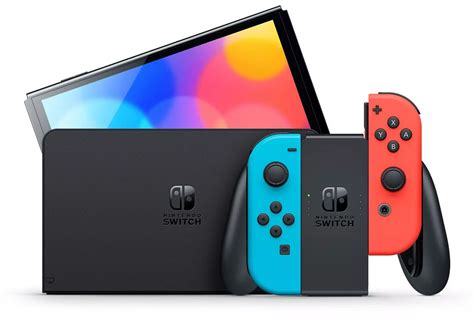
Once inserted, your Switch will automatically prioritize saving new game downloads and updates to the microSD card. While you can’t directly move already installed games from internal memory to the SD card (you’d need to archive/delete and re-download), new content will always go to the card first, effectively extending your storage.
What About Save Data?
It’s important to note that game save data is stored separately from game software data. Save data typically takes up very little space and cannot be saved to a microSD card. It’s stored directly on the console’s internal memory. For peace of mind, consider subscribing to Nintendo Switch Online, which offers cloud backup for most game save data, ensuring your progress is safe even if something happens to your console.
Keep Your Gaming Flowing
Running out of space on your Nintendo Switch is a common problem, but thankfully, there are plenty of straightforward solutions. By regularly managing your software, culling old screenshots, and especially by expanding your storage with a microSD card, you can ensure your Switch is always ready for your next gaming session without interruption. Happy gaming!