





Nintendo Switch storage full? Best ways to free up space for new games.
Is Your Nintendo Switch Storage Bursting at the Seams?
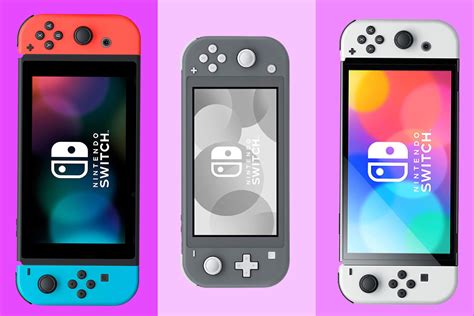
It’s a common dilemma for every Nintendo Switch owner: you’re excited for a new game release, but when you go to download it, you’re met with the dreaded ‘not enough space’ message. The Switch’s internal 32GB (or 64GB for OLED models) storage can fill up surprisingly quickly, especially with large digital titles and frequent updates. But don’t despair! There are several effective strategies you can employ to reclaim precious gigabytes and make room for your next adventure.
Understanding Your Switch’s Storage Landscape
Before you start deleting things willy-nilly, it’s helpful to know what’s taking up the most space. Your Switch divides storage into System Memory (the console’s internal storage) and your microSD card (if you have one inserted). Game software, updates, screenshots, and video captures can reside in either, while game save data is almost always stored internally.
To check your current storage status:
- Go to System Settings on the HOME Menu.
- Scroll down and select ‘Data Management’.
- Here you can see breakdowns for System Memory and microSD Card, showing how much space is used by software, save data, and screenshots/videos.
The Easiest Fixes: Archiving vs. Deleting Software
When it comes to digital games, you have two primary options for freeing up space: archiving or deleting. Understanding the difference is crucial.
Archiving Software
Archiving a game removes the game data from your system or microSD card but keeps its icon on your HOME Menu and, more importantly, preserves your game save data. This is ideal if you think you might play the game again in the future, as you can re-download it without losing your progress.
- On the HOME Menu, highlight the game you want to archive.
- Press the ‘+’ or ‘-‘ button to open the Options menu.
- Select ‘Manage Software’ > ‘Archive Software’.
Deleting Software
Deleting software removes both the game data and its icon from your HOME Menu. Critically, it also typically removes the game’s save data, unless that save data is backed up to the cloud via a Nintendo Switch Online subscription. Only use this option if you are absolutely sure you won’t need the game or its save data again.
- On the HOME Menu, highlight the game you want to delete.
- Press the ‘+’ or ‘-‘ button to open the Options menu.
- Select ‘Manage Software’ > ‘Delete Software’.
Managing Screenshots and Video Captures
Those epic in-game moments you’ve captured can silently eat away at your storage. While individual screenshots are small, video clips can be quite large. Fortunately, these are easy to manage.
- Go to System Settings > Data Management > Manage Screenshots and Videos.
- You can view all your captures here.
- You have options to copy them to a microSD card (if they’re on system memory) or delete them.
- For long-term storage, consider periodically transferring them to a computer via the microSD card or by connecting your Switch to a PC with a USB cable.
Investing in or Upgrading a MicroSD Card
For most Switch owners, the ultimate solution to storage woes is a microSD card. The Nintendo Switch supports microSD, microSDHC, and microSDXC cards up to 2TB. Modern games are massive, and a large microSD card is practically essential for anyone who downloads multiple digital titles.
Choosing the Right Card
- Look for reputable brands (SanDisk, Samsung, etc.).
- Prioritize cards with high read/write speeds (UHS-I compatible, with a speed class of U1 or U3) for faster loading times.
- A 128GB, 256GB, or even 512GB card offers a significant boost over the internal storage.
Moving Data to a New Card
If you already have a microSD card but it’s full, you can upgrade to a larger one. Simply copy all the data from your old card to a computer, then copy it to your new, larger card. The Switch will recognize the new card and its contents.
Don’t Forget About Save Data!
It’s important to remember that game save data is usually stored separately from the game itself, typically on the Switch’s internal memory. Archiving or deleting a game *does not* affect its save data (unless you explicitly choose to delete both). However, save data generally takes up very little space compared to game software.
For peace of mind and to protect against data loss, consider subscribing to Nintendo Switch Online. This service offers cloud backup for most (though not all) game save data, so even if something happens to your console, your progress is safe.
Conclusion: Keep Your Switch Ready for Action
While the Nintendo Switch’s internal storage can be restrictive, a combination of smart data management, regular archiving, and the invaluable addition of a high-capacity microSD card can keep your console ready for any new game that catches your eye. By following these tips, you’ll spend less time managing storage and more time gaming!


