





My Switch storage is full! How can I free up space for new games?
Dealing With a Full Nintendo Switch Storage
It’s a familiar dilemma for many Nintendo Switch owners: you’re excited about a new game or an update for a beloved title, only to be met with the dreaded “not enough free space” message. With the console’s internal storage being a modest 32GB (or 64GB for the OLED model), which is quickly eaten up by system software and a few large games, it’s easy to hit a wall. Fortunately, there are several effective strategies to reclaim valuable storage space and keep your gaming library growing.
Understanding Your Switch’s Storage
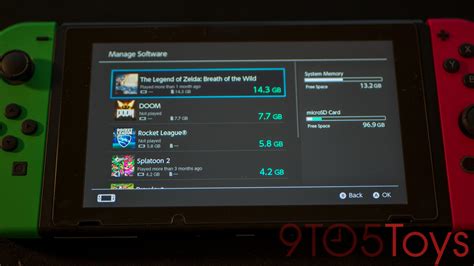
Before you start deleting, it’s helpful to know what’s taking up the most space. Your Switch stores game software, save data, screenshots, videos, and system updates.
To check your current storage status:
- From the HOME Menu, select System Settings.
- Scroll down the menu on the left and select Data Management.
- Here you can see the remaining free space on your Console Memory and any inserted microSD card. You can also view which software is consuming the most space.
Archiving Games: The Smart First Step
Archiving is often the best initial approach. When you archive software, the game data is deleted from your console or microSD card, but its icon remains on the HOME Menu, and crucially, your save data is kept intact. This means you can redownload the game at any time without losing your progress.
To archive software:
- From the HOME Menu, highlight the game you wish to archive.
- Press the + or – button to open the Options menu.
- Select Data Management, then Archive Software.
- Confirm your choice by selecting Archive.
Deleting Software: When Archiving Isn’t Enough
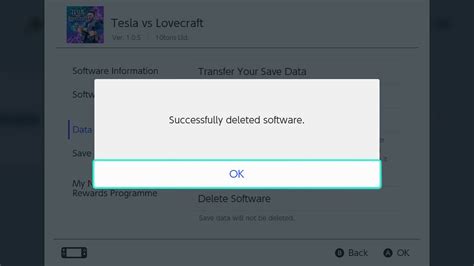
Deleting software completely removes the game data from your console or microSD card. Unlike archiving, the game icon will disappear from your HOME Menu. While your save data is generally stored separately and usually remains even after deleting a game, it’s always wise to double-check, especially for games that don’t support Cloud Saves or if you haven’t subscribed to Nintendo Switch Online.
To delete software:
- From the HOME Menu, highlight the game you wish to delete.
- Press the + or – button to open the Options menu.
- Select Data Management, then Delete Software.
- Confirm your choice by selecting Delete.
Managing Your Save Data (Use Caution!)
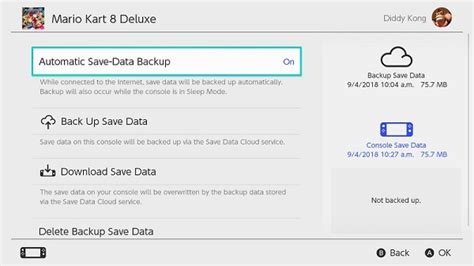
Save data files are typically very small and don’t take up much space. More importantly, deleting save data is almost always irreversible unless you have a backup via Nintendo Switch Online’s Save Data Cloud. It’s highly recommended to NOT delete save data unless you are absolutely certain you will never play that game again and don’t need your progress.
If you’re a Nintendo Switch Online subscriber, ensure your important game saves are backed up to the cloud. You can manage this under System Settings > Data Management > Save Data Cloud.
Upgrading Your MicroSD Card: The Long-Term Solution
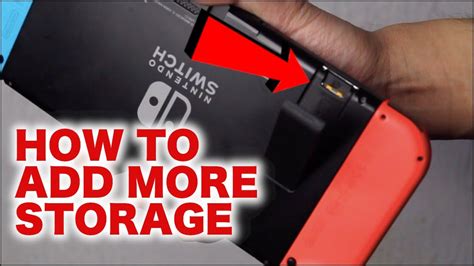
For many, the most effective long-term solution to storage woes is to invest in a larger microSD card. The Nintendo Switch supports microSD cards up to 2TB, though cards in the 128GB to 512GB range offer a good balance of cost and capacity for most users. This significantly expands your storage, allowing you to download many more digital games without constant management.
If you already have a microSD card and it’s full, upgrading to a larger one is straightforward. You can transfer data from your old card to a new one using a computer, or simply insert the new card and redownload all your games.

Redownloading Games and Updates
Remember that any digital games you’ve purchased are tied to your Nintendo Account. Even if you delete or archive them, you can always redownload them from the Nintendo eShop or your user page. Updates for physical games will also be redownloaded as needed.
Conclusion
A full Nintendo Switch storage doesn’t have to be a major roadblock to enjoying new games. By strategically archiving older titles, deleting those you no longer play, and considering a larger microSD card, you can ensure there’s always room for your next adventure. Prioritize archiving to protect your precious save data, and only delete software when you’re confident you won’t need it or if you have Cloud Save backups.


