How to stop accidental in-game purchases and control microtransactions?

Understanding the Allure of In-Game Purchases
For many parents, the world of video games can be perplexing, especially when it comes to the often-hidden costs of in-game purchases and microtransactions. What starts as a ‘free’ game can quickly accumulate unexpected charges as children, sometimes accidentally and other times intentionally, spend real money on virtual items, currency, or cosmetic upgrades. These systems are designed to be enticing, often using psychological tactics to encourage spending, making it challenging for both children and parents to navigate without clear boundaries.
Microtransactions can range from small, one-off purchases to recurring subscriptions, and they are embedded across various gaming platforms, including consoles, mobile apps, and PC games. The key is to understand how these systems work and to proactively implement safeguards.

Implementing Robust Parental Controls on Gaming Platforms
The most effective way to prevent accidental in-game purchases is to utilize the parental control features available on virtually all modern gaming platforms. These settings allow you to restrict purchases, set spending limits, or even require a password for every transaction.
Console-Specific Controls:
- PlayStation: Navigate to ‘Settings’ > ‘Account Management’ > ‘Account Information’ > ‘Wallet’ to set purchase limits, require a password for purchases, or remove payment methods.
- Xbox: Use the Xbox Family Settings app or go to ‘Settings’ > ‘Account’ > ‘Family settings’ on the console to manage spending limits, content restrictions, and require approval for purchases.
- Nintendo Switch: Access ‘System Settings’ > ‘Parental Controls’ to link with the Nintendo Switch Parental Controls app, allowing you to set time limits and restrict eShop purchases.
Mobile Device and PC Controls:
- Apple App Store (iOS): Go to ‘Settings’ > ‘Screen Time’ > ‘Content & Privacy Restrictions’ > ‘iTunes & App Store Purchases’ to disallow in-app purchases or require a password.
- Google Play Store (Android): Open the Play Store app, go to ‘Settings’ > ‘Authentication’ > ‘Require authentication for purchases’ to set preferences, or enable ‘Parental controls’ to restrict content and purchases.
- PC Game Launchers (Steam, Epic Games, etc.): Most PC platforms offer wallet management features where you can remove saved payment methods, set spending limits, or require password entry for every purchase.

Practical Steps for Managing Purchases
Beyond platform-specific controls, there are several practical strategies you can employ to gain better control over microtransactions.
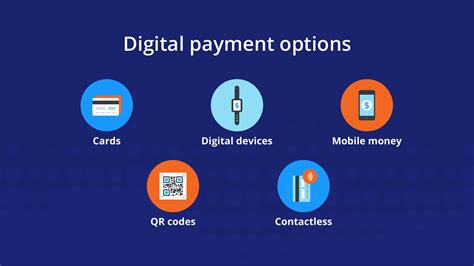
- Remove Saved Payment Information: The simplest way to prevent unauthorized purchases is to remove credit card or debit card details from your child’s gaming accounts or devices. This ensures that any purchase attempt will require re-entering the payment details, giving you a chance to intervene.
- Use Gift Cards for Allowances: Instead of linking your primary payment methods, consider purchasing gift cards for specific gaming platforms (e.g., PlayStation Store, Xbox Gift Card, Google Play, Apple App Store). This allows you to provide a controlled amount of spending money for your child, teaching them budget management within a safe limit.
- Disable In-App Purchases Entirely: For younger children, or if you want to completely eliminate the risk, you can often disable in-app purchases altogether within the device’s settings.
Fostering Open Communication and Education
Technology alone isn’t a complete solution. Open dialogue with your child is crucial for long-term understanding and responsible gaming habits.
- Discuss Real Money Value: Explain to your child that virtual items cost real money. Help them understand the value of money by comparing in-game purchases to tangible items they could buy in the real world.
- Set Clear Rules and Limits: Establish clear boundaries regarding in-game spending. Decide together if any purchases are allowed, under what circumstances, and with what budget.
- Explain the ‘Why’: Help your child understand why these rules are in place – to protect your finances, prevent regret, and encourage appreciation for what they already have.

Monitoring and Reviewing Activity
Even with controls in place, regular monitoring can help catch issues early and reinforce good habits.
- Regularly Check Purchase History: Periodically review the purchase history on gaming platforms and credit card statements for any unfamiliar transactions.
- Stay Informed About Their Games: Take an interest in the games your child plays. Understand how microtransactions are integrated into those specific titles so you can discuss them knowledgeably.
- Teach Responsible Spending: Use any accidental purchases as a teaching moment rather than just a punishment. Discuss what happened, how it could have been prevented, and what lessons can be learned.
By combining technical safeguards with open communication and ongoing education, parents can effectively prevent accidental in-game purchases and teach children valuable lessons about digital citizenship and financial responsibility within the exciting world of gaming. Proactive measures create a safer and more enjoyable experience for everyone.