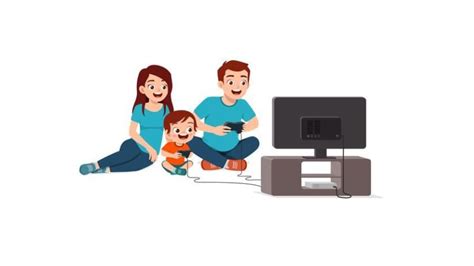
How to set parental controls for in-game purchases?
Navigating the World of In-Game Purchases
In-game purchases, from cosmetic skins and virtual currency to loot boxes and power-ups, have become an integral part of modern video games. While they offer players new ways to engage with their favorite titles, they can also pose significant challenges for parents concerned about unauthorized spending. Children, often unaware of the real-world value of virtual money, can easily rack up large bills without proper safeguards. Setting up robust parental controls is not just about preventing accidental charges; it’s about fostering responsible digital citizenship and managing expectations.
Why Parental Controls for In-Game Purchases are Crucial
The allure of immediate gratification in games can be strong, leading children to make impulse purchases that can impact family finances. Parental controls provide a vital layer of protection, preventing unauthorized transactions and giving parents peace of mind. Beyond financial security, these controls offer an opportunity to teach children about budgeting, the value of money, and making informed choices about their spending.

Universal Steps to Restrict Spending
While specific steps vary by platform, some general principles apply across all gaming environments:
- Require Passwords for All Purchases: This is the most fundamental step. Ensure that a password (known only to you) is required before any purchase can be completed.
- Disable One-Click Purchasing: Many platforms offer convenient one-click buying. Turn this feature off.
- Remove Stored Payment Information: If possible, remove credit card or payment information from accounts your child uses. Re-enter it manually for authorized purchases.
- Set Spending Limits: Many platforms allow you to set monthly or weekly spending limits for child accounts.
Platform-Specific Guides for Setting Controls
Setting Controls on Consoles (PlayStation, Xbox, Nintendo Switch)
Modern gaming consoles offer comprehensive parental control settings:
- PlayStation (PS4/PS5): Set up a family management system, create child accounts, and assign spending limits. You can also restrict content based on age ratings and disable guest logins for purchases.
- Xbox (Xbox One/Series X|S): Use the Xbox Family Settings app or console settings to create child accounts. You can manage privacy, online safety, screen time, and set spending limits with ‘Ask to Buy’ requests for purchases.
- Nintendo Switch: Download the Nintendo Switch Parental Controls app to your smartphone. This allows you to set daily play limits, restrict software by age rating, and disable eShop purchases, or require a password for every transaction.

Managing Purchases on Mobile Devices (iOS & Android)
Mobile games are notorious for in-app purchases, but both Apple and Google provide robust controls:
- iOS (Apple App Store): Utilize ‘Family Sharing’ to create an Apple ID for your child. Enable ‘Ask to Buy’ which requires parental approval for all purchases and free downloads. You can also restrict in-app purchases in ‘Screen Time’ settings.
- Android (Google Play Store): Set up a family group and create child accounts managed by ‘Family Link’. This allows you to approve or deny app and in-app purchases, set spending limits, and restrict content based on age.

Controlling PC Gaming Platforms (Steam, Epic Games)
PC gaming platforms also offer ways to manage spending:
- Steam: Use ‘Steam Family View’ to restrict access to the store, community, and specific games. While it doesn’t directly manage in-game purchases, combining it with not saving payment information on the account is crucial. Consider using Steam Gift Cards for controlled spending.
- Epic Games Store: Ensure that no payment methods are saved to your child’s account. Utilize parental PINs to restrict purchases.
Best Practices for Responsible Gaming Habits
Setting up technical controls is just one part of the solution. Open communication and education are equally important:
- Communicate Openly: Talk to your child about the value of money, the difference between real and virtual currency, and why you’re setting these limits.
- Set a Budget: If you allow in-game purchases, work with your child to establish a clear budget. Consider giving them a small allowance specifically for gaming.
- Monitor Activity: Regularly check your child’s gaming accounts and purchase history.
- Understand the Games: Play some of the games your child enjoys to understand their mechanics and the types of in-game purchases available.

Empowering Parents for a Safer Gaming Experience
By actively using parental controls and maintaining open lines of communication, parents can create a safer, more controlled gaming environment for their children. These tools empower you to manage spending, teach valuable financial lessons, and ensure that gaming remains a fun and positive experience without unexpected financial surprises.