How to prevent accidental in-game purchases by kids?

Modern video games, especially those designed for mobile or free-to-play models, often feature in-game purchases ranging from cosmetic items to significant power-ups. While these can enhance the gaming experience, they also pose a significant risk when children are at the helm. Accidental, or even intentional but unauthorized, purchases can quickly lead to unexpected and often substantial bills. Fortunately, with a combination of technological safeguards and open communication, parents can effectively prevent these occurrences.
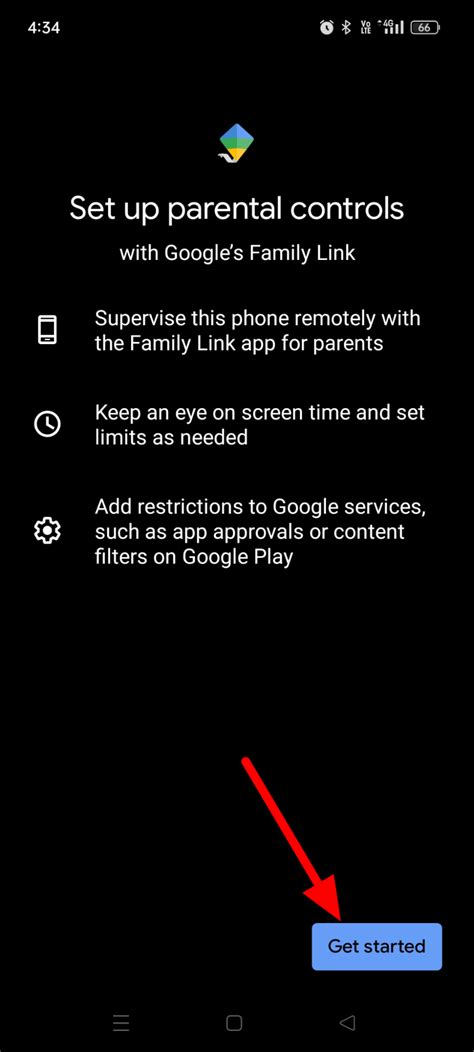
Leverage Device and Platform Parental Controls
The first and most crucial step is to utilize the parental control features built into your gaming devices and app stores. These settings are designed precisely for situations like this.
- Console Settings: PlayStation, Xbox, and Nintendo Switch all offer robust parental control menus. Here, you can restrict purchases, set spending limits, and even require passwords for any transaction. Ensure these are configured before your child starts playing.
- App Store Settings (iOS/Android): For mobile devices, the Apple App Store and Google Play Store have settings that allow you to require a password or biometric authentication for every purchase. You can also disable in-app purchases entirely. Navigate to your device settings, then to “Screen Time” (iOS) or “Digital Wellbeing” / “Family Link” (Android) to manage these options.
- PC Game Launchers: Platforms like Steam also offer family sharing and parental control options that can restrict access to store purchases.
Manage Payment Methods Wisely
Even with parental controls, an extra layer of protection involves how you manage your payment information.
- Remove Stored Credit Cards: If possible, avoid storing your credit card information directly on gaming consoles or app stores. Re-entering card details for each purchase acts as a natural barrier.
- Use Gift Cards or Prepaid Options: Consider using platform-specific gift cards (e.g., Xbox Gift Card, PlayStation Store Card, App Store & iTunes Gift Card) or general prepaid debit cards with a limited balance. This way, if an unauthorized purchase occurs, the financial impact is capped.
- Set Spending Limits: Some platforms allow you to set monthly or weekly spending limits for accounts, providing a ceiling for potential accidental charges.
Open Communication and Education
Technology alone isn’t always enough. Engaging your children in a conversation about in-game purchases is vital.
- Explain the Value of Money: Help them understand that real money is being spent on virtual items. Discuss how purchases are made and the consequences of unauthorized spending.
- Teach Them to Ask: Establish a clear rule: they must always ask for permission before attempting any in-game purchase, even if they think it’s free.
- Discuss Game Mechanics: Explain how many games are designed to encourage spending, often through “loot boxes” or enticing upgrades. Help them recognize these tactics.

Regular Monitoring and Review
Proactive monitoring can catch issues before they escalate.
- Check Purchase History: Periodically review your purchase history on app stores and gaming platforms. Most services provide detailed transaction logs.
- Review Game Content: Before allowing your child to download a new game, check its ratings and read reviews, specifically looking for information on in-app purchases and monetization strategies.
- Set Up Purchase Alerts: Some banks or credit card companies offer alerts for transactions, which can notify you immediately of any activity.

Conclusion
Preventing accidental in-game purchases by children requires a multi-faceted approach combining robust technological controls with ongoing parental guidance. By setting up parental locks, managing payment methods carefully, fostering open communication, and staying vigilant, you can create a safer and more budget-friendly gaming environment for your kids, ensuring fun without unexpected financial surprises.