





How to optimize Switch settings for smooth gameplay across all game types?
Unlock Peak Performance on Your Nintendo Switch
The Nintendo Switch is a marvel of portable and home console gaming, but sometimes even the best hardware can benefit from a little fine-tuning. Whether you’re battling in fast-paced online matches, exploring vast open worlds, or enjoying a cozy indie gem, optimizing your Switch’s settings can significantly enhance your gameplay experience, reducing lag, improving visuals, and ensuring overall smoothness.

Keep Your System Updated
One of the simplest yet most crucial steps to smooth gameplay is ensuring your Switch firmware is always up to date. Nintendo regularly releases system updates that include performance enhancements, bug fixes, and compatibility improvements for new games. To check for updates, go to System Settings > System > System Update. Make sure your console is connected to the internet and has sufficient battery or is docked.
Optimize Your Storage
Storage can impact game loading times and overall system responsiveness, especially if your console’s internal memory is nearly full. While an SD card is essential for expanding your game library, its speed matters. Opt for a high-speed microSD card (UHS-I compatible with a speed class of U3 or V30) for faster loading. You can manage your storage by going to System Settings > Data Management. Here, you can:
- Archive Software: This removes the game data but keeps its icon on your Home menu, allowing you to re-download it easily later. Save data remains intact.
- Delete Software: This completely removes the game and its save data (unless it’s backed up via Nintendo Switch Online).
- Move Data Between System Memory and microSD Card: While this doesn’t directly improve performance for games already running, it can free up internal space for system operations and future game installations.
Network Connection Stability
For online multiplayer games, a stable and fast internet connection is paramount. Even if your internet plan is robust, your Switch’s connection might not be optimal. Consider these tips:
- Proximity to Router: Move your Switch closer to your Wi-Fi router or access point.
- Minimize Interference: Other wireless devices (cordless phones, microwaves, Bluetooth devices) can cause interference. Try to reduce these, or switch your router’s Wi-Fi channel.
- 5GHz Wi-Fi: If your router supports it, connect to the 5GHz band. It offers faster speeds and less interference than 2.4GHz, though its range is shorter.
- Wired LAN Adapter: For the most reliable online experience, especially when docked, invest in a USB to Ethernet LAN adapter. This provides a direct, stable wired connection.
You can test your connection speed and stability in System Settings > Internet > Test Connection.
Display and Power Settings
While the Switch’s resolution and frame rate are largely determined by the game and system, you can fine-tune some display aspects, especially when docked:
- TV Resolution: In System Settings > TV Output > TV Resolution, set it to Automatic or match your TV’s native resolution (e.g., 1080p).
- RGB Range: For some TVs, adjusting the RGB Range (System Settings > TV Output > RGB Range) to ‘Full Range’ might offer better color reproduction, though ‘Limited Range’ is generally safer if you’re unsure. Incorrect settings here can lead to crushed blacks or washed-out colors.
- Handheld Mode Brightness: In handheld mode, lower screen brightness (accessible via the HOME Menu quick settings) to save battery and reduce potential thermal throttling over long sessions, which can sometimes impact performance.
Controller Calibration and Connection
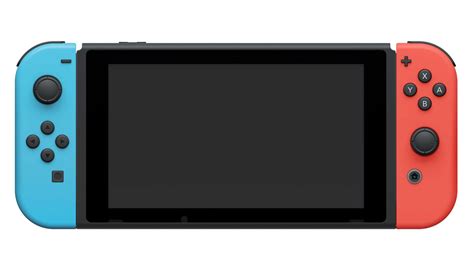
Laggy or unresponsive controls can ruin any game. Ensure your Joy-Cons or Pro Controller are functioning optimally:
- Update Controllers: Go to System Settings > Controllers and Sensors > Update Controllers.
- Calibrate Control Sticks: If you experience ‘drift’ or inaccurate inputs, calibrate them in System Settings > Controllers and Sensors > Calibrate Control Sticks.
- Calibrate Motion Controls: For games relying on motion, calibrate these in the same menu.
- Controller Communication: Ensure there’s no physical obstruction between your console and wireless controllers, especially in docked mode. Keep controllers charged to maintain stable connections.

General Maintenance Tips
- Restart Regularly: A full system restart (hold the POWER Button > Power Options > Restart) can clear temporary files and resolve minor glitches.
- Keep it Cool: Ensure the Switch’s vents are not blocked, especially when docked or playing demanding games for extended periods. Overheating can lead to performance throttling.
- Clean Your Console: Dust can accumulate in vents. Gently clean them with compressed air (while the console is off) to maintain proper airflow.
Conclusion
By taking a few moments to review and adjust these settings, you can significantly improve your Nintendo Switch’s performance and ensure a consistently smooth and enjoyable gaming experience across all titles. From keeping your system updated to optimizing your network and storage, these steps will help you get the most out of your versatile console. Happy gaming!


