How to optimize Switch console storage for digital game downloads?
The Nintendo Switch has revolutionized portable gaming, offering a vast library of titles ranging from indie gems to blockbuster adventures. However, with the growing trend of digital game downloads, many Switch owners quickly run into a common roadblock: limited storage space. Whether you own the original Switch, Switch Lite, or OLED model, optimizing your console’s storage is crucial to ensure you always have room for new adventures and essential game updates.
Understanding Your Switch’s Storage
Every Nintendo Switch console comes with a built-in internal storage capacity – 32GB for the original and Lite models, and 64GB for the OLED model. While this might seem sufficient at first glance, operating system files, saved game data, screenshots, and system updates quickly eat into this space. Modern digital games often range from a few gigabytes to over 20GB, making the internal storage inadequate for a substantial digital library.
This is where external storage comes into play, specifically microSD cards, which are the only type of external storage supported by the Switch for game data.
The Indispensable MicroSD Card
A high-quality microSD card is not just an accessory; it’s an essential component for any serious digital Switch gamer. It vastly expands your console’s storage, allowing you to download dozens, if not hundreds, of games without constantly deleting and re-downloading titles.
Choosing the Right Card
- Capacity: MicroSD cards are available in capacities up to 2TB, though 128GB, 256GB, and 512GB are popular choices offering a good balance of cost and space. Always err on the side of more capacity if your budget allows, as game sizes only tend to increase.
- Speed: Look for cards with a high “UHS-I” speed class (U1 or U3) and read speeds of 60-95 MB/s. While faster cards exist, the Switch itself can only utilize speeds up to a certain point, so ultra-expensive, super-fast cards might not offer a noticeable advantage.
- Brand: Stick to reputable brands like SanDisk, Samsung, or Lexar to ensure reliability and performance.
Installing a microSD card is straightforward: simply open the kickstand on the back of your Switch and insert the card into the slot. The console will automatically recognize and format it, if necessary, making it ready for use.

Smart Game Management Strategies
Once you have a microSD card, effective management becomes key. The Switch offers tools to help you keep your storage tidy.
Archiving vs. Deleting
- Archiving: This option deletes the game software from your console but keeps the game icon on your home screen and preserves your save data. You can re-download the game at any time from the eShop or your user page. This is ideal for games you might want to play again without losing progress but don’t need immediately.
- Deleting Software: This completely removes the game software and its icon. While it also preserves save data (which is stored internally), it requires you to manually find the game in the eShop or your “Redownload” list to retrieve it.
Always prioritize archiving over deleting if you intend to replay a game. Save data files are typically very small and stored on the console’s internal memory, so they won’t significantly impact your overall storage.
Utilizing Data Management Settings
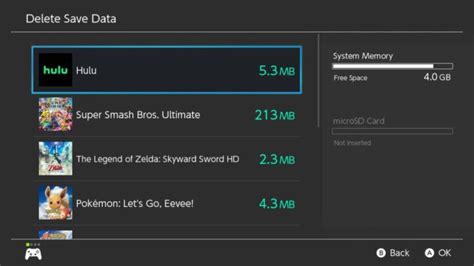
Navigate to System Settings > Data Management to see a breakdown of your storage usage. Here, you can:
- Move Data Between System Memory and microSD Card: While games are typically installed to the microSD card if present, you can manually move software between the console’s internal memory and the microSD card. This is useful if you want certain frequently played games to load slightly faster from internal storage (though the difference is often negligible) or to free up internal space.
- Manage Software: View all installed games and archive or delete them directly.
- Manage Save Data: While save data cannot be moved to a microSD card, you can delete save data for games you no longer play (be cautious, as this is irreversible!).

Other Optimization Tips
Beyond managing game installations, a few other habits can help maintain optimal storage.
- Clear Cache Data: Over time, the Switch may accumulate temporary cache files. While there’s no direct user option to clear all cache, resetting the cache for individual internet settings can sometimes help if you’re experiencing network issues, and a full system factory reset (which deletes all data) is an extreme measure for persistent issues, but not usually needed for general storage. Focus more on game and media files.
- Delete Unnecessary Screenshots and Videos: The Switch allows you to capture screenshots and video clips. If you capture a lot of these, they can accumulate. Regularly transfer them to your computer or delete those you no longer need.
- Avoid Unnecessary Downloads: Resist the urge to download every game you own if you’re not planning to play it immediately. Download games as you intend to play them.
Best Practices for Digital Hoarders
If you’re someone who loves having a vast digital library at your fingertips, these practices will serve you well:
- Regularly Review Your Library: Periodically go through your installed games. If you haven’t touched a game in months and don’t plan to soon, archive it.
- Invest in a Larger MicroSD Card: If you find yourself constantly managing space, it might be time to upgrade to a larger capacity microSD card (e.g., from 128GB to 512GB or even 1TB). The cost per gigabyte has steadily decreased, making larger cards more accessible.
- Back Up Media: For screenshots and videos, regularly transfer them to a computer or cloud service to free up space on your Switch.

Conclusion
Optimizing your Nintendo Switch storage for digital game downloads doesn’t have to be a daunting task. By investing in a high-capacity microSD card and adopting smart game management habits—such as strategically archiving games, utilizing the console’s data management settings, and regularly clearing unnecessary media—you can ensure your Switch always has room for your next gaming adventure. Proactive storage management allows you to focus on what truly matters: enjoying your extensive digital library without interruption.