





How to maximize storage on my Nintendo Switch for more digital games?
The Perpetual Storage Challenge for Digital Game Enthusiasts
For many Nintendo Switch owners, the joy of a growing digital game library is often met with the frustration of limited storage space. With the console’s internal memory quickly filling up, understanding how to effectively manage and expand your storage is crucial for an uninterrupted gaming experience. This guide will walk you through the best practices to maximize your Switch’s capacity for all those must-have digital titles.
The Essential Role of a microSD Card
The Nintendo Switch comes with only 32GB (or 64GB for the OLED model) of internal storage, a significant portion of which is occupied by the system software. This leaves precious little room for digital games, many of which can easily exceed 10GB or even 20GB. The most effective and straightforward solution is to invest in a high-capacity microSD card.
- Capacity Matters: microSD cards for the Switch can range from 64GB all the way up to 2TB. While a 128GB or 256GB card is a good starting point, serious digital collectors might consider 512GB or even 1TB cards for future-proofing.
- Speed is Key: Look for microSDXC cards with a UHS-I (Ultra High Speed Phase I) rating, which is the maximum supported by the Switch. A speed class of U1 or U3 and a video speed class of V10 or V30 ensures faster loading times and smoother gameplay. Brands like SanDisk, Samsung, and Lexar are popular and reliable choices.

Installing and Managing Your Storage
Once you have your microSD card, installation is simple: just insert it into the slot on the back of the Switch (under the kickstand). The system will automatically recognize and format it. To check your storage:
- Go to System Settings on the HOME Menu.
- Scroll down to ‘Data Management’.
- Here you can see the remaining space on both your System Memory and microSD Card, as well as manage your software.

Smart Data Management Strategies
Beyond simply adding more storage, how you manage your existing data can significantly impact your available space.
Archiving vs. Deleting Software
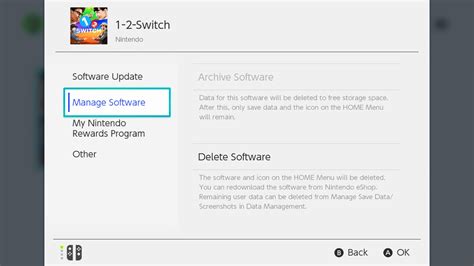
- Archiving: This is your best friend for games you might want to play again. Archiving a game deletes the core game data but keeps its save data on your system. The game’s icon remains on your HOME Menu, allowing you to re-download it easily from the eShop or your ‘Redownload Software’ list without losing your progress.
- Deleting: This removes the game data, save data, and icon completely. Only use this for games you are absolutely certain you’ll never play again, or for demos/free-to-start titles.
Leverage Cloud Saves with Nintendo Switch Online
A Nintendo Switch Online subscription offers cloud backup for most game save data. While this doesn’t directly free up storage on your console, it provides peace of mind. If you ever need to delete a game (including its save data) to make space, you can retrieve your save from the cloud when you re-download the game, provided you have an active NSO subscription.
Transferring Data and Other Considerations
Moving Games Between Storage
The Switch allows you to move downloaded software between the System Memory and a microSD card. This is useful if you want to optimize game performance (some users prefer smaller, frequently played games on internal memory for potentially faster load times, though the difference is often negligible with good microSD cards).
- Go to System Settings -> Data Management -> Move Data Between System / microSD Card.
- Select the games you wish to move.

Physical vs. Digital Games
While this guide focuses on digital games, remember that physical game cartridges do save space on your internal memory or microSD card for the core game data. However, updates, DLC, and save data for physical games will still consume storage.
Regular Maintenance for Optimal Space
Periodically review your downloaded games and other data:
- Review Your Library: Go through your ‘All Software’ list and archive games you haven’t played in a long time.
- Screenshots & Videos: These can accumulate quickly. Go to the Album on your HOME Menu and delete old, unwanted captures, or transfer important ones to a computer.
- Corrupt Data: Sometimes, corrupt data can take up space. The system will usually flag this, and you can delete it from Data Management.
Conclusion
Maximizing storage on your Nintendo Switch is a combination of smart hardware investment and diligent data management. By equipping your console with a high-capacity microSD card and utilizing archiving, cloud saves, and regular maintenance, you can ensure that your Switch always has room for the next big adventure. Happy gaming!


