





How to free up Nintendo Switch storage without deleting game saves?
The Ever-Growing Storage Challenge on Nintendo Switch
As a Nintendo Switch owner, you’ve likely encountered the frustrating “not enough space” message. With an internal memory of just 32GB (or 64GB on the OLED model), which is quickly consumed by the system OS and essential files, space runs out fast, especially if you prefer digital game purchases. The good news is that freeing up space doesn’t have to mean sacrificing your hard-earned progress. This guide will show you how to manage your Switch’s storage effectively without ever touching your precious game saves.
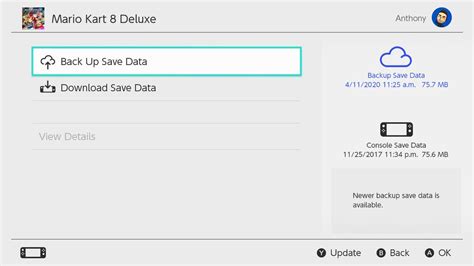
It’s crucial to understand that on the Nintendo Switch, game save data is stored separately from game software data. Save data primarily resides on the console’s internal memory and is generally quite small. Game software, updates, and DLC, on the other hand, take up the bulk of your storage and can be moved, archived, or deleted without affecting your saves. Cloud saves (with a Nintendo Switch Online subscription) provide an additional layer of protection for your save data.
Method 1: Archive Software (Your Best Friend for Quick Space)
Archiving software is the most common and effective way to free up significant space quickly, and it’s designed specifically to leave your save data untouched. When you archive a game, the game’s executable files and downloadable content are removed from your console or microSD card, but the game’s icon remains on your Home screen, and, crucially, your save data stays put.
How to Archive a Game:
- From the Home menu, highlight the game you wish to archive.
- Press the + or – button on your Joy-Con.
- Scroll down and select “Manage Software.”
- Choose “Archive Software.”
- Confirm your decision.
You can re-download archived games at any time from the eShop or by selecting their icon on your Home screen, provided you have an internet connection and enough space.
Method 2: Optimize MicroSD Card Usage
If you have a microSD card installed, most of your downloaded game data should automatically be stored there instead of the internal memory. If you installed games before inserting a microSD card, or if some games just defaulted to internal, you can’t directly “move” them to the SD card. However, you can achieve the same result:
- Archive the game from your internal memory (Method 1).
- Ensure your microSD card is inserted and properly recognized.
- Re-download the game. It will now install to the microSD card by default (as long as there’s space).
For optimal performance, always use a high-quality, high-speed microSD card (UHS-I compatible with a good read speed). Consider upgrading to a larger capacity card if you frequently run out of space.
Method 3: Clear Out Screenshots and Video Captures
It’s easy to forget about the Album, but screenshots and video captures can quickly add up, especially if you’re a prolific content creator. While individual files are small, hundreds or thousands of them can consume a surprising amount of space.
How to Delete Screenshots and Videos:
- From the Home menu, select “Album.”
- Select the image or video you wish to delete.
- Press A to view it, then press A again to bring up options.
- Choose “Delete” and confirm.
- To delete multiple, go to “Settings” within the Album and select “Delete Multiple.”
If you want to save these memories, consider transferring them to a computer via a USB-C cable or by removing the microSD card and inserting it into a card reader.
Method 4: Check for Corrupted Data
Occasionally, corrupted data can take up space without serving any purpose. While rare, it’s worth checking if you’re experiencing unusual storage discrepancies.
How to Check for Corrupted Data:
- From the Home menu, select “System Settings.”
- Scroll down to “Data Management.”
- Select “Manage Software.”
- Choose a game, and if an option for “Check for Corrupt Data” appears, select it.
If corrupted data is found, the system will prompt you to delete it. Don’t worry, this process does not affect your save data.
Method 5: Upgrade Your MicroSD Card for a Permanent Solution
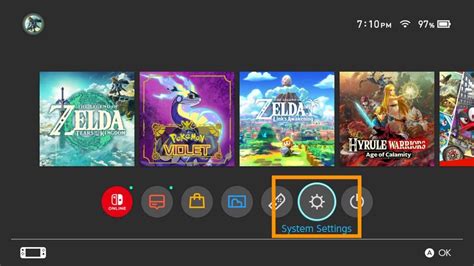
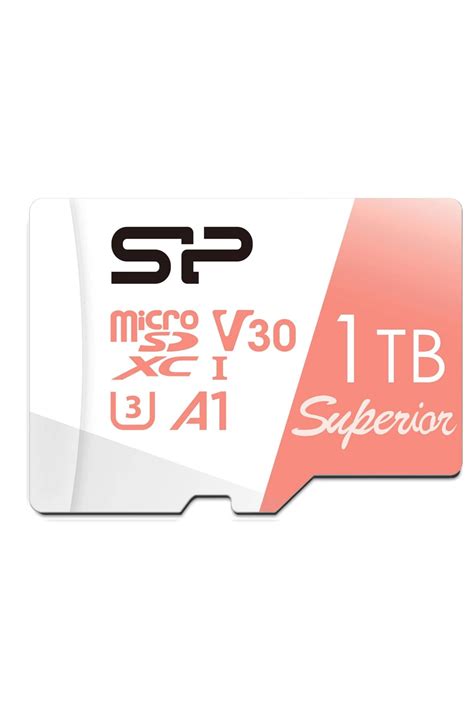
If you consistently find yourself archiving games, the most straightforward long-term solution is to upgrade to a larger microSD card. The Nintendo Switch supports microSD, microSDHC, and microSDXC cards up to 2TB (though 1TB is currently the largest commercially available). This provides ample room for even the largest digital libraries.
How to Transfer Data to a New MicroSD Card:
- Turn off your Nintendo Switch completely.
- Remove the old microSD card.
- Insert the new, larger microSD card.
- Turn on your Switch.
- You’ll need to re-download all your games, as data isn’t directly transferable by simply copying files from one card to another in a PC (due to encryption).
- Alternatively, if you have a PC with two SD card slots or an adapter, you can copy all files from the old card to the new one directly. However, for best results and to ensure no issues with encryption, re-downloading to the new card is often recommended.
Remember that even with a larger card, it’s good practice to occasionally archive games you’ve completed or don’t play often to keep things tidy.
Reassurance: Your Game Saves Are Safe
Throughout all these methods – archiving, deleting software, clearing screenshots, or managing corrupted data – your game save data remains secure on your Nintendo Switch’s internal memory. For added peace of mind, a Nintendo Switch Online subscription includes cloud save backup for most games, allowing your saves to be stored remotely. This means even if something unforeseen happened to your console, your progress would be safe.
Conclusion
Managing your Nintendo Switch’s storage doesn’t have to be a daunting task involving the deletion of precious game saves. By understanding the distinction between game software and save data, and utilizing features like archiving, smart microSD card usage, and regular maintenance, you can keep your console running smoothly with plenty of room for new adventures. Implement these strategies, and you’ll spend less time worrying about storage and more time gaming!


