





How to free up Nintendo Switch storage for new games?
The Nintendo Switch, with its vast library of digital games and constant updates, can quickly run out of its modest internal storage. If you find yourself unable to download new titles or system updates, it’s time to learn how to efficiently manage your console’s memory. Don’t worry, freeing up space is usually a straightforward process.
Check Your Current Storage Situation
Before you start deleting, it’s a good idea to see exactly what’s taking up the most space. Go to the HOME Menu, select System Settings > Data Management. Here you’ll see a breakdown of your Console Memory, microSD Card (if inserted), and Save Data. This overview will help you identify the biggest culprits.
Method 1: Archiving Software
Archiving is an excellent option if you want to keep the game icon on your HOME Menu but don’t plan to play it anytime soon. It removes the game data itself but retains the save data. You can re-download the game at any time from the eShop or your user page.
- From the HOME Menu, highlight the software you want to archive.
- Press the + or – button on your controller.
- Select Data Management > Archive Software.
- Confirm your selection.
This is perfect for games you’ve completed or are taking a break from.
Method 2: Deleting Software
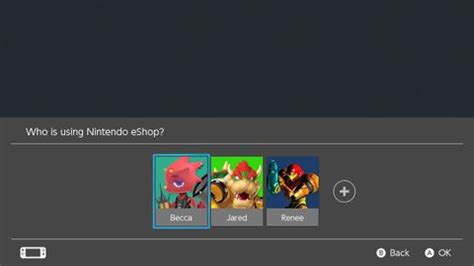
If you’re absolutely sure you won’t play a game again, or it’s a demo you no longer need, deleting it is the most thorough way to free up space. Like archiving, deleting software also retains your save data, which is stored separately.
- From the HOME Menu, highlight the software you want to delete.
- Press the + or – button on your controller.
- Select Data Management > Delete Software.
- Confirm your selection.
Keep in mind that deleting removes the game icon from your HOME Menu, but you can always re-download it from the eShop or your user page if it’s a purchased title.
Method 3: Managing Save Data
Game save data takes up significantly less space than game software, but it can accumulate over time, especially for games with extensive save files. The vast majority of save data is stored on the console’s internal memory and cannot be moved to a microSD card.
- Go to System Settings > Data Management > Delete Save Data.
- Select the game for which you want to delete save data.
- Choose the user’s save data you wish to delete.
Warning: Deleting save data is permanent and cannot be recovered unless you have a Nintendo Switch Online subscription with cloud save backups. Only delete save data if you’re certain you won’t need it.
Method 4: Deleting Screenshots and Videos
The Nintendo Switch allows you to capture screenshots and short video clips of your gameplay. Over time, these can add up, especially if you capture a lot of videos. These are typically stored on your microSD card if one is inserted, or on the console’s internal memory if not.
- From the HOME Menu, open the Album.
- Select the screenshot or video you wish to delete.
- Press A to view it, then press A again to bring up options.
- Select Delete. You can choose to delete one, all for a specific game, or all on the system.
Regularly clearing out unwanted captures can reclaim a surprising amount of space.

Method 5: Expand Storage with a microSD Card
For most users, the most effective and long-term solution to storage woes is to invest in a microSD card. The Nintendo Switch supports microSD, microSDHC, and microSDXC cards up to 2TB (though 2TB cards are not yet widely available). Even a 128GB or 256GB card makes a huge difference.
- Purchase a compatible microSD card.
- Power off your Nintendo Switch completely.
- Insert the microSD card into the slot under the kickstand.
- Power on your Switch. Any new downloads will automatically prioritize the microSD card.
You can also transfer existing downloadable software from your console’s internal memory to the microSD card:
- Go to System Settings > Data Management > Move Data Between System / microSD Card.
- Follow the on-screen prompts to select the software you wish to move.
This method allows you to significantly expand your game library without constantly deleting and re-downloading titles.
Conclusion
Managing your Nintendo Switch storage doesn’t have to be a headache. By regularly archiving or deleting old software, clearing out unnecessary screenshots, and most importantly, utilizing a high-capacity microSD card, you can ensure there’s always plenty of room for the next big adventure. Keep your system organized, and enjoy a seamless gaming experience.


