





How to best manage Nintendo Switch storage for large and small games?
Understanding Your Switch’s Storage Landscape
The Nintendo Switch, in its various iterations (original, Lite, OLED), comes with either 32GB or 64GB of internal storage. While this might seem adequate at first glance, the reality for most gamers is that it fills up astonishingly quickly. Game sizes vary wildly, from a few megabytes for a simple indie title to over 20GB for a graphically intensive AAA release like The Legend of Zelda: Tears of the Kingdom or The Witcher 3: Wild Hunt. This limited built-in space makes external storage, specifically microSD cards, an almost essential accessory for any serious Switch owner.
MicroSD cards expand your storage capacity significantly, with options ranging from 64GB up to 2TB. The console supports microSD, microSDHC, and microSDXC cards, but for optimal performance, especially with larger games, a high-speed card (UHS-I compatible with a read speed of 60-95 MB/s) is recommended.
Why Storage Management Matters for All Game Sizes
It’s not just the behemoth titles that eat up space. While a single large game can monopolize a significant chunk of your internal storage, a collection of smaller digital games can cumulatively become just as problematic. Every digital purchase, every game update, and every piece of downloadable content (DLC) consumes precious bytes. Without a proactive approach to storage management, you’ll quickly find yourself deleting games to make room for new ones, leading to frustration and lost playtime.
Efficient storage management ensures you spend more time playing and less time organizing, keeping your library accessible and your console ready for new releases. It’s about balance: making sure your most-played games are always installed, while still having room to explore new titles.
Strategies for Managing Large Nintendo Switch Games
Archiving vs. Deleting: Know the Difference
- Archiving: This is your primary tool for large digital games. When you archive a game, the game software is deleted, but its icon remains on your Home menu, and your save data is preserved on your console’s internal memory (or cloud if you have Nintendo Switch Online). This allows for quick re-downloading if you decide to play it again. It’s ideal for games you might return to but don’t need installed right now.
- Deleting: This removes both the game software and its icon from your Home menu. Crucially, your save data for that game usually remains on your console’s internal memory. You’d typically delete a game you’re certain you won’t play again, or if you need to troubleshoot installation issues.
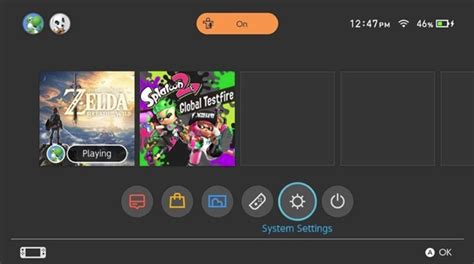
For large games, always prioritize archiving. Go to System Settings > Data Management > Manage Software, select the game, and choose “Archive Software.”
Prioritize MicroSD for Large Digital Titles
If you’ve invested in a large microSD card, ensure your biggest digital downloads are installed there. While the Switch automatically installs to the microSD card if one is present and has space, you can’t easily move games between internal storage and the microSD without deleting and re-downloading. Plan ahead: if a game is massive, ensure your microSD is set as the primary storage for new downloads, or have ample space on it before purchasing.
Consider Physical Cartridges
For the absolute biggest games, purchasing a physical cartridge can save considerable storage space, as the core game data is read directly from the card. However, be aware that updates, patches, and DLC will still need to be downloaded and stored either internally or on your microSD card. So, while it helps, it’s not a complete bypass of storage needs.
Optimizing Storage for Your Library of Smaller Games
Smaller games, especially indies or eShop exclusives, can quickly accumulate. While each might only be a few hundred megabytes, a dozen of them can easily consume several gigabytes.
Regularly Review and Delete Completed Games
Unlike larger, more narrative-driven titles, many smaller games are designed for shorter play sessions or have a finite replay value. Once you’ve completed a small game, especially one without significant multiplayer or endless content, consider archiving or deleting it. Re-downloading a 500MB game is much quicker than re-downloading a 20GB one.
Utilize the Data Management Settings Effectively
The Switch’s System Settings > Data Management menu is your command center. Here you can:
- Manage Software: See all installed games, their size, and archive/delete them.
- Move Data Between System / microSD Card: This option exists primarily for screenshots and video captures, not game software. Game software generally cannot be moved once installed without re-downloading.
- Delete Save Data: This is a last resort, as it permanently removes your progress. Only do this if you are absolutely sure you never want to play that game again and have no emotional attachment to its saves.
General Best Practices for Nintendo Switch Storage
Invest in a Large, Fast MicroSD Card Early
Don’t wait until your internal storage is full. A 256GB, 512GB, or even 1TB microSD card provides ample room for growth. Look for reputable brands and read/write speeds that are suitable for gaming.

Perform Regular Storage Checks
Make it a habit to periodically check your storage in the System Settings. This helps you identify which games are taking up the most space and allows you to make informed decisions before you’re forced to delete something in a hurry.
Leverage Nintendo Switch Online Cloud Saves
If you’re a Nintendo Switch Online subscriber, many (though not all) games support cloud save backups. This is invaluable, as it means even if you delete a game and its save data (unlikely, as save data usually persists), your progress is safe in the cloud. Always double-check if a game supports cloud saves before making drastic deletion decisions.
Don’t Be Afraid to Delete and Re-download
The beauty of digital purchases is that they belong to your account. You can always re-download a game you own from the eShop’s “Redownload” section. Embrace this flexibility. If you’ve finished a game and don’t plan on playing it for a while, delete it to free up space, knowing you can always get it back later.
Conclusion
Managing your Nintendo Switch’s storage, regardless of your game library’s size, is a crucial aspect of maintaining a smooth and enjoyable gaming experience. By understanding the difference between archiving and deleting, prioritizing microSD card usage, and making regular checks, you can effectively juggle massive adventures and a multitude of smaller delights. A well-managed Switch means less frustration and more time diving into your next favorite game.


