

Best methods for setting parental controls on gaming platforms?

Why Parental Controls Are Essential in Modern Gaming
In today’s digital landscape, gaming is an integral part of many children’s lives. While it offers numerous benefits, from problem-solving to social interaction, it also presents challenges. Exposure to inappropriate content, excessive screen time, and unregulated online interactions are valid concerns for parents. Parental controls are powerful tools designed to help you navigate these waters, ensuring a safer and more balanced gaming experience for your child.
Implementing these controls isn’t about restricting fun; it’s about empowering parents to set healthy boundaries and protect their children from potential risks. Most major gaming platforms offer robust built-in features, and understanding how to utilize them effectively is key.
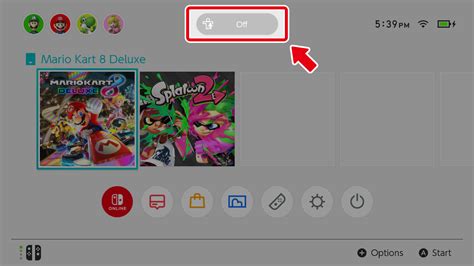
Understanding Core Parental Control Features
While features may vary slightly by platform, most parental control systems share common functionalities. Familiarizing yourself with these will enable you to tailor settings to your child’s age and maturity level.
Age and Content Restrictions
This is perhaps the most fundamental control. It allows you to block games based on their age rating (e.g., ESRB, PEGI, CERO) or specific content descriptors (e.g., violence, language, suggestive themes). Always check the game’s rating before allowing your child to play.
Time Limits and Schedules
Managing screen time is a constant battle for many parents. Parental controls often provide options to set daily play limits, establish specific play schedules, or even enforce bedtimes by locking access to the platform.
Spending Controls and Purchase Restrictions
Accidental or unauthorized in-game purchases can quickly lead to unexpected bills. These controls allow you to require a password for all purchases, set spending limits, or completely disable purchasing capabilities on the device.
Communication and Social Interaction Limits
Online multiplayer games often involve communication with other players. Parental controls can restrict who your child can communicate with, disable voice chat, or block private messages, protecting them from cyberbullying or exposure to inappropriate language.

Platform-Specific Guidance
Each major gaming ecosystem has its own method for managing parental controls. Here’s a brief overview:
Console Gaming (PlayStation, Xbox, Nintendo Switch)
Consoles typically centralize parental controls within the system’s settings, often requiring a parent account and a dedicated PIN. You can usually manage settings directly on the console or through a companion mobile app.
- PlayStation: Access “Family Management” under Account Management to create child accounts, set age restrictions, spending limits, and communication settings.
- Xbox: Use the Xbox Family Settings app or manage settings directly on the console through “Settings > Account > Family settings.” Features include screen time, content filters, and multiplayer restrictions.
- Nintendo Switch: The “Nintendo Switch Parental Controls” mobile app offers granular control over play time, game restrictions, and communication features.

PC Gaming and Digital Stores (Steam, Epic Games, Windows)
PC gaming can be more fragmented, but controls are available:
- Steam: Utilize “Family View” to restrict access to the Steam store, library, friends list, and community features with a PIN.
- Epic Games: Offers a Parental Controls PIN to restrict purchases, set age ratings, and manage friend requests.
- Windows: Microsoft Family Safety allows you to manage screen time across Windows devices, set app and game limits, and filter web content.
Mobile Gaming (iOS and Android)
Mobile devices offer system-wide parental controls:
- iOS (Screen Time): Found in “Settings,” Screen Time allows you to set downtime, app limits, content and privacy restrictions, and restrict purchases.
- Android (Google Family Link): This app lets you manage your child’s device, approve app downloads, track screen time, and set device bedtimes.

Best Practices for Parents
Simply enabling controls isn’t enough; ongoing engagement is crucial:
- Open Communication: Talk to your children about why these controls are in place. Foster an environment where they feel comfortable discussing their online experiences.
- Regular Reviews: As your child grows, their needs and maturity change. Periodically review and adjust parental control settings to align with their development.
- Lead by Example: Demonstrate healthy gaming and screen time habits yourself.
- Stay Informed: Gaming platforms and their features evolve. Stay updated on new games, trends, and control options.

Conclusion
Parental controls are indispensable tools in modern parenting, offering peace of mind and promoting a safer digital environment. By understanding their features and implementing them thoughtfully across various gaming platforms, you can help your children enjoy the benefits of gaming while minimizing its risks. Remember, the goal is not to forbid but to guide, ensuring a healthy and balanced relationship with digital entertainment.