





What mobile game settings optimize battery life and data usage?
Unlocking Longer Playtime and Lower Bills: Optimizing Mobile Game Settings
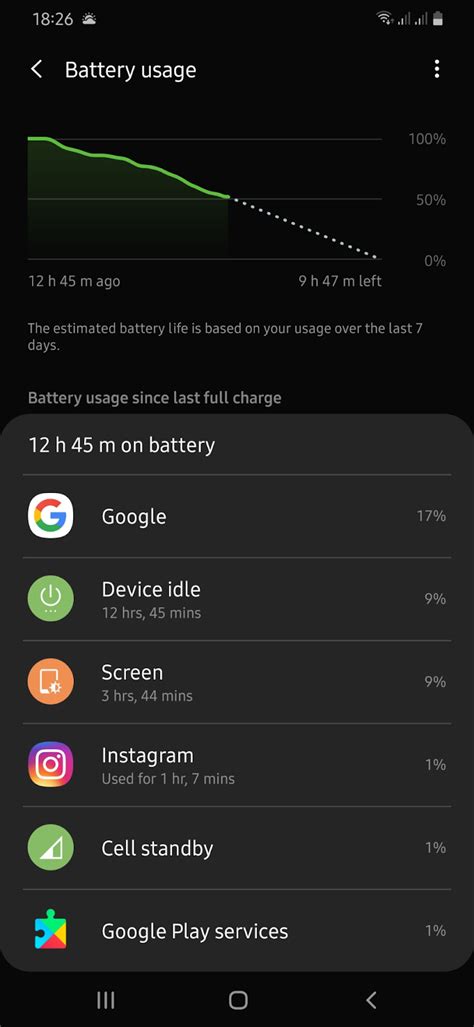
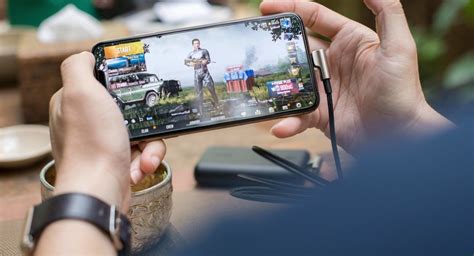
Mobile gaming has become a cornerstone of daily entertainment, offering immersive experiences on the go. However, these demanding applications often come at the cost of rapid battery drain and significant data consumption. Fortunately, with a few strategic adjustments to your game and device settings, you can enjoy extended playtime and keep your data plan in check without sacrificing too much of the fun.
Graphics Settings: The Biggest Power Hogs
The visual fidelity of a game is often the primary culprit for battery drain. High-resolution textures, complex shaders, and elaborate particle effects demand substantial processing power from your phone’s GPU, which in turn consumes more energy. Reducing these elements can drastically improve battery performance.
- Lower Resolution: Most games offer an option to reduce the rendering resolution. While it might make the game look slightly less crisp, the battery savings can be substantial.
- Frame Rate (FPS): Many phones and games default to 60 FPS or higher. Reducing this to 30 FPS can drastically cut down on CPU/GPU usage and battery consumption, especially in non-competitive games where ultra-smooth animation isn’t critical.
- Texture Quality: Lowering texture quality reduces the amount of data the GPU needs to process, saving both battery and sometimes even download/update data.
- Shader/Effect Quality: Turn down or disable settings like reflections, shadows, bloom, and anti-aliasing. These are often subtle visual enhancements but are very resource-intensive.
- Particle Effects: Less detailed or fewer particle effects (explosions, smoke, spells) can also contribute to power savings.
Network and Data Usage Controls
Online mobile games are constantly sending and receiving data, which impacts both your data plan and battery life, as the phone’s modem works harder. Managing these settings is crucial for both cost and longevity.
- Prefer Wi-Fi: Always connect to Wi-Fi when available. Wi-Fi generally consumes less battery than cellular data, and it’s almost always unlimited, saving your mobile data cap.
- Disable Background Data: Restrict background data usage for other apps while gaming. This prevents other applications from consuming data and power unnecessarily. Most Android phones have this option in app-specific settings, and iOS allows you to toggle ‘Background App Refresh’.
- Game Updates on Wi-Fi Only: Ensure your game store and individual games are set to download updates only when connected to Wi-Fi. Large updates on mobile data can quickly deplete your allowance.
- Cloud Saves/Sync Frequency: If a game syncs progress to the cloud, check if you can adjust the frequency or set it to Wi-Fi only. Constant syncing uses data and battery.
- Turn Off Voice Chat (If Not Needed): Voice chat in multiplayer games can consume significant data and battery. If you’re not actively communicating, consider muting or disabling it.

Device-Wide Optimizations for Extended Play
Beyond in-game settings, your phone’s general configuration plays a vital role in how long you can game and how much data is used. These system-level adjustments can provide significant benefits.
- Screen Brightness: The screen is often the single biggest battery consumer. Reduce brightness to the lowest comfortable level, or use adaptive brightness.
- Disable Notifications: Turn on ‘Do Not Disturb’ or a dedicated ‘Gaming Mode’ to prevent interruptions. Notifications light up the screen and can pull resources, waking the CPU.
- Close Background Apps: Before starting a demanding game, close all unnecessary apps running in the background. This frees up RAM and CPU cycles, reducing overall power draw.
- Power Saving Mode: Activate your phone’s built-in power-saving mode. While it might slightly throttle performance, the battery gains are often worth it for casual gaming sessions.
- Vibration and Haptic Feedback: While immersive, vibration motors consume a noticeable amount of power. Turn off in-game vibrations and haptic feedback if you’re looking to conserve battery.
- Location Services: Many games don’t require GPS, but some might enable it by default. Ensure location services are turned off for games that don’t specifically need them.
Conclusion
Optimizing your mobile game settings for better battery life and data usage doesn’t mean you have to give up on gaming. By being mindful of graphics quality, network preferences, and overall device management, you can significantly enhance your mobile gaming experience, allowing for longer, more enjoyable sessions without constantly searching for a charger or worrying about exceeding your data cap. Experiment with these settings to find the perfect balance between performance, visuals, and endurance that suits your gaming habits.