





How to free up console storage for new games?
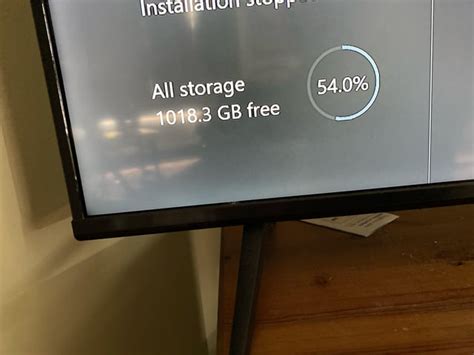
There’s nothing quite like the excitement of downloading a highly anticipated new game, only to be met with the dreaded ‘not enough storage space’ error. With modern game files growing larger and larger, managing your console’s storage is no longer a luxury but a necessity. Whether you’re a Nintendo Switch, PlayStation, or Xbox gamer, understanding how to efficiently free up space can save you a lot of headaches and ensure you’re always ready for your next digital adventure.
Understanding Your Console’s Storage Landscape
Before diving into solutions, it’s helpful to know what typically consumes the most space on your console. Games themselves are the biggest culprits, especially modern titles with high-resolution textures and extensive content. Beyond the main game files, you also have:
- Game Updates and Patches: These can add significant size over time.
- DLC (Downloadable Content): Expansions and extra content.
- Game Save Data: While usually small, they accumulate.
- Screenshots and Video Clips: High-resolution captures can quickly add up.
- System Files: The console’s operating system also takes a chunk of internal storage.
Core Strategies for Every Console
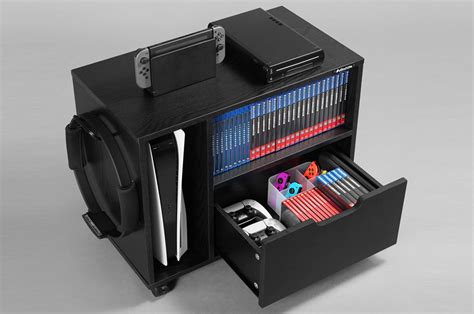
While each console has its unique features, some storage management principles apply across the board.
1. Uninstall Unplayed Games
This is the most straightforward and often most effective method. Go through your game library and identify titles you’ve finished, no longer play, or don’t plan to revisit soon. Uninstalling them frees up significant space. Don’t worry, your purchase is typically tied to your account, so you can always redownload them later if you change your mind.
2. Manage Game Save Data
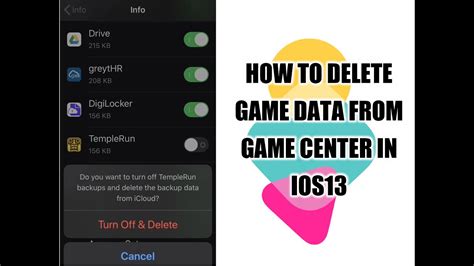
Most modern consoles offer cloud save services (Nintendo Switch Online, PlayStation Plus, Xbox Live Gold/Game Pass Ultimate). Ensure your critical game saves are backed up to the cloud before deleting a game, or manually manage them if you prefer. Local save data for uninstalled games can often be safely deleted, but always double-check if you plan to play the game again in the future.
3. Clear Screenshots and Video Clips
It’s easy to accumulate hundreds of screenshots and video clips over time. Regularly review your capture gallery and delete anything you don’t need or transfer them to an external drive or cloud service (like Google Drive, OneDrive, or YouTube) for safekeeping.
Console-Specific Storage Solutions
Nintendo Switch: Archiving and microSD Cards
The Switch’s internal storage (32GB or 64GB for OLED) fills up quickly. Nintendo offers a smart solution:
- Archive Software: Instead of deleting, you can ‘Archive’ games. This removes the game data but keeps the icon on your home screen and saves your game data. It’s quick and easy to redownload the game later.
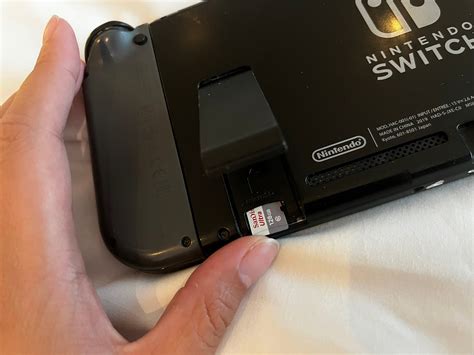
- MicroSD Cards: This is the most crucial upgrade for Switch owners. A high-capacity microSD card (up to 2TB supported) can drastically expand your storage, allowing you to install many more digital games. It’s recommended to move as many games as possible to the microSD card.
PlayStation (PS4 & PS5): External and Internal Upgrades
PlayStation consoles offer robust storage expansion options:
- PS4: External Hard Drives: You can connect a compatible external HDD (USB 3.0) to your PS4 to store and play PS4 games directly. This is a cost-effective way to add terabytes of space.
- PS5: M.2 SSD Expansion: The PS5 allows users to install a compatible M.2 NVMe SSD into a dedicated internal slot. This is the only way to expand the console’s ultra-fast internal storage for PS5 games. Ensure the M.2 SSD meets Sony’s specific speed and heatsink requirements.
- PS5: External USB Drives for PS4 Games: You can also connect an external USB drive to your PS5 to store and play PS4 games. While PS5 games can be stored on an external drive, they cannot be played directly from it and must be transferred back to the internal or M.2 SSD for gameplay.

Xbox (Xbox One & Series X|S): Expansion Cards and External Drives
Xbox consoles provide flexible storage solutions:
- Xbox One: External Hard Drives: Like PS4, Xbox One consoles support external USB 3.0 HDDs for storing and playing games.
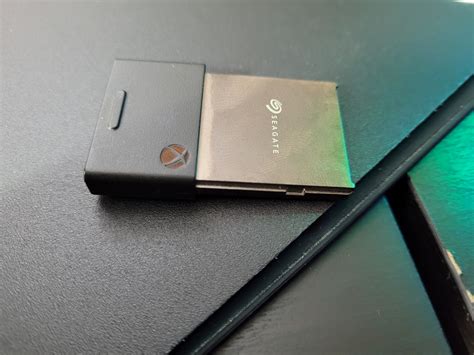
- Xbox Series X|S: Seagate Storage Expansion Card: For Xbox Series X|S optimized games, the proprietary Seagate Storage Expansion Card (a CFexpress Type B SSD) is the only way to expand the internal NVMe SSD storage while retaining the console’s full speed and features (like Quick Resume).
- Xbox Series X|S: External USB Drives for Backward Compatible Games: You can use standard external USB 3.0 HDDs to store and play Xbox One, Xbox 360, and original Xbox games. Series X|S optimized games can be stored on these drives but must be moved to the internal SSD or Seagate Expansion Card to be played.
- Quick Resume Management: On Series X|S, the Quick Resume feature holds games in suspended states, which can use up a small amount of space. While not a primary storage hog, closing games from Quick Resume (via the Xbox button → My games & apps → Groups → Quick Resume) can occasionally free up minor system resources.
Proactive Storage Management Tips
To avoid future ‘storage full’ alerts, consider these proactive measures:
- Regular Reviews: Make it a habit to check your console’s storage usage every few months.
- Prioritize Downloads: Only download games you intend to play immediately.
- Consider Physical Editions: While digital is convenient, physical game discs for PlayStation and Xbox often require less internal storage as some data is read from the disc, though significant install sizes and updates are still common.
Conclusion
Running out of space on your console doesn’t have to be a barrier to enjoying new games. By understanding what fills your storage, regularly clearing out unnecessary data, and leveraging the expansion options specific to your Nintendo Switch, PlayStation, or Xbox, you can effectively manage your digital library. Stay on top of your storage, and you’ll always have room for the next big adventure.


