Optimize Switch settings for better game performance or extended battery life?
Navigating the Nintendo Switch Performance vs. Battery Life Dilemma
The Nintendo Switch offers incredible versatility, allowing gamers to enjoy their favorite titles on a big screen or on the go. However, this flexibility often presents a crucial choice: do you optimize your console’s settings for the best possible game performance, or do you prioritize extending its battery life for longer play sessions away from an outlet? This article will guide you through the key settings and trade-offs to help you strike the perfect balance for your gaming needs.

Prioritizing Peak Game Performance
If your goal is the smoothest frame rates, crispest visuals, and most responsive gameplay, especially in demanding titles, here’s how to tweak your Switch settings:
- Play Docked: This is the most significant factor. When docked, the Switch can draw more power, allowing it to run games at higher resolutions and often more stable frame rates.
- TV Resolution: Go into System Settings > TV Output > TV Resolution and ensure it’s set to “Automatic” or your TV’s native resolution (e.g., 1080p). While the Switch can output 4K through some upscalers, its native output is typically 1080p docked and 720p handheld.
- RGB Range: For optimal color, set RGB Range to “Full Range” if your TV supports it (System Settings > TV Output).
- System and Game Updates: Always keep your console’s firmware and game software updated. Updates often include performance enhancements and bug fixes.
- Turn Off Background Downloads: Ensure no large downloads are running in the background while you play, as this can consume system resources.
Remember that while these settings help, the ultimate performance is often limited by the game’s optimization and the Switch’s hardware capabilities. Some games use dynamic resolution scaling to maintain frame rates.
Maximizing Battery Life for Extended Play
When you’re away from a charger and want to squeeze every last minute out of your Switch’s battery, these adjustments will be your best friend:
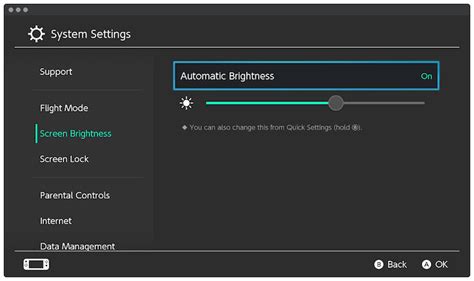
- Reduce Screen Brightness: This is by far the biggest battery drainer. Go to System Settings > Screen Brightness and manually lower it to a comfortable level. You can also turn off “Auto-Brightness” for more control.
- Enable Airplane Mode: If you’re playing offline and don’t need Wi-Fi or Bluetooth, activate Airplane Mode (System Settings > Airplane Mode). This disables wireless communication, significantly saving power.
- Turn Off Vibration: Haptic feedback can be immersive, but it uses power. Disable controller vibration in System Settings > Controllers and Sensors > Controller Vibration.
- Set Shorter Auto-Sleep Timers: Ensure your Switch goes to sleep quickly when inactive. Adjust “Auto-Sleep (Console Screen)” and “Auto-Sleep (Playing on TV)” in System Settings > Sleep Mode to shorter durations (e.g., 5-10 minutes).
- Lower Speaker Volume or Use Headphones: The internal speakers consume more power than headphones. If you must use speakers, keep the volume low.
- Disconnect Unused Controllers: If you have extra Joy-Cons or Pro Controllers connected wirelessly but not in use, disconnect them.

The Trade-Offs: Finding Your Balance
It’s clear that optimizing for performance and optimizing for battery life often involve conflicting adjustments. A brighter screen and active wireless connections contribute to a more vibrant and connected gaming experience but drain the battery faster. Conversely, a dim screen and disabled wireless features save power but might lessen immersion or connectivity.
For everyday use, many players find a middle ground. They might keep auto-brightness on, use Wi-Fi, but ensure auto-sleep is active. When going on a long trip, they’ll lean heavily into battery-saving modes. The key is understanding these levers and adjusting them according to your immediate environment and gaming goals.

Additional Considerations and Quick Tips
- Switch Model Matters: The original Switch (2017) has the shortest battery life, while the V2 (2019) offers significantly improved longevity. The Switch OLED boasts the best battery performance and a more vibrant screen. The Switch Lite is handheld-only and also has good battery life.
- External Power Banks: For truly extended portable play, a high-capacity USB-PD compatible power bank is invaluable, essentially bypassing the internal battery limits.
- Proper Charging Habits: While modern batteries are more robust, avoiding constant deep discharges and keeping the console charged can contribute to overall battery health over its lifespan.
- Docking Regularly: If you primarily play docked, your battery will naturally last longer as it won’t be in heavy use.
Conclusion
The beauty of the Nintendo Switch lies in its adaptability. Whether you’re chasing every frame in a competitive game or embarking on an epic RPG journey far from an outlet, the console provides the tools to tailor its performance. By understanding and strategically adjusting settings like screen brightness, wireless connectivity, and display output, you can consciously choose to prioritize either an uncompromised visual and performance experience or maximum playtime on a single charge. Experiment with these tips to find the perfect configuration that enhances your unique gaming adventures.