





Why are my Switch games lagging? Fixes?
Understanding Why Your Nintendo Switch Games Lag
It’s incredibly frustrating when your immersive gaming experience on the Nintendo Switch is interrupted by lag. Whether it’s online multiplayer stuttering or single-player adventures dropping frames, performance issues can quickly dampen the fun. Before you throw your Joy-Cons, let’s explore the most common reasons your Switch games might be lagging and, more importantly, how to fix them.
Common Causes of Nintendo Switch Lag and How to Fix Them
1. Internet Connection Issues (Especially for Online Games)
This is a prime suspect if you primarily experience lag during online multiplayer games. A weak, unstable, or slow Wi-Fi connection can cause significant delays, often referred to as ‘ping’ or ‘latency’ lag.
Fixes:
- Improve Wi-Fi Signal: Move your Switch closer to your Wi-Fi router, or try to minimize obstructions between them.
- Reduce Network Congestion: Disconnect other devices hogging bandwidth on your network.
- Use a Wired Connection: For the most stable experience, invest in a USB Ethernet adapter for your Switch dock and connect it directly to your router.
- Restart Your Router: A simple router reboot can often clear up minor network issues.
2. Console Overheating or Performance Throttling
Like any electronic device, if your Switch gets too hot, its performance can suffer as a protective measure to prevent damage. This is more common during long gaming sessions or if the console’s vents are blocked.
Fixes:
- Ensure Proper Ventilation: Make sure the air vents on the top and bottom of your Switch (and on the dock) are not blocked. Avoid placing it on soft surfaces like blankets.
- Clean Vents: Gently clean any dust accumulated in the vents using compressed air.
- Take Breaks: Give your Switch a break to cool down, especially after extended play.
3. Software Glitches or Outdated Software
Sometimes, the problem isn’t hardware but software. An outdated system, an unpatched game, or even a temporary software glitch can cause performance hiccups.
Fixes:
- Restart Your Switch: A full system reboot can resolve many temporary software issues. Hold the POWER Button for three seconds, then select ‘Power Options’ > ‘Restart’.
- Update System Software: Ensure your Switch’s operating system is up to date. Go to System Settings > System > System Update.
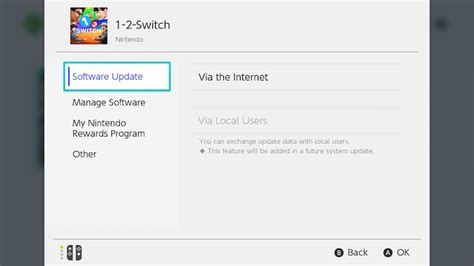
- Update Games: Make sure the specific game you’re playing is updated to its latest version. Highlight the game icon on the HOME Menu, press ‘+’, and select ‘Software Update’ > ‘Via the Internet’.
- Clear Cache: In System Settings > System > Formatting Options > Clear Cache. This won’t delete save data.
4. Slow or Nearly Full Storage (SD Card Performance)
If your games are installed on a slow microSD card, or if your console’s internal storage is almost full, the Switch might struggle to load assets quickly, leading to lag and longer loading times.
Fixes:
- Use a High-Speed microSD Card: Ensure your microSD card is a high-speed card (UHS-I compatible with a U1 or U3 speed class). Lower-quality cards can significantly impact game performance.
- Free Up Space: Delete old games or screenshots you no longer need. You can archive games to save space while keeping save data.
- Re-download Games: Sometimes a corrupted download can cause issues. Delete the problematic game and re-download it from the eShop.
5. Game-Specific Optimization Issues
Occasionally, the problem isn’t your Switch but the game itself. Some games are not as well optimized as others and might simply struggle to maintain a consistent frame rate, especially during graphically intensive scenes.
Fixes:
- Check Community Forums: See if other players are reporting similar issues with the specific game.
- Wait for Patches: Developers often release updates to improve performance. Keep your games updated.
- Adjust In-Game Settings (if available): Some games offer graphics or performance settings. Try lowering them if possible.
General Troubleshooting Steps
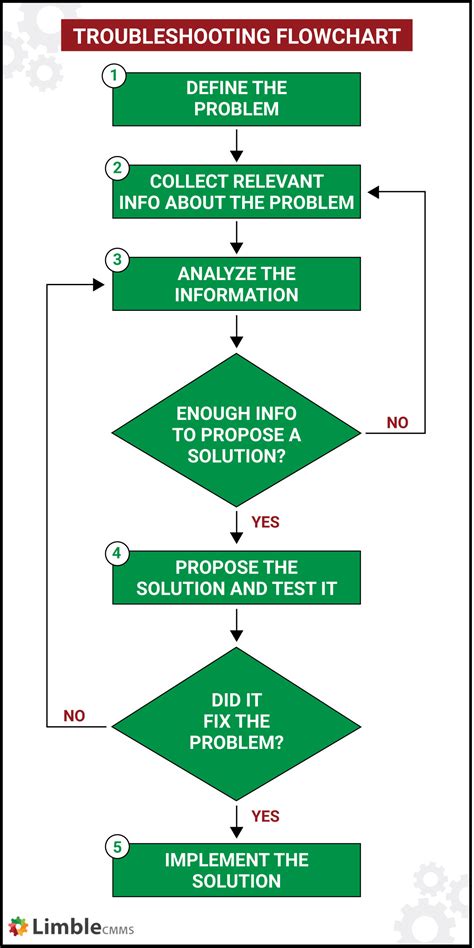
When in doubt, a systematic approach can help narrow down the problem:
- Test Different Games: Does the lag occur in all games, or just one? This helps determine if it’s a console-wide issue or game-specific.
- Try Docked vs. Handheld Mode: Some games perform differently depending on whether the Switch is docked or in handheld mode. Test both.
- Check for Corrupted Data: From the HOME Menu, highlight the problematic game, press ‘+’, select ‘Software Information’ > ‘Manage Software’ > ‘Check for Corrupt Data’.
- Perform a Factory Reset (Last Resort): If all else fails and you suspect a deeper software issue, a factory reset can solve it, but remember to back up your save data where possible (via Nintendo Switch Online cloud saves) as it will wipe everything.
Conclusion
Lagging games on your Nintendo Switch can be incredibly frustrating, but by systematically checking your internet connection, console’s health, software status, and storage, you can often identify and resolve the issue. Most problems are easily fixed with a simple restart or update. Happy gaming!


