What’s the best SD card for Switch digital game storage & management?

Why an SD Card is Essential for Your Nintendo Switch
The Nintendo Switch, while a marvel of portable gaming, comes with a rather limited amount of internal storage. The original model and the Switch Lite offer 32GB, while the OLED model boasts a slightly more generous 64GB. While this might sound like a decent amount, a significant portion is reserved for the operating system, leaving users with much less for actual game data.
With digital game downloads becoming increasingly popular – and often the only option for smaller indie titles or when physical cartridges are scarce – this internal space quickly diminishes. Modern AAA titles can easily consume tens of gigabytes each, making an external storage solution not just a luxury, but a necessity for any avid Switch gamer who prefers digital downloads.
Understanding Switch SD Card Requirements
Before diving into specific recommendations, it’s vital to understand what kind of SD card the Nintendo Switch supports and what technical specifications matter most for gaming performance.
MicroSDHC vs. MicroSDXC
- MicroSDHC (High Capacity): These cards range from 4GB to 32GB. While compatible, their limited capacity makes them less ideal for extensive digital libraries.
- MicroSDXC (eXtended Capacity): Ranging from 64GB up to 2TB, these are the recommended type for the Nintendo Switch. They offer the necessary storage space for multiple large games.
Speed Classes: UHS-I, U3, and Application Performance
SD card speeds are crucial for game loading times, updates, and overall system responsiveness. The Switch primarily utilizes the UHS-I interface, meaning you won’t benefit from faster UHS-II or UHS-III cards. Within UHS-I, look for these ratings:
- UHS Speed Class 1 (U1) / Class 10: Guarantees a minimum sequential write speed of 10 MB/s. Acceptable, but not optimal.
- UHS Speed Class 3 (U3) / V30: Guarantees a minimum sequential write speed of 30 MB/s. This is the sweet spot for the Switch, offering significantly better performance for loading games and general use.
- Application Performance Class (A1 or A2): These ratings indicate performance for running applications, which is relevant for games. A1 guarantees a minimum random read of 1500 IOPS and random write of 500 IOPS. A2 offers even higher random performance (4000 IOPS read, 2000 IOPS write) but might not be fully utilized by the Switch’s hardware, meaning A1 is usually sufficient and more cost-effective.
Key Factors to Consider When Buying
1. Capacity: How Much Space Do You Really Need?
This is arguably the most important decision. Consider your gaming habits:
- 128GB: A good starting point for casual gamers or those who mostly buy physical cartridges but want space for a few digital titles and updates.
- 256GB: Ideal for most digital-first gamers. It provides ample space for a significant library of AAA and indie games without needing to constantly archive.
- 512GB: Recommended for avid digital collectors or those who want to future-proof their storage for years to come. You’ll rarely need to delete games with this much space.
- 1TB+: While available, these are often premium-priced and might be overkill for many users. Only consider if you truly plan to own virtually every major digital Switch game.
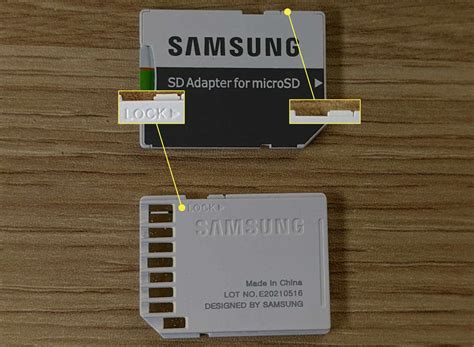
2. Speed: Read and Write Performance
As discussed, prioritize a card with a U3 speed class. While theoretical maximum read speeds of 100MB/s+ are common for top-tier cards, the Switch’s internal reader maxes out around 95MB/s. Focus on cards that consistently deliver speeds close to this maximum for optimal game loading.
3. Brand Reliability and Warranty
Stick with reputable brands known for quality and reliability. Cheap, no-name cards often have inflated specs or higher failure rates, which can lead to data loss. Leading brands like SanDisk, Samsung, and Lexar offer robust products and warranties.
Top Recommended SD Cards for Nintendo Switch
Based on performance, reliability, and value, these brands and specific lines consistently rank high for Switch users:
SanDisk microSDXC Cards
SanDisk is an official partner with Nintendo, offering officially licensed cards. However, their standard ‘Ultra’ and ‘Extreme’ lines also work perfectly and are often better value. Look for:
- SanDisk Ultra (A1/U1): A solid, budget-friendly choice that performs well.
- SanDisk Extreme (A2/U3): Offers slightly faster random read/write speeds, making it a premium choice for slightly quicker loading times and smoother gameplay for demanding titles.
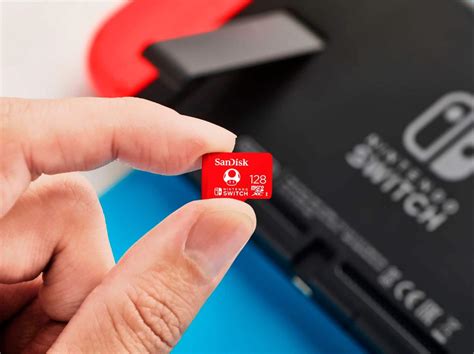
Samsung EVO Select / Plus microSDXC Cards
Samsung’s EVO line offers excellent performance and reliability at competitive prices. The ‘Select’ and ‘Plus’ cards are U3 rated and come in various capacities, making them a fantastic alternative to SanDisk.
Lexar Play microSDXC Cards
Lexar has re-emerged as a strong contender in the memory card market. Their ‘Play’ line is specifically designed for gaming devices, offering A1/U3 speeds and good value.
Installing and Managing Your Switch SD Card
First-Time Setup and Formatting
Installing an SD card in your Switch is straightforward:
- Turn off your Nintendo Switch completely (hold power button, then ‘Power Options’ > ‘Turn Off’).
- Open the kickstand on the back of the console to reveal the microSD card slot.
- Insert the microSD card into the slot until it clicks into place, with the label facing the same direction as the console’s screen.
- Close the kickstand and power on your Switch.
- The Switch will automatically detect and format the card. If not, navigate to System Settings > System > Formatting Options > Format microSD Card.

Transferring Games and Data
Once installed, new digital games and updates will automatically save to your microSD card if there’s enough space. For games already downloaded to the internal storage, you cannot directly move them to the SD card. Instead, you must archive the software (deleting the game data but keeping the save data) and then redownload it, at which point it will install to the SD card.
Monitoring Your Storage
To check your available space, go to System Settings > Data Management. Here you can see how much space is used on your internal memory and microSD card, manage software, and archive data.
Conclusion: Make the Smart Choice for Seamless Gaming
Investing in a high-quality microSD card is one of the best upgrades you can make for your Nintendo Switch experience. Prioritize capacity based on your gaming habits, aim for a U3 speed rating from a reputable brand like SanDisk, Samsung, or Lexar, and you’ll ensure your digital game library has all the room it needs to grow, providing faster loading times and hassle-free management for countless hours of enjoyment.