





Switch storage full? Optimize digital game space: microSD card best practices.

The Ever-Growing Digital Library: Why Your Switch Storage Fills Up
For many Nintendo Switch owners, the thrill of discovering new digital titles or snagging a great eShop deal often comes with a looming headache: the dreaded “insufficient space” message. The Nintendo Switch, with its modest 32GB or 64GB of internal storage (a significant portion of which is reserved for the system itself), can quickly become a bottleneck for avid gamers. Digital downloads, game updates, and even game saves accumulate rapidly, making effective storage management crucial for an uninterrupted gaming experience.
MicroSD Cards: Your Essential Storage Expansion Solution
The good news is that Nintendo designed the Switch with expansion in mind, offering a dedicated slot for microSD cards. These tiny powerhouses are not just an optional accessory; they are virtually essential for anyone who downloads more than a handful of digital games. A high-capacity microSD card can transform your Switch from a cramped digital closet into a spacious game archive, ensuring you always have room for that next big adventure.
Choosing the Right MicroSD Card: Capacity and Speed
Not all microSD cards are created equal, and selecting the right one is key to optimal performance. Here’s what to look for:
- Capacity: While 64GB might seem like an upgrade, many recommend starting with 128GB, 256GB, or even 512GB for a future-proof solution. Some users opt for 1TB cards, especially if they plan on a fully digital library. Consider your gaming habits – how many games do you typically keep installed?
- Speed: This is critical for game loading times. Look for cards with a UHS-I (Ultra High Speed – Phase I) interface and a Speed Class rating of U1 or U3. Even better, look for cards with an A1 or A2 App Performance Class rating, as these are optimized for running applications (like games) directly from the card. While A2 offers theoretical advantages, A1 is generally sufficient and often more cost-effective. Stick to reputable brands like SanDisk, Samsung, or Lexar to ensure reliability and advertised speeds.

Installing and Setting Up Your MicroSD Card
Installing a microSD card is straightforward:
- Power off your Nintendo Switch completely (hold the Power button and select “Power Options” > “Turn Off”).
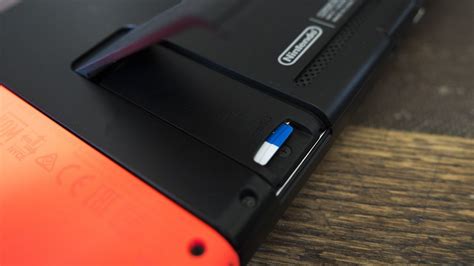
- Locate the microSD card slot on the back of the Switch (under the kickstand).
- Insert the card with the label facing the same direction as the Switch screen until it clicks into place.
- Power on your Switch. The system will automatically detect and format the card for use. All subsequent digital downloads will default to the microSD card until it’s full.
Best Practices for Game and Data Management
Once your microSD card is in place, intelligent management ensures you get the most out of your expanded storage:
- Prioritize microSD for Digital Games: New downloads will automatically go to your microSD card. If your internal storage is already full, you can move existing downloaded games.
- Moving Games: Navigate to System Settings > Data Management > Move Data Between System / microSD Card. You can select individual titles to transfer. This is useful for moving larger games from internal storage to your new card.
- Archiving vs. Deleting: When space runs low, the Switch offers two options for installed software:
- Archive Software: This removes the game data but keeps the icon on your Home screen and saves data on your internal storage. You can redownload the game anytime without losing progress. This is the recommended approach for games you might play again.
- Delete Software: This removes the game data and its icon. Save data remains on your internal storage. Only use this if you’re sure you won’t play the game again soon or need the icon off your Home screen.
- Save Data: Crucially, game save data is ALWAYS stored on the Switch’s internal memory and cannot be moved to a microSD card. This protects your progress even if you swap or remove cards.
Advanced Tips for Ultimate Storage Optimization
Beyond the basics, a few extra habits can keep your Switch lean and ready for action:
- Regularly Check Storage Usage: Go to System Settings > Data Management to see a clear breakdown of how your space is being used on both internal memory and your microSD card. This helps identify storage hogs.
- Manage Screenshots and Videos: High-resolution screenshots and video clips (especially longer ones) can take up surprisingly large amounts of space. Regularly offload these to a computer or social media, or delete old ones you no longer need.
- Consider Physical Cartridges: For games you know you’ll play long-term or those with massive file sizes, buying a physical cartridge can save valuable digital storage space. While updates and DLC still take up room, the base game data won’t.
- Backup Your MicroSD Card: Although not directly supported by Nintendo’s system, if you have important non-game data on your card (e.g., homebrew content if applicable), periodically backing up the card to a computer is wise. For official games, simply redownloading them is the official “backup.”
Enjoy a Limitless Gaming Experience
A full Nintendo Switch storage doesn’t have to be a barrier to your gaming fun. By understanding the role of microSD cards, choosing the right one, and implementing smart data management practices, you can dramatically expand your digital library and ensure a seamless, enjoyable experience. Never again miss out on an eShop sale or a new release because of storage constraints – your Switch, supercharged with a high-capacity microSD, is ready for anything.


