Switch storage full? Maximize console space for more digital games.
The Ever-Growing Digital Game Library Dilemma
The Nintendo Switch has revolutionized portable gaming, offering a vast library of titles ranging from indie gems to blockbuster AAA experiences. However, with the convenience of digital downloads comes a common hurdle: storage limitations. Many Switch owners quickly find their console’s internal memory (32GB for the original/Lite, 64GB for the OLED model) filling up, often much faster than anticipated. This can be frustrating, especially when a highly anticipated game update or new purchase is blocked by insufficient space.
But fear not! Running out of space doesn’t mean you have to stop buying games. With a few smart strategies and the right tools, you can significantly expand your Switch’s capacity and keep your digital library thriving.
Understanding Your Switch’s Storage Landscape
Before diving into solutions, it’s crucial to understand how the Switch manages its storage. Your console has a fixed amount of internal NAND memory. While some of this is reserved for the system’s operating software, the rest is available for game downloads, save data, screenshots, and video captures.
For most users, especially those who prefer digital titles, this internal memory is simply not enough. This is where microSD cards come into play, acting as the primary expansion method. The Switch supports microSD, microSDHC, and microSDXC cards up to a staggering 2TB, providing ample room for even the most extensive game collections.
Immediate Solutions: Freeing Up Internal Space
1. Delete or Archive Unplayed Games
The quickest way to reclaim space is to manage your existing software. Go to System Settings > Data Management > Manage Software. Here you’ll see a list of all your installed games and their sizes. You have two primary options:
- Delete Software: This completely removes the game data from your console. However, your save data for that game remains intact! You can redownload the game anytime from the eShop or your user page.
- Archive Software: This removes the game data but leaves the icon on your Home menu. It’s essentially a quick way to uninstall without completely erasing the game’s presence. Save data is also preserved.
Prioritize deleting large games you’ve completed or haven’t touched in ages. Remember, save data takes up very little space compared to the game itself.
2. Cull Your Screenshots and Video Captures
While often overlooked, a vast collection of screenshots and video clips can surprisingly eat into your storage. Navigate to the Album on your Home menu. You can review your media and delete unnecessary items. For precious memories, consider transferring them to a computer or uploading them to social media before deleting them from your console.
The Ultimate Expansion: Investing in a MicroSD Card
If you’re serious about digital gaming, a high-capacity microSD card is non-negotiable. It’s the most effective and straightforward way to dramatically increase your Switch’s storage.
Choosing the Right MicroSD Card
- Capacity: Aim for at least 128GB, but 256GB, 512GB, or even 1TB cards offer much better long-term value, especially with frequent eShop sales.
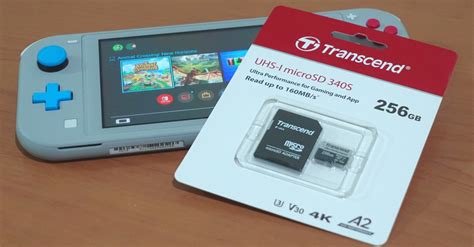
- Speed: Look for cards with a high “UHS-I” speed class (U1 or U3) and a “Video Speed Class” (V10, V30). While the Switch doesn’t fully utilize the fastest speeds, a good read/write speed will ensure smoother game loading and installation times. Reputable brands like SanDisk, Samsung, and Lexar are generally recommended.
Installation and Data Transfer
Installing a microSD card is simple: just open the kickstand on the back of your Switch and slide the card into the slot until it clicks. Your Switch will automatically recognize it.
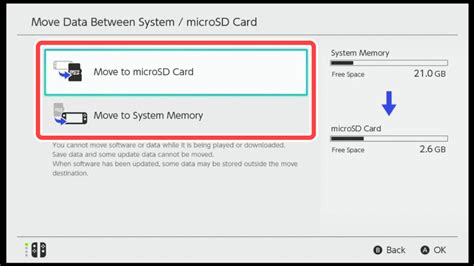
Once inserted, you can move existing game data from your internal memory to the microSD card. Go to System Settings > Data Management > Move Data Between System / microSD Card. This process transfers the game files, freeing up your internal storage while keeping your save data where it belongs (internal memory).
Optimizing Future Downloads
With a microSD card installed, new digital game downloads will automatically be saved to it by default. This ensures your internal memory is primarily reserved for save data (which cannot be stored on a microSD card) and system updates.
If you ever remove a microSD card, games installed on it will no longer be accessible. You can simply reinsert the card to regain access. If you’ve deleted a game but want to play it again, you can always redownload it from the Nintendo eShop under your user profile’s “Redownload” section.
Conclusion: Game On, Worry-Free!
Managing your Nintendo Switch’s storage doesn’t have to be a headache. By regularly archiving or deleting unplayed games, cleaning up media, and most importantly, investing in a high-capacity microSD card, you can significantly expand your console’s space. This proactive approach ensures that you’ll always have room for the next big adventure, allowing you to focus on what truly matters: playing more games!