





Switch storage full? How to free up space and pick the best microSD card for games?
Why Your Switch Storage Fills Up So Fast
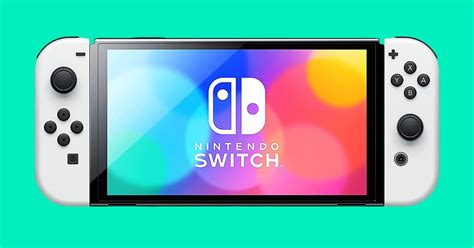
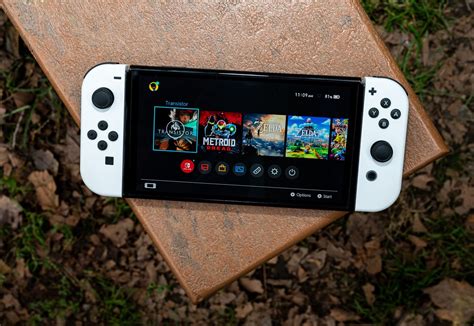
The Nintendo Switch, a marvel of portable gaming, comes with a respectable but often quickly consumed 32GB (or 64GB for the OLED model) of internal storage. While that might seem like plenty at first glance, a handful of large digital games, system updates, save data, and screenshot/video captures can quickly push it to its limits. Modern AAA titles can easily consume tens of gigabytes, making the internal storage a bottleneck for avid digital game collectors.
Quick Ways to Free Up Space on Your Switch
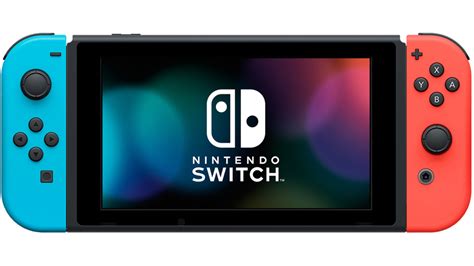
Before you rush to buy a new microSD card, there are several effective ways to clear out some breathing room on your Switch’s internal memory.
Archive Software
This is your best friend for games you might want to play again. Archiving deletes the game’s core data, freeing up significant space, but keeps its icon on your HOME Menu and (crucially) your save data. If you wish to play it again, you can redownload it from the eShop or your user page. To archive a game:
- Select the game icon on the HOME Menu.
- Press the + or – button to open the Options menu.
- Select “Manage Software” > “Archive Software.”
Delete Software
If you’re absolutely certain you won’t play a game again, you can delete it. This removes the game data entirely, but also keeps your save data. You can redownload it later if you change your mind. The steps are similar to archiving, but you select “Delete Software” instead.
Delete Save Data
This should be a last resort for games you’ve truly finished and have no intention of ever revisiting, as deleting save data is permanent and cannot be recovered. Your game progress, character stats, and achievements will be lost. To delete save data:
- Go to System Settings > Data Management > Delete Save Data.
- Choose the game and confirm.
Delete Screenshots and Videos
These can accumulate quickly, especially if you capture a lot of gameplay moments. They are easy to offload or delete:
- From the HOME Menu, select “Album.”
- Select the images/videos you wish to delete or move.
- You can also transfer them to a computer via a USB-C cable or to a microSD card.
Choosing the Best microSD Card for Your Switch
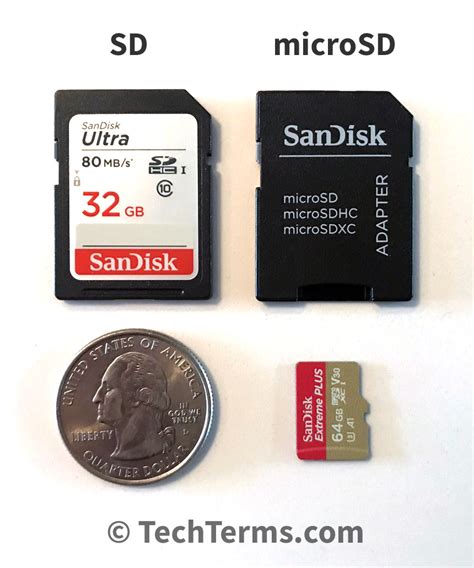
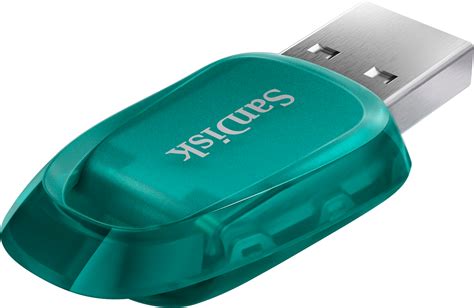
Once you’ve cleared what you can, or if you simply want to download more games without worry, a microSD card is the essential upgrade. The Nintendo Switch supports microSD (up to 2GB), microSDHC (4GB – 32GB), and microSDXC (64GB and above) cards. For modern gaming, microSDXC is the way to go.
Capacity: How Much Do You Really Need?
- 128GB: A good starting point for casual players who buy some digital titles.
- 256GB: Ideal for most gamers, offering a healthy balance of space and cost. You can fit many AAA games here.
- 512GB: For serious digital collectors. You’ll rarely worry about space.
- 1TB+: The ultimate choice for those who want to download everything. Still quite pricey, but dropping.
Consider your gaming habits: do you buy mostly physical cartridges or digital downloads? Digital-heavy users will benefit most from higher capacities.
Speed: Look for U3, V30, and A2 Ratings
While any microSDXC card will work, speed is crucial for game loading times and overall performance. Nintendo recommends a transfer speed of 60-95 MB/s, but faster is always better. Look for these indicators:
- UHS Speed Class 3 (U3) / Video Speed Class 30 (V30): These classifications guarantee a minimum sequential write speed of 30 MB/s, which is excellent for gaming.
- Application Performance Class 2 (A2): This rating signifies superior random read/write speeds, which are highly beneficial for running applications and games directly from the card, resulting in faster load times and smoother gameplay. A1 is also good, but A2 is better.
Avoid generic, unbranded cards, even if they’re cheap. They often have poor performance and reliability.
Reputable Brands
Stick with well-known brands to ensure quality, reliability, and proper warranty support. Some of the most trusted names include:
- SanDisk: Widely regarded as a top choice, often with Nintendo-licensed cards available.
- Samsung: Known for reliable and high-performance cards.
- Lexar: Another solid choice for quality and speed.
Recommended microSD Cards for Nintendo Switch
While specific models change, look for cards from the brands mentioned above that feature at least U3 and ideally A2 ratings. SanDisk’s ‘Extreme’ or ‘Ultra’ lines, and Samsung’s ‘EVO Plus’ or ‘PRO Plus’ series are consistently good performers for the Switch.
Installing and Managing Your New microSD Card
Installing a microSD card is simple:
- Power off your Switch completely (hold the POWER Button, then “Power Options” > “Turn Off”).
- Open the kickstand on the back of the console to reveal the microSD card slot.
- Insert the microSD card with the label facing the same direction as the screen, pushing until it clicks into place.
- Close the kickstand and power on your Switch.
Your Switch will automatically detect and format the card. Going forward, all new downloads will automatically save to the microSD card. If you want to move existing software from internal storage to the microSD card, you’ll need to archive and then redownload them while the microSD card is inserted.
Conclusion
Running out of storage on your Nintendo Switch is a common frustration, but it’s easily solvable. By regularly archiving unwanted games, deleting screenshots, and investing in a high-quality microSDXC card, you can ensure your Switch always has room for new adventures. Choose wisely based on capacity and speed ratings from reputable brands, and you’ll enjoy faster load times and the freedom to build an expansive digital game library without limits.


