





Switch storage full? How to expand console game space.
Running Out of Space on Your Nintendo Switch? You’re Not Alone!
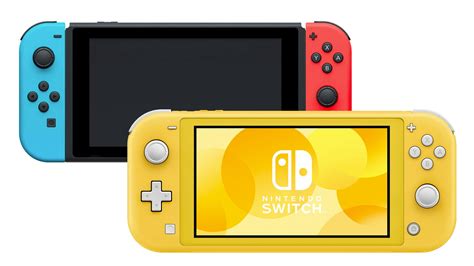
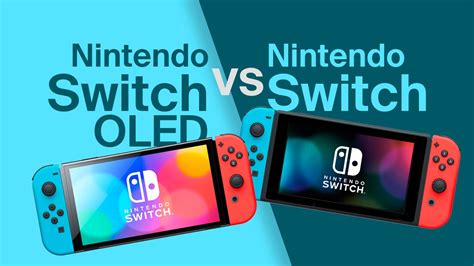
The Nintendo Switch, beloved for its portability and fantastic game library, comes with a relatively modest 32GB (original and Lite models) or 64GB (OLED model) of internal storage. While this might seem like a decent amount, digital game downloads, game updates, DLC, screenshots, and video captures can quickly eat into that space. Before you know it, you’re facing the dreaded “Not enough free space” message, preventing you from downloading that exciting new release.
Don’t despair! Expanding your Switch’s game space is straightforward and affordable. This guide will walk you through the best methods to ensure you always have room for your next adventure.
The Primary Solution: MicroSD Cards
The most effective and common way to expand your Nintendo Switch storage is by using a microSD card. The Switch supports microSD, microSDHC, and microSDXC cards, offering vast capacities up to 2TB (though 1TB is currently the largest commercially available).
Choosing the Right MicroSD Card
- Capacity: Consider your gaming habits. If you primarily buy physical cartridges, a 128GB or 256GB card might suffice. For digital-first gamers, 512GB or even 1TB is a better investment to future-proof your storage. Games vary wildly in size, from a few hundred MB to over 30GB.
- Speed: This is crucial for smooth gameplay and fast load times. Look for cards with a “UHS-I (Ultra High Speed Phase I)” rating. Specifically, a “U3” (UHS Speed Class 3) rating indicates a minimum write speed of 30MB/s, which is ideal. While “V30” (Video Speed Class 30) also indicates this, U3 is more commonly seen on consumer-grade microSD cards. Avoid generic, unbranded cards, as they may have slower read/write speeds that can impact performance.
- Brand: Stick with reputable brands like SanDisk, Samsung, or Lexar to ensure reliability and performance.
Installing a MicroSD Card
Installation is incredibly simple:
- Turn off your Nintendo Switch completely (hold the POWER Button, then select Power Options > Turn Off).
- Flip open the kickstand on the back of the console to reveal the microSD card slot.
- Insert the microSD card into the slot with the label facing down until it clicks into place.
- Close the kickstand and power on your Switch. The console will automatically recognize the new storage.
Any new downloads will automatically go to the microSD card if sufficient space is available. If you’ve just installed a new card and have games on your console’s internal memory that you want to move, you’ll need to archive and redownload them.
Managing Existing Data
Even with a large microSD card, smart data management can keep your Switch running smoothly.
Archiving vs. Deleting Software
From the HOME Menu, go to System Settings > Data Management. Here, you’ll find:
- Archive Software: This removes the game data from your console but keeps its icon on the HOME Menu. All save data remains intact. You can redownload the game anytime from the eShop or your user page. This is great for games you want to take a break from but might play again.
- Delete Software: This removes the game data and its icon from your console. Save data usually remains (it’s stored separately), but the game will need to be redownloaded and re-installed completely to play again. Use this for games you are sure you won’t play for a very long time, or ever again.
Moving Data Between System Memory and MicroSD
Unfortunately, the Nintendo Switch does not allow direct transfer of installed game data between system memory and a microSD card. To move a game from internal memory to an SD card (or vice-versa), you must archive or delete the software from its current location and then redownload it, ensuring the target storage (SD card or internal memory) is designated as the primary download location.
Clearing Screenshots and Videos
Screenshots and video clips can accumulate quickly. Regularly review them in your Album (from the HOME Menu). You can transfer them to a computer via a USB-C cable or remove them directly from the console to free up space.
Cloud Saves (Nintendo Switch Online)
While not for game installation files, Nintendo Switch Online subscribers benefit from cloud save data backup for most games. This means even if you delete a game, your progress is safe in the cloud, provided the game supports the feature.
Final Tips for Maximizing Space
- Physical Games: Buying physical game cartridges can save significant space on your internal memory and microSD card, as the core game data is read directly from the cartridge. Updates and DLC will still require storage, however.
- Check Updates: Sometimes game updates are large. Keep an eye on games you haven’t played in a while; an update might be downloaded automatically and sit there taking up space.
- Regular Audits: Periodically check your Data Management settings to see what’s taking up the most space and decide if anything can be archived or deleted.
Conclusion
Running out of storage on your Nintendo Switch is a common issue, but it’s easily solvable with a well-chosen microSD card and a bit of data management. By investing in adequate storage and regularly reviewing your installed software, you can ensure your Switch is always ready for new adventures without the frustrating pop-up messages. Happy gaming!


