





Switch storage full? Best ways to free up space for more digital games.
The Ever-Growing Digital Library Dilemma
For many Nintendo Switch owners, the joy of a new digital game can quickly turn into the frustration of a “storage full” message. With an ever-expanding library of fantastic titles, the console’s internal 32GB (or 64GB for OLED models) fills up surprisingly fast, especially when game sizes easily push into double-digit gigabytes. But don’t despair! There are several effective strategies to reclaim that precious space and ensure you never miss out on another must-play digital adventure.
Understanding Your Switch’s Storage
Before diving into solutions, it’s helpful to understand how your Switch uses storage. There are generally three types:
- Internal System Memory: The built-in storage where the operating system resides, along with some game data, save files, and screenshots.
- microSD Card: An expandable storage option that can hold a vast amount of game data, screenshots, and videos. This is often where most digital games are stored if inserted.
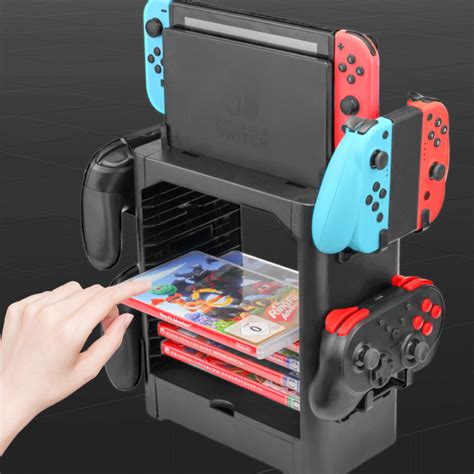
- Game Card: Physical game cartridges don’t use much internal storage for the game itself, but updates and save data will still take up space.
Your first port of call for managing space is the System Settings. Navigate to System Settings > Data Management to get a clear overview of what’s taking up space on both your internal memory and any inserted microSD card.
Quick Wins: Archiving vs. Deleting Software
The simplest and most immediate way to free up space is by managing your installed games and applications. The Switch offers two primary options: archiving and deleting.
Archiving Software
Archiving is fantastic for games you might want to play again later but don’t need right now. When you archive a game, the main game data is removed, but its icon remains on your Home menu. More importantly, your save data is preserved! This means you can redownload the game at any time, and pick up right where you left off.
To archive, go to System Settings > Data Management > Manage Software, select the game, and choose “Archive Software.”
Deleting Software
Deleting software completely removes the game data, its icon, and importantly, its save data. Use this option only for games you are absolutely certain you’ll never play again or if you want to restart from scratch. For most users, archiving is the preferred method as it preserves progress.
To delete, navigate to System Settings > Data Management > Manage Software, select the game, and choose “Delete Software.”
Upgrade Your Storage with a microSD Card
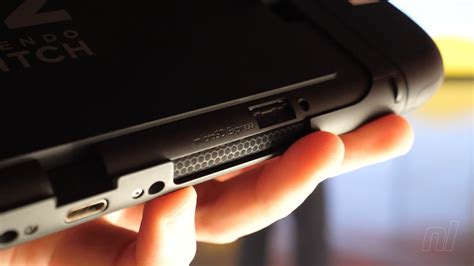
This is arguably the most effective long-term solution. If you haven’t already, investing in a high-capacity microSD card (up to 2TB supported) will dramatically expand your storage potential. Once inserted, the Switch will automatically prioritize installing new digital games and updates to the microSD card.
Moving Existing Data to microSD
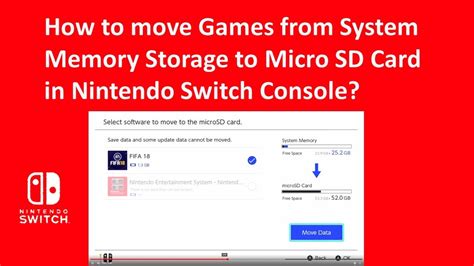
While the Switch doesn’t have a direct “move game to microSD” option for installed games, you can effectively achieve this by archiving a game from internal memory and then redownloading it with the microSD card inserted. The redownloaded game will then be stored on the card (provided there’s space).
Pro Tip: Always use a reputable brand (like SanDisk, Samsung, or Lexar) and a high-speed card (UHS-I compatible with a speed class of 3, or A1/A2 rating) for optimal performance.
Managing Save Data and Screenshots/Videos
Save Data
Game save data is typically very small compared to game installations, but it’s crucial. Most save data is stored on the Switch’s internal memory and cannot be moved to a microSD card. If you have a Nintendo Switch Online subscription, many games support Cloud Save Data Backup, offering an additional layer of security for your precious progress. You can check individual game save data sizes in System Settings > Data Management > Delete Save Data, but rarely will deleting save data make a significant impact on overall storage.
Screenshots and Video Captures
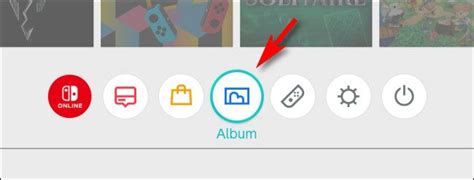
Those epic moments captured with the Share button can quickly accumulate, especially video clips. These are initially saved to the internal memory, but can be moved to a microSD card if one is present. You can manage them by going to Album on the Home menu.
- To move to microSD: In the Album, select an image/video, then Edit and Post > Copy to an SD Card. You can also do a batch transfer via System Settings > Data Management > Manage Screenshots and Videos > Copy All Screenshots and Videos to an SD Card.
- To delete: From the Album, select an image/video, then Delete.
Regular Maintenance for a Healthy Switch
To avoid hitting that “storage full” wall repeatedly, consider adopting a few maintenance habits:
- Periodically Review Your Library: Take 10 minutes every few months to check what games you haven’t touched and archive them.
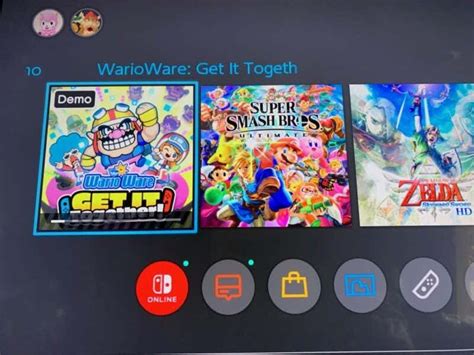
- Check for Unnecessary Downloads: Sometimes demo versions or game trials linger.
- Prioritize microSD: Ensure new downloads always go to your microSD card if you have one.

Conclusion
Running out of space on your Nintendo Switch is a common problem, but thankfully, it’s one with plenty of solutions. By strategically archiving games, utilizing a high-capacity microSD card, and managing your captures, you can keep your console lean and ready for the next big adventure. Now go forth and download that game you’ve been eyeing!


