Switch storage full? Best SD card & management tips for digital games.
Why Your Nintendo Switch Needs an SD Card
The Nintendo Switch, a fantastic portable console, comes with a rather modest amount of internal storage: 32GB for the original and Lite models, and 64GB for the OLED version. While this might seem sufficient for a few small games, it quickly becomes a bottleneck once you start downloading larger digital titles, game updates, DLC, and accumulate numerous screenshots or video clips. Modern AAA Switch games can easily consume 10-20GB or more, making an SD card an almost indispensable accessory for any serious digital game collector.
Expanding your Switch’s storage is not just about having more games; it’s about seamless gameplay, faster access, and the freedom to download new releases without constantly worrying about deleting old favorites. Without an SD card, you’ll frequently find yourself in a dilemma, forced to choose which cherished title to remove to make space for the next big adventure.
Choosing the Right SD Card for Your Switch
Not all SD cards are created equal, and selecting the right one can significantly impact your gaming experience. For the Nintendo Switch, you’ll need a microSDXC card. Here’s what to look for:
Understanding Types and Speeds
- microSDXC: This is the standard format for high-capacity microSD cards (over 32GB), which the Switch supports.
- Speed Class: Look for cards with a Speed Class of 10, a UHS Speed Class of U1 or U3, and ideally a Video Speed Class of V30. These ratings indicate minimum sustained write speeds, which are crucial for game loading and data transfer. U3/V30 cards offer faster performance than U1 cards.
- Application Performance Class: An A1 or A2 rating signifies that the card is optimized for running applications, which directly benefits game loading times on your Switch. A2 cards are generally faster than A1.
Capacity Considerations
When it comes to capacity, consider your gaming habits and budget. Larger capacities offer more freedom but come at a higher cost. The Switch supports microSDXC cards up to 2TB, though cards of that size are prohibitively expensive and largely unnecessary for most users.
- 128GB: A good starting point for casual gamers or those who buy mostly physical cartridges.
- 256GB: A popular choice, offering ample space for a substantial digital library without breaking the bank.
- 512GB: Ideal for avid digital gamers who download many titles and want long-term storage without constant management.
- 1TB: For the most dedicated digital collectors. While expensive, it essentially eliminates storage concerns for the foreseeable future.
Top SD Card Recommendations
While many brands offer microSDXC cards, a few stand out for their reliability and performance on the Switch. Look for reputable brands to avoid counterfeit or low-quality cards.
SanDisk microSDXC for Nintendo Switch
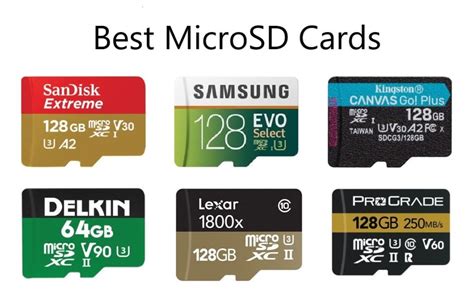
SanDisk offers officially licensed Nintendo Switch microSD cards, often featuring iconic game characters. These cards are specifically designed and tested for the Switch, ensuring optimal compatibility and performance. They typically come with U3 and A1 ratings, offering excellent read/write speeds for gaming. Available in capacities from 64GB up to 1TB.
Samsung EVO Select/Plus
Samsung’s EVO Select and EVO Plus lines are highly regarded for their reliability, speed, and competitive pricing. They often boast U3 and A2 ratings, making them incredibly fast and suitable for the Switch. These cards are a fantastic value for money and widely available.
Installing and Managing Games on Your SD Card
Installation is Easy
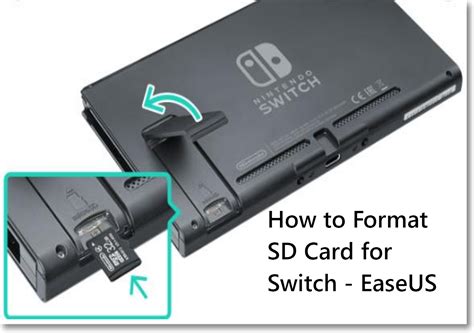
Installing an SD card in your Switch is straightforward: simply open the kickstand on the back of the console and insert the microSD card into the slot until it clicks. The Switch will automatically recognize it. New game downloads, updates, and screenshots will automatically save to the SD card once it’s inserted and formatted.
Moving Existing Data
Unfortunately, the Switch doesn’t allow direct transfer of installed game data from internal storage to an SD card. To move games already on your console’s internal memory to the SD card, you’ll need to:
- Archive the Software: Go to System Settings > Data Management > Manage Software, select the game, and choose “Archive Software.” This deletes the game data but keeps your save data on the internal storage.
- Re-download: Re-download the archived game from the eShop or your user page. It will automatically install to the SD card if one is present. Your save data will automatically link up.
Essential Storage Management Tips
Even with a large SD card, good management practices can help you maintain an organized and efficient digital library.
Archive vs. Delete
- Archive: Removes the game’s installation data but keeps your save data on the console. This is ideal for games you might want to play again later without losing progress.
- Delete: Removes both the game data and all associated save data. Only use this for games you are absolutely certain you’ll never play again, or if your save data is already backed up via Nintendo Switch Online.
Leverage Cloud Saves
If you have a Nintendo Switch Online subscription, take advantage of cloud saves. This backs up your game progress for most titles, providing peace of mind even if you delete a game or your console is lost/damaged.
Regularly Review Your Library
Periodically check your data management settings (System Settings > Data Management > Manage Software) to see which games are taking up the most space and which ones you haven’t touched in months. Archive or delete unused titles to free up space.
Manage Screenshots and Video Captures
Screenshots and video clips can surprisingly fill up your storage. You can transfer these directly from your Switch to an SD card, or wirelessly to a smart device, or even to a computer via USB. Regularly clearing these out can free up precious space.
Conclusion
Running out of storage on your Nintendo Switch is a common frustration, but it’s easily remedied with the right microSD card and smart management habits. By investing in a high-quality, high-capacity SD card and regularly organizing your digital library, you can ensure your Switch is always ready for your next gaming adventure without any annoying storage full messages. Happy gaming!