Switch storage full? Best SD card & how to move games efficiently?

It’s a familiar scenario for many Nintendo Switch owners: you try to download a new game or update, only to be met with the dreaded ‘Not enough free space’ message. The Switch’s internal storage of 32GB (or 64GB for the OLED model) fills up surprisingly fast, especially with large digital titles, game updates, and screenshots. Fortunately, expanding your Switch’s storage is straightforward with a microSD card. This guide will walk you through choosing the best SD card and efficiently managing your games.
Why Your Switch Storage Fills Up So Fast
Even if you mostly buy physical game cartridges, a significant portion of your Switch’s internal memory can still be consumed. Here’s why:
- Digital Game Downloads: Many popular titles are digital-only or you might prefer the convenience of not swapping cartridges. These can range from a few gigabytes to tens of gigabytes per game.
- Game Updates and Patches: All games, physical or digital, require updates and patches that download to your console’s storage. These can sometimes be several GBs.
- DLC and Expansions: Downloadable content also takes up valuable space.
- Screenshots and Video Clips: Capturing your epic gaming moments adds up over time.
- Game Save Data: While small, save data for all your games resides on the internal storage.
Choosing the Right SD Card for Your Switch
Not all microSD cards are created equal. To ensure optimal performance and avoid issues, consider these factors:
1. Card Type: microSDXC
The Nintendo Switch supports microSD (up to 2GB), microSDHC (2GB-32GB), and microSDXC (32GB-2TB) cards. For expanding your storage meaningfully, you’ll want a microSDXC card.
2. Speed Class: UHS-I with A1/A2 Rating
The Switch doesn’t support the fastest UHS-II cards, so don’t overspend on them. Look for a UHS-I (Ultra High Speed Phase I) card. More importantly, prioritize cards with an A1 or A2 rating. These ‘Application Performance Class’ ratings ensure good random read/write speeds, which are crucial for running games smoothly directly from the SD card.
3. Capacity: How Much Do You Need?
This is where personal preference comes in. Common recommendations include:
- 64GB – 128GB: Good for light digital users or those with mostly physical games.
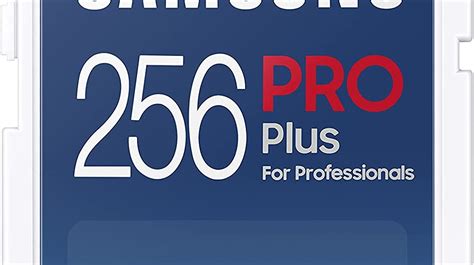
- 256GB – 512GB: Ideal for most digital-heavy players. This offers a great balance of price and space.
- 1TB or more: For hardcore digital collectors who want to download everything without worry.
Always consider future needs. Buying a slightly larger card now can save you the hassle of upgrading again later.
Recommended SD Cards for Nintendo Switch
Several brands are highly reliable and perform well with the Switch. Look for these trusted names:
- SanDisk: Widely recognized, their ‘Nintendo-licensed’ cards are specifically marketed for Switch, but any of their Extreme or Ultra series microSDXC cards with A1/A2 ratings will work perfectly.
- Samsung: Their EVO Select and EVO Plus series are excellent choices, known for their reliability and speed.
- Lexar: Another reputable brand offering good performance and value.
When purchasing, always buy from a trusted retailer to avoid counterfeit cards, which can cause data loss and performance issues.

How to Move Games to Your New SD Card Efficiently
Unfortunately, the Switch doesn’t have a direct ‘move game’ function from internal storage to an SD card. You’ll need to re-download them. Here’s the most efficient process:
Step 1: Archive or Delete Games from Internal Storage
The goal is to free up space on the internal memory, so your new games download directly to the SD card. Go to System Settings > Data Management > Manage Software. Here you can:
- Archive Software: This deletes the game data but keeps the icon on your Home menu and saves its save data internally. You’ll need to re-download the game to play it.
- Delete Software: This removes the game data and icon, but crucial for physical game cartridges, the save data remains on the console.
Choose ‘Archive Software’ for games you want to easily re-download later. You can archive games one by one or sort by size to tackle the biggest offenders first.
Step 2: Insert Your New microSD Card
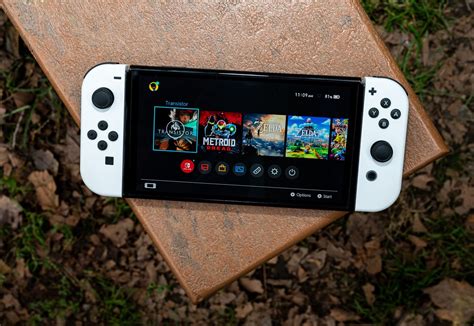
With the Switch powered off, carefully open the kickstand on the back of the console to reveal the microSD card slot. Insert your new card until it clicks into place. Power your Switch back on.
Step 3: Re-download Games
Once the SD card is inserted, all new downloads (games, updates, DLC) will automatically go to the SD card by default. For archived games, simply select their icon on the Home menu and choose ‘Download’ to reinstall them directly to your SD card.
Step 4: Move Screenshots and Video Captures (Optional)
Your existing screenshots and video clips are stored on the internal memory. To move them to the SD card:
- Go to System Settings > Data Management > Manage Screenshots and Videos.
- Select ‘Copy All Screenshots and Videos to microSD Card’.
Note that newly captured media will automatically save to the SD card once it’s inserted.
Tips for Efficient Storage Management
- Regularly Check Storage: Periodically visit System Settings > Data Management to see what’s taking up space.
- Archive Unused Games: If you’re not playing a game, archive it. You can always re-download it later.
- Delete Old Save Data (Carefully!): While save data is small, if you have games you’ll never play again, you can delete their save data from ‘Manage Save Data/Screenshots and Videos’. Be absolutely sure you won’t need it.
- Consider Physical Cartridges: For games you know are massive and you don’t play often, buying the physical cartridge can save you significant download space on your SD card.
What About Game Saves?
It’s important to remember that game save data is always stored on the Nintendo Switch’s internal system memory, regardless of whether the game itself is on internal storage, an SD card, or a physical cartridge. This data cannot be directly moved to a microSD card. However, Nintendo Switch Online subscribers benefit from Cloud Saves, which back up your save data to the cloud.
Conclusion
Running out of storage on your Nintendo Switch is an easily solvable problem. By investing in a reliable microSDXC card with sufficient capacity and following these steps for managing your games and data, you can significantly expand your console’s capabilities. Enjoy endless gaming without the frustration of limited space!