





Switch storage full? Best SD card for digital games & indie titles?
Why Your Nintendo Switch Needs More Storage
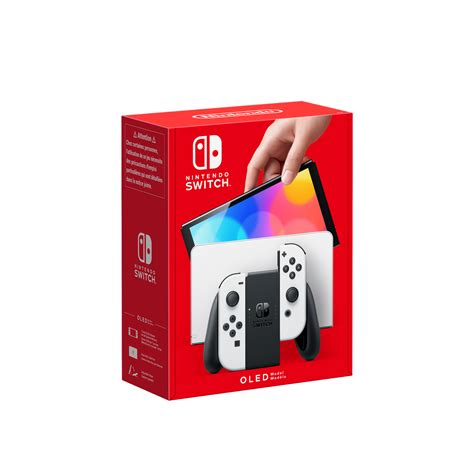
The Nintendo Switch comes with a modest 32GB (or 64GB for the OLED model) of internal storage, a figure that quickly dwindles once you start downloading digital games. With many AAA titles easily exceeding 10GB or even 20GB, and countless indie darlings also adding up, that built-in memory can feel like a mere drop in the bucket. Updates, DLC, and even game saves further chip away at the available space, leading to frustrating ‘storage full’ messages.
This is where an external storage solution becomes not just a convenience, but a necessity for any serious Switch gamer. MicroSD cards offer an elegant and effective way to dramatically boost your console’s capacity, ensuring you never have to delete a beloved title to make room for a new one.
Understanding SD Card Types for Nintendo Switch
When choosing an SD card for your Switch, you’ll specifically need a microSDXC card. While there are different types, microSDXC offers the high capacities and speeds required for modern gaming. More important than the ‘XC’ designation, however, are the speed ratings:
- UHS-I (Ultra High Speed Phase I): This is the standard for Switch-compatible cards. Look for the ‘I’ symbol.
- Speed Class (C): Indicated by a number inside a ‘C’ (e.g., C10), this refers to minimum sequential write speed. A Class 10 card offers 10 MB/s.
- UHS Speed Class (U): Indicated by a number inside a ‘U’ (e.g., U1 or U3), this specifies minimum sequential write speed for UHS cards. U1 is 10 MB/s, U3 is 30 MB/s.
- Application Performance Class (A): Look for A1 or A2 ratings. These are crucial for gaming as they indicate better random read/write speeds, which significantly impact game loading times and overall performance. A1 is generally sufficient, but A2 offers even better performance.
For the best experience, aim for a microSDXC card with at least a U1 rating and ideally an A1 or A2 Application Performance Class. This ensures smooth game loading and prevents lag.
What Capacity Do You Really Need?
The ideal SD card size depends heavily on your gaming habits and library size. Here’s a breakdown to help you decide:
- 128GB – 256GB: Good for casual gamers or those who primarily play smaller indie titles and only a few larger digital games. It offers a noticeable upgrade from the internal storage without breaking the bank.
- 512GB: This is often the sweet spot for most digital-heavy Switch owners. It provides ample space for a significant library of both AAA titles and a plethora of indie games, allowing you to download new releases without constant storage management.
- 1TB: For the most dedicated digital collectors or those who want to future-proof their console. A 1TB card will hold an immense number of games, making it unlikely you’ll ever run out of space. While more expensive, the peace of mind is invaluable.

Top SD Card Recommendations & Brands
When purchasing a microSD card, it’s crucial to stick with reputable brands and trusted retailers to avoid counterfeit products, which can lead to data loss and poor performance. Some of the most reliable brands for Switch compatibility include:
- SanDisk: Widely regarded as a top choice, their ‘SanDisk for Nintendo Switch’ licensed cards offer guaranteed compatibility, though any of their high-speed Ultra or Extreme series microSDXC cards work equally well.
- Samsung: Known for their EVO Plus and PRO Plus lines, Samsung cards deliver excellent performance and reliability.
- Western Digital: Another strong contender, offering robust and fast microSD cards suitable for gaming.
- Lexar: Provides competitive options with good speed and capacity ratios.
Always compare prices from different trusted vendors, and prioritize cards with good read/write speeds (UHS-I, U1/U3, A1/A2 ratings) for the best gaming experience.

Installing Your New SD Card & Moving Games
Installing a microSD card into your Nintendo Switch is straightforward:
- Power Off: Completely power down your Switch (hold the Power Button, then select Power Options > Turn Off).
- Insert Card: Open the kickstand on the back of the Switch. The microSD card slot is located underneath. Insert the card with the label facing down until it clicks into place.
- Power On: Turn your Switch back on. The console should automatically detect and format the new card if necessary.
New games you download will automatically be saved to the microSD card as long as there’s space. For games already downloaded to your internal storage, you cannot directly ‘move’ them to the SD card. Instead, you’ll need to archive the software (which deletes the game data but keeps save data) and then re-download it, at which point it will install onto your newly inserted microSD card.
Maximizing Your Switch Storage Further
Even with an expanded microSD card, smart storage management can help. Consider these tips:
- Archive Unplayed Games: If you’re not playing a game for a while, archive it. This deletes the game data from your console but keeps your precious save data (which is stored internally) intact. You can always redownload the game later.
- Delete Demos & Unwanted DLC: Demos can take up significant space. If you’re done with one, delete it. Similarly, some DLC might not be essential.
- Check for Data Management Options: In System Settings > Data Management, you can see exactly what’s taking up space and manage your software.
Conclusion
A high-quality microSD card is an essential upgrade for any Nintendo Switch owner, particularly those who embrace the convenience of digital games and the vast world of indie titles. By investing in the right capacity and a reputable brand, you can ensure a seamless gaming experience, free from storage anxiety, and keep your entire digital library at your fingertips. Don’t let a full Switch storage limit your gaming adventures; expand your horizons with the perfect SD card.



