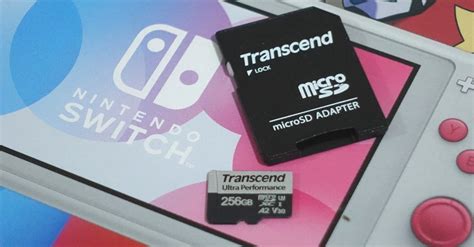
Switch storage full? Best SD card & console game management tips for all titles.

Why Your Nintendo Switch Storage Fills Up Fast
The dreaded ‘storage full’ notification is a common frustration for many Nintendo Switch owners. With an internal storage capacity of just 32GB (or 64GB for the OLED model), which is further reduced by the operating system, it doesn’t take long for even a few digital games and updates to consume all available space. Whether you’re a casual player or a hardcore collector, understanding how to manage your storage is crucial for an uninterrupted gaming experience.
Understanding Your Switch’s Storage Landscape
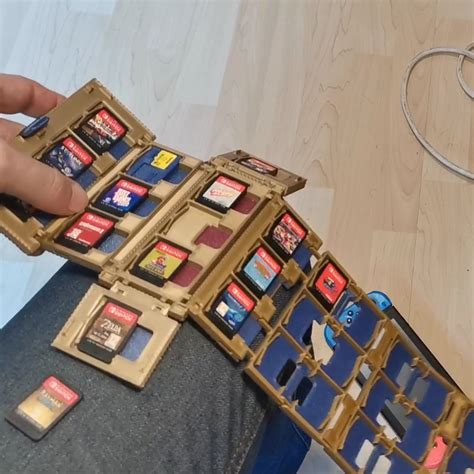
Your Nintendo Switch uses two primary storage locations: the console’s internal memory and an expandable microSD card slot. Digital games, game updates, DLC, screenshots, and video captures all compete for this space. While physical game cartridges save you from downloading the entire game file, they still often require significant update data and save files to be stored on your console’s memory or an SD card.
The Importance of a MicroSD Card
For most Switch users, investing in a high-quality microSD card isn’t just recommended—it’s practically essential. This small card acts as a massive expansion, allowing you to download dozens, if not hundreds, of games without constantly juggling files.
Choosing the Best SD Card for Your Switch
Not all microSD cards are created equal. To ensure optimal performance, especially with larger, more demanding games, there are a few key specifications to look for:
- Type: Always choose a microSDXC card. These cards offer higher capacities (64GB up to 2TB) and faster speeds compared to older microSDHC cards.
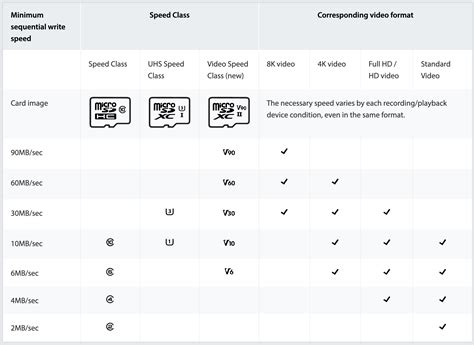
- Speed Class: Look for cards with a UHS-I speed class rating (U1 or U3). The Switch supports UHS-I, so don’t overspend on UHS-II cards as you won’t get the benefit. Also, look for an ‘Application Performance Class’ (A1 or A2) as these are optimized for running apps, which includes games.
- Brand: Stick with reputable brands like SanDisk, Samsung, or Kingston to ensure reliability and good performance.

Recommended SD Card Sizes
The ‘best’ size depends on your gaming habits. Here’s a general guide:
- 128GB: Good for light digital game users or those who primarily buy physical cartridges.
- 256GB: A solid all-around choice for most players, offering ample space for a good library of digital titles.
- 512GB: Ideal for avid digital game collectors who want to keep many games installed simultaneously without worrying about space.
- 1TB (or higher): For the ultimate digital library, ensuring you rarely, if ever, run out of space for years to come.
Effective Game Management Strategies
Once you have an SD card, or even if you’re making do with internal storage, smart management is key.
Archiving vs. Deleting Games
The Switch offers two main options when you want to free up space:
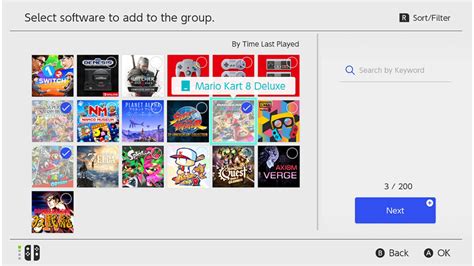
- Archive Software: This removes the game data but keeps the game icon on your Home screen and retains your save data. You can re-download the game at any time without losing progress. This is the recommended method for digital games you might play again.
- Delete Software: This removes the game data, the icon, and typically the save data (unless it’s backed up via Nintendo Switch Online cloud saves). Only use this for games you are absolutely certain you won’t play again, or if you need to perform a complete reinstall.
To archive or delete: Go to System Settings > Data Management > Manage Software. Select the game and choose your desired action.
Prioritizing Game Installation Location
You can’t directly choose where a game installs once it’s downloading, but you can move existing data:
- Move Data Between Storage: Go to System Settings > Data Management > Move Data Between System / microSD Card. While not all data can be moved (e.g., updates for physical games often stay on internal storage), you can transfer downloaded games to or from your SD card to optimize space.
- Large Games on SD Card: A good strategy is to prioritize installing large digital titles on your microSD card to preserve your console’s internal memory for system files, updates for physical games, and smaller eShop titles.
Other Space-Saving Tips
- Delete Old Screenshots and Videos: Over time, captured media can accumulate. Regularly review and delete unwanted screenshots and video clips from your Album. You can also transfer them to your PC or another device.
- Manage Save Data: While save data files are generally small, keeping them tidy is good practice. Nintendo Switch Online subscribers benefit from cloud save backups, protecting your progress even if you delete a game.
- Consider Physical vs. Digital: If storage is a constant concern, prioritize buying physical cartridges for larger titles. This significantly reduces the amount of download data required.
Conclusion: Master Your Switch Storage
By investing in a suitable microSD card, understanding the difference between archiving and deleting, and regularly reviewing your installed software and captured media, you can conquer the ‘storage full’ challenge on your Nintendo Switch. A well-managed console ensures you spend less time deleting and more time enjoying your favorite games.