





Switch storage full? Best microSD for more digital games & updates?
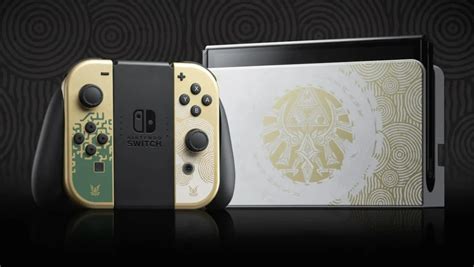
The Nintendo Switch, with its vast library of digital-only titles, downloadable content (DLC), and frequent game updates, often presents a common challenge to its owners: running out of storage space. The console’s internal 32GB (or 64GB for the OLED model) quickly fills up, especially if you prefer digital purchases over physical cartridges. Fortunately, expanding your Switch’s storage is straightforward, requiring just one essential accessory: a microSD card.
Why a MicroSD Card is Non-Negotiable for Switch Owners
Unlike some other consoles, the Switch relies heavily on its ability to download games and updates directly. Even physical game cartridges often require significant downloads for updates, patches, or additional content. Without sufficient space, you’ll constantly be deleting games to make room for new ones, a frustrating experience that can prevent you from enjoying your entire library.
- Digital Game Downloads: Many popular titles are only available digitally or take up substantial space.
- Game Updates & Patches: Essential for bug fixes, new features, and online play.
- DLC & Expansions: Add new content to your favorite games.
- Save Data: While save data is typically stored internally and backed up via Nintendo Switch Online, large numbers of game saves can still contribute.
- Screenshots & Video Captures: Easily accumulate, especially if you share your gameplay moments.
Key Factors When Choosing Your Switch MicroSD Card
Not all microSD cards are created equal. To ensure optimal performance and value for your Switch, consider these crucial aspects:
1. Capacity: How Much Space Do You Really Need?
This is arguably the most important decision. While 32GB or 64GB might seem like enough, it’s rarely the case for digital game enthusiasts. Here’s a general guide:
- 128GB: A good starting point for casual gamers with a mix of physical and digital titles.
- 256GB: Ideal for most users who download a fair amount of digital games. Offers a solid balance of price and space.
- 512GB: Highly recommended for dedicated digital-first gamers or those with extensive game libraries. Provides ample room for many large titles.
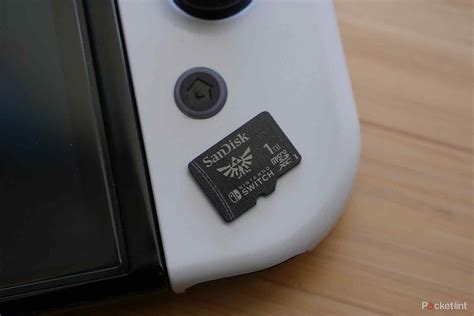
- 1TB: The ultimate choice for collectors who want every game downloaded and installed without compromise. This future-proofs your console for years.
Remember, it’s almost always better to go for a slightly larger card than you think you need, as games and updates only get bigger.

2. Speed: Don’t Compromise on Performance
Speed affects game loading times, installation, and overall system responsiveness. The Nintendo Switch supports UHS-I (Ultra High Speed Phase I) microSD cards. Look for cards with:
- UHS Speed Class 3 (U3) or Video Speed Class V30: These indicate a minimum write speed of 30 MB/s, which is excellent for gaming.
- A1 or A2 Rating: These “Application Performance Classes” are designed for running apps quickly. While A2 is faster, A1 is perfectly sufficient and often more cost-effective for the Switch. The Switch can’t fully leverage the A2’s raw random read/write speeds, so prioritize U3/V30 over A2 if you have to choose one.
While the Switch officially supports up to 100MB/s read speeds, cards with higher stated speeds (e.g., 170MB/s) can still offer better performance in some scenarios, but the gains might be capped by the Switch’s own reader. Aim for a reputable brand that consistently delivers on its speed claims.
3. Brand Reliability
Stick to well-known and trusted brands to avoid counterfeit cards or those with unreliable performance. SanDisk, Samsung, and Lexar are consistently top performers and highly recommended for the Nintendo Switch. SanDisk even offers officially licensed Nintendo Switch microSD cards, which are essentially standard SanDisk cards with a Nintendo branding and often slightly higher pricing, but guarantee compatibility and performance.

Installation and Transferring Data
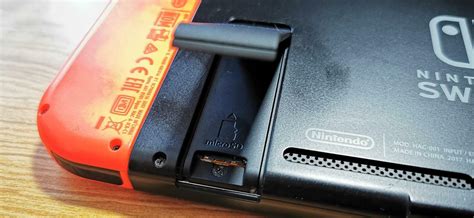
Installing a microSD card is simple: turn off your Switch, open the kickstand, and slide the card into the slot. If you’re upgrading from an old card, you can easily transfer your data by copying all files from the old card to your computer, then copying them to the new, larger card. Just ensure the new card is formatted correctly (FAT32 for cards up to 32GB, exFAT for larger cards – the Switch will format it automatically if needed).
Conclusion: An Essential Upgrade for Any Switch Gamer
Expanding your Nintendo Switch’s storage with a high-quality microSD card is not just a convenience; it’s a necessity for enjoying your gaming library without constant management. Investing in a larger, fast, and reliable card ensures you can download every exciting new release, keep all your favorite titles updated, and capture countless gaming moments without ever hitting that dreaded “storage full” message again. Make the upgrade today and unlock the full potential of your Nintendo Switch.


