





Switch storage full? Best microSD cards & tips for managing your game library.
The Nintendo Switch, with its incredible portability and fantastic game library, has captured the hearts of millions. However, one common frustration many owners encounter is running out of storage space. With digital game downloads growing ever larger, the Switch’s modest internal 32GB (or 64GB for the OLED model) fills up surprisingly quickly. Fret not, for expanding your storage is simple, and managing your games effectively can keep you in the action.
Why Your Switch Storage Fills Up Fast
Unlike some other consoles, the Nintendo Switch relies heavily on its internal storage for system files, save data, and digital game downloads. Even if you primarily buy physical game cartridges, many titles still require significant downloads for updates, DLC, and even core game data not fully present on the cartridge. Digital-only releases, indie titles, and large AAA games can consume gigabytes in an instant, making a larger storage solution almost a necessity.
Choosing the Best microSD Card for Your Switch
Expanding your Switch’s storage is straightforward: you’ll need a microSD card. But not just any card will do. Here’s what to look for:
1. Capacity: How Much Do You Really Need?
- 128GB: A good starting point for casual gamers or those who mostly buy physical.
- 256GB: The sweet spot for most players, offering ample space for a significant digital library.
- 512GB: Ideal for avid digital collectors or those who want to download many large AAA titles without worrying about space for a long time.
- 1TB: The maximum supported capacity. While expensive, it provides virtually limitless space for even the most extensive digital libraries.
Consider your gaming habits. Do you download many games? Do you keep them all installed? A larger card now can save you hassle later.
2. Speed: UHS-I and A1/A2 Ratings
The Switch supports UHS-I (Ultra High Speed Phase I) microSD cards. While UHS-II cards are faster, the Switch cannot fully utilize their increased speed, so they offer no practical benefit and are more expensive. Look for cards with:
- UHS Speed Class 3 (U3) or Video Speed Class 30 (V30): These indicate a minimum write speed of 30MB/s, crucial for smooth game downloads and updates.
- Application Performance Class A1 or A2: These ratings indicate better random read/write speeds, which translates to faster loading times for games installed on the card. A2 is generally better but A1 is perfectly adequate.

Top microSD Card Recommendations
When it comes to reliability and performance, a few brands consistently stand out:
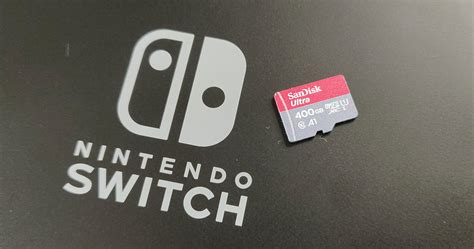
- SanDisk Ultra/Extreme: Widely popular and often officially licensed by Nintendo (the red and blue SanDisk cards are specifically designed for Switch). They offer excellent speed and reliability.
- Samsung EVO Select/Plus: Another highly reliable option with great performance-to-price ratio.
- Lexar PLAY: Designed with gaming in mind, offering good speeds at competitive prices.
Always purchase from reputable retailers to avoid counterfeit cards.
Essential Tips for Managing Your Switch Game Library
Once you have your microSD card, or even if you’re trying to make do with internal storage, these tips will help you keep your game library organized and accessible.
1. Archive vs. Delete Software
The Switch offers two options when you want to remove a game:
- Archive Software: This removes the game data but keeps its icon on your Home screen and preserves your save data. It’s ideal for games you might want to redownload later, as redownloading is quick and easy. This is the default and recommended option for digital games.
- Delete Software: This removes the game data, its icon, and all associated save data (unless you have Nintendo Switch Online cloud saves enabled). Only use this if you are absolutely sure you never want to play the game again or have backed up your save data.
Always prioritize archiving games you’ve finished or aren’t currently playing to free up space. Your save data is precious!
2. Digital vs. Physical Game Strategy
Your purchasing habits can impact your storage needs:
- Physical Cartridges: These save significant space on your internal storage/microSD card as the core game data is on the cartridge. However, updates and DLC will still consume space.
- Digital Downloads: Convenient but consume a lot of space. If you’re a heavy digital buyer, a larger microSD card is non-negotiable.
Consider buying physical for large, single-player games you might not replay often, and digital for smaller indie titles or games you play frequently (to avoid swapping cartridges).
3. Utilizing Nintendo Switch Online Cloud Saves
A Nintendo Switch Online subscription offers cloud save backup for most games. This is an invaluable safety net. Even if you delete a game and its local save data, your cloud save will remain, allowing you to pick up where you left off if you redownload the game later. Always ensure this feature is enabled for your important titles.
4. Check Your Data Management Settings
Periodically navigate to System Settings > Data Management to get an overview of your storage usage. Here, you can see how much space each game is taking up, manage your screenshots and videos, and easily archive or delete software.
Installing Your microSD Card
Installing a microSD card is incredibly simple. Power off your Switch, lift the kickstand, and slide the card into the slot. Power your Switch back on, and it will automatically format and begin using the new storage. Any new downloads will automatically go to the microSD card first.
Conclusion
Running out of storage on your Nintendo Switch doesn’t have to be a recurring nightmare. By investing in a high-quality, high-capacity microSD card and employing smart game management strategies like archiving and utilizing cloud saves, you can ensure your console is always ready for your next gaming adventure. Keep your library organized, expand your horizons, and enjoy seamless gaming without the constant “storage full” warnings.


