





Running out of Switch storage? Tips to free up space for more games.

The joy of owning a Nintendo Switch can sometimes be overshadowed by a common frustration: running out of storage space. With an ever-expanding library of incredible games, updates, and DLC, the Switch’s internal 32GB (or 64GB for the OLED model) fills up surprisingly quickly. Before you know it, you’re faced with the dreaded “not enough free space” message when trying to download that exciting new title. But fear not! Managing your Switch’s storage is straightforward once you know the tricks. This guide will help you free up valuable space, ensuring your gaming adventures never have to pause.
The Storage Squeeze: Why Your Switch Fills Up Fast
Understanding why your Switch runs out of space is the first step to managing it effectively. Digital games, especially larger titles, can consume several gigabytes each. System updates, downloadable content (DLC), and even screenshots or video captures all contribute to the dwindling free space. While internal memory is a start, it’s often insufficient for avid gamers who prefer digital purchases.
Save data, surprisingly, takes up relatively little space compared to game installations, but it’s important to differentiate between game data (which can be archived/deleted) and save data (which you usually want to keep).
Quick Fixes: Immediate Ways to Clear Space
1. Archive Software You’re Not Actively Playing
This is often the quickest and safest way to free up space. When you archive a game, the game data itself is deleted from your console or microSD card, but the game icon remains on your HOME Menu, and more importantly, your save data is preserved. You can redownload the game at any time from the eShop or your user page.
- Go to System Settings > Data Management > Manage Software.
- Select the game you want to archive.
- Choose “Archive Software.”
2. Delete Software (If Archiving Isn’t Enough)
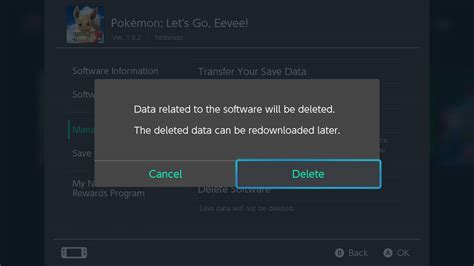
Deleting software removes both the game data and its icon from your HOME Menu. Like archiving, your save data for that game is preserved. This is a more drastic step if you prefer a cleaner HOME Menu or need to clear a significant amount of space quickly. You can still redownload deleted games.
3. Manage Screenshots and Video Captures
While individual captures are small, hundreds of them can add up. Regularly review and delete unwanted screenshots and videos from your Album. You can also transfer them to a computer or a microSD card to free up internal storage.
Long-Term Solutions: Investing in More Space
For most Switch owners, the ultimate solution to storage woes is a high-capacity microSD card. The Nintendo Switch supports microSD, microSDHC, and microSDXC cards up to a staggering 2TB (though 1TB is currently the largest commercially available). Look for UHS-I speed class 3 (U3) cards for optimal performance.
Once you insert a new microSD card, the Switch will automatically start saving new downloads to it. You can also move existing downloadable software from your console’s internal memory to the microSD card:
- Go to System Settings > Data Management > Move Data Between System / microSD Card.
- Select the software you wish to move.

Smart Management Strategies
1. Prioritize Your Downloads
Before downloading a new game, consider how often you’ll play it. If it’s a game you’ll only play once, perhaps consider archiving it once you’re done. For games you frequently revisit, ensure they have a permanent home on your SD card.
2. Regularly Review Installed Software
Make it a habit to periodically check your “Manage Software” list. Identify games you haven’t touched in months and archive them. This proactive approach prevents storage crises.
3. Consider Physical Game Cartridges
While digital convenience is appealing, physical game cartridges use significantly less internal storage. Only save data and updates are stored on the console, leaving more room for digital-only titles or games you prefer to have instantly accessible.
Conclusion
Running out of space on your Nintendo Switch doesn’t have to be a barrier to enjoying new games. By understanding your storage options, utilizing quick fixes like archiving, and investing in a high-capacity microSD card, you can effectively manage your game library. Adopt these strategies, and you’ll spend less time deleting and more time playing!


