





Running out of console storage? Maximize space for digital games & save data.

That dreaded “storage full” message can abruptly halt your gaming session, especially when you’re deeply engrossed in a new digital release or struggling to download a crucial update. With game sizes constantly increasing and digital libraries growing, running out of console storage is a common predicament for many gamers. But fear not! There are plenty of smart strategies to help you reclaim valuable space, optimize your digital collection, and ensure your precious save data is always safe.
Understanding Your Console’s Storage
Before you start deleting, it’s essential to understand where your console’s storage is going. Most modern consoles (Nintendo Switch, PlayStation 5, Xbox Series X|S) have internal storage, but they categorize data differently, typically separating games, applications, save data, and media (screenshots, video clips). Familiarize yourself with your console’s storage management menu – it’s usually found in the system settings – to get a clear picture of what’s consuming the most space.
On Nintendo Switch, this is under System Settings > Data Management. PlayStation users can find it under Settings > Storage, and Xbox users navigate to Settings > System > Storage Devices. Knowing what’s taking up the most space is the first step towards an organized library.

Decluttering Your Digital Library
The biggest culprits for dwindling storage are almost always digital games. Modern titles can range from tens to hundreds of gigabytes. Take a critical look at your installed games and consider which ones you haven’t touched in months or years. Do you really need that game you finished last year still installed, or that demo you played once?
Archiving vs. Deleting: For Nintendo Switch, you have the option to ‘Archive’ software. This removes the game data from your console while keeping its icon on your Home menu and, crucially, preserves your save data. You can redownload the game at any time without losing progress. On PlayStation and Xbox, deleting a game removes all its data, but your save data is typically kept separate on the console or backed up to the cloud (if you have a subscription).
Remember, deleting a game doesn’t mean you lose access to it forever. As long as you own the license (digital purchase), you can always redownload it from your console’s digital store library at a later date, provided you have an internet connection.
Investing in External Storage Solutions
For many gamers, simply deleting games isn’t enough. Expanding your console’s storage is often the most practical and long-term solution.
For Nintendo Switch: The Power of microSD Cards
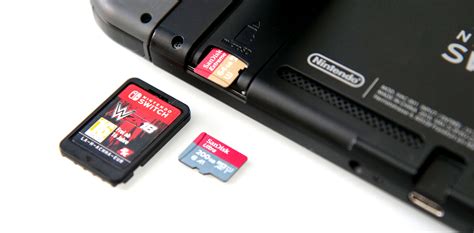
The Nintendo Switch relies on microSD cards to expand its relatively small internal storage. These tiny cards are indispensable for digital game collectors. When choosing a microSD card, look for reputable brands and prioritize cards with high read/write speeds (UHS-I, Speed Class 3 or higher) to ensure smooth game loading. Cards up to 2TB are supported, offering ample space for even the most extensive digital libraries.
For PlayStation and Xbox: External Hard Drives
PlayStation and Xbox consoles can utilize external USB hard drives to store games. For PS4 and Xbox One generations, these drives can run games directly. For PS5 and Xbox Series X|S, external HDDs are excellent for storing last-gen games and current-gen titles that don’t require the internal SSD’s speed. Current-gen games that demand the fast internal SSD usually need to be moved back to the internal drive to be played. However, this is still faster than re-downloading them entirely.
When selecting an external drive, look for USB 3.0 (or newer) compatibility for optimal transfer speeds. Consider SSDs (Solid State Drives) for even faster loading, though they come at a higher price point than traditional HDDs.

Managing Save Data and Screenshots
While save data files are typically tiny compared to game installations, they are arguably the most precious. Losing hours of progress because of a botched transfer or accidental deletion is every gamer’s nightmare. Fortunately, most modern consoles offer robust solutions:
- Cloud Saves: Services like Nintendo Switch Online, PlayStation Plus, and Xbox Game Pass Ultimate offer cloud storage for your game saves. This is invaluable for backing up your progress automatically and seamlessly transferring it between consoles or after a system reset. Make sure this feature is enabled!
- Local Transfers: The Nintendo Switch allows you to transfer save data between consoles locally. PlayStation and Xbox offer options to backup save data to USB drives, giving you a physical copy for peace of mind.
- Media Management: Screenshots and video clips, especially high-resolution ones, can quickly accumulate. Regularly review your capture gallery and delete unnecessary media or transfer it to a separate storage device (like a computer or external hard drive) to free up console space.

Proactive Storage Management Tips
- Regular Audits: Make it a habit to check your console’s storage every few months. Delete games you’ve finished or aren’t planning to revisit soon.
- Physical vs. Digital: If storage is a constant concern, consider purchasing physical copies of games where available. While some physical games still require large installations, they often take up less internal storage than their digital counterparts, or at least you can remove the disc when you’re done playing.
- Download Only What You Play: Resist the urge to download every game from your backlog simultaneously. Prioritize what you’re actively playing or plan to start soon.

Running out of storage is a manageable problem, not a crisis. By understanding your console’s data, strategically deleting or archiving unused games, investing in appropriate external storage, and diligently managing your save data and media, you can ensure a smooth, frustration-free gaming experience. Take control of your digital library and keep those games running!


