





Running out of console storage? Best SD card & external drive tips for Switch/PS/Xbox!

Is Your Console Crying for More Space?
In the golden age of gaming, where massive open worlds, stunning 4K graphics, and frequent updates are the norm, running out of storage space on your console has become an all too common nightmare. Whether you’re a Nintendo Switch adventurer, a PlayStation trophy hunter, or an Xbox achievement seeker, hitting that “storage full” notification can bring your gaming session to a grinding halt. But fear not! Expanding your console’s capacity is often simpler and more affordable than you might think. This guide will walk you through the best SD card and external drive solutions for your Nintendo Switch, PlayStation, and Xbox, ensuring you never have to delete a beloved game again.
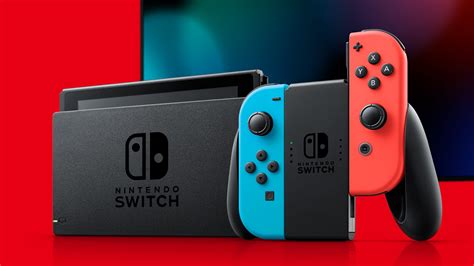
Nintendo Switch: Embrace the MicroSD Card
The Nintendo Switch, with its modest internal storage (32GB or 64GB for the OLED model), is the console most reliant on external memory. Digital game downloads, save data, and system updates quickly consume what’s available. The good news is, expanding it is incredibly easy: just slide in a microSD card.
Choosing the Right MicroSD Card for Switch:
- Capacity: Aim for at least 128GB, but 256GB, 512GB, or even 1TB are highly recommended for avid digital gamers. Prices have dropped significantly, making larger capacities more accessible.
- Speed: Look for cards with a high “UHS-I” speed class (U3) and a “Video Speed Class” (V30) for optimal performance. While the Switch doesn’t fully utilize the fastest speeds available, a reputable brand with good read/write speeds will ensure smooth game loading.
Installation is as simple as opening the kickstand on the back of your Switch and inserting the card into the slot. The console will typically format it automatically. Once installed, you can transfer games from your internal memory to the SD card via System Settings > Data Management.
PlayStation (PS4 & PS5): External and Internal Options
PlayStation consoles offer a bit more flexibility, especially with the PS5’s dedicated expansion slot.
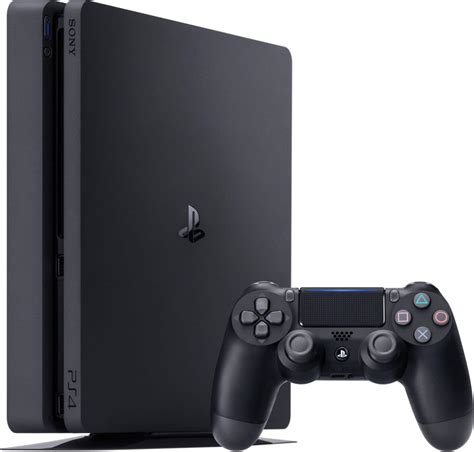
PlayStation 4 (PS4): External USB Hard Drives
For PS4, the simplest and most cost-effective way to add storage is an external USB 3.0 HDD or SSD. Just plug it into any of the console’s USB ports, go to Settings > Devices > USB Storage Devices, and format it as extended storage. You can store and play all your PS4 games directly from it. An external SSD will offer faster loading times than an HDD, but at a higher cost.
PlayStation 5 (PS5): Internal M.2 SSD and External USB Drives
The PS5 comes with a blazing-fast internal SSD, but its usable capacity (around 667GB) can fill up fast with next-gen titles. For PS5, you have two primary expansion routes:
- External USB Drive: You can connect a USB 3.0 external HDD or SSD to store PS4 games and PS5 games that you’re not actively playing. PS4 games can be played directly from the external drive. PS5 games, however, must be transferred back to the internal SSD or an internal M.2 SSD to be played.
- Internal M.2 NVMe SSD: This is the only way to expand the storage specifically for PS5 games while retaining their next-gen performance. Sony requires specific M.2 NVMe PCIe Gen4 SSDs with a minimum read speed of 5,500 MB/s and a heatsink. Installation involves opening a compartment on the console and inserting the drive. This option is generally more expensive but offers seamless integration.
Xbox (Xbox One & Series X|S): Storage Flexibility
Xbox consoles also provide robust options for storage expansion, with some key distinctions between generations.
Xbox One: External USB Hard Drives
Similar to the PS4, the Xbox One (and One S/X) supports external USB 3.0 hard drives. Simply plug in a drive with at least 128GB of storage and format it for games and apps. You can play all your installed games directly from the external drive, whether it’s an HDD or a faster SSD.
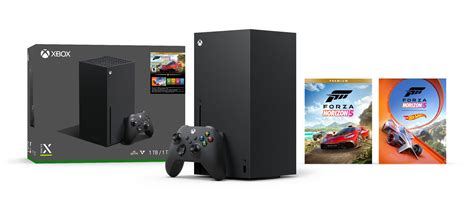
Xbox Series X|S: Proprietary Expansion Cards and External USB Drives
The Xbox Series X and Series S utilize a new architecture for their optimized games, which requires incredibly fast storage. For these consoles:
- Seagate Storage Expansion Card: This proprietary card plugs into a dedicated slot on the back of the console and offers storage that perfectly matches the console’s internal SSD speed. This is the only way to play Xbox Series X|S optimized games directly from an external source. Available in 512GB, 1TB, and 2TB capacities, these cards are plug-and-play and expensive.
- External USB 3.1 Hard Drives/SSDs: You can connect standard external USB drives to the Series X|S. These are perfect for storing backward-compatible games (Xbox One, Xbox 360, original Xbox) and playing them directly from the drive. You can also store Xbox Series X|S optimized games on these drives, but to play them, you’ll need to transfer them back to the internal SSD or the Seagate Expansion Card.
Essential Tips for Managing Your Console Storage
Beyond adding more hardware, smart management can save you headaches (and money).
- Prioritize & Archive: Keep your most-played games on the fastest storage (internal SSD for PS5/Xbox Series X|S, fast SD card for Switch). Move less-played or completed games to slower, cheaper external storage or archive them entirely.
- Delete & Re-download: Don’t be afraid to delete games you’ve finished or no longer play. With modern internet speeds, re-downloading them if you get the urge usually isn’t a major issue. Your save data is often stored separately, sometimes in the cloud.
- Clear Cache: Some consoles offer options to clear cached data, which can free up small amounts of space.
- Understand Game Sizes: Be aware that game sizes can vary wildly. A triple-A title can easily take up 100GB or more, especially with DLC and updates.

Choosing the Right Drive: What to Look For
When selecting your storage solution, consider these factors:
- Capacity vs. Cost: Balance your needs with your budget. Larger capacities offer more freedom but come at a higher price.
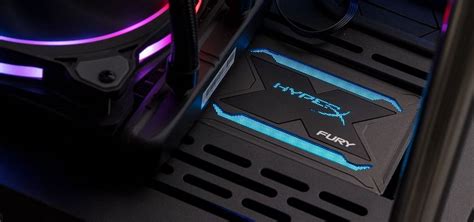
- Speed (HDD vs. SSD): SSDs are significantly faster, leading to quicker loading times. HDDs are more affordable for raw capacity but slower. For current-gen optimized games, proprietary solutions (PS5 internal M.2, Xbox Expansion Card) are often mandatory for full performance.
- Compatibility: Always double-check the specific requirements for your console model (e.g., USB 3.0, M.2 Gen4 with heatsink, proprietary expansion card).
- Reliability & Brand: Stick with reputable brands known for quality and customer support (e.g., Samsung, Western Digital, Seagate, SanDisk, Crucial).
Conclusion
Running out of space no longer means saying goodbye to your favorite digital titles. With a little planning and the right external storage solution—be it a high-capacity microSD card for your Switch, a speedy M.2 SSD for your PS5, or a dedicated expansion card for your Xbox Series X|S—you can significantly enhance your gaming experience. Invest wisely, manage your library smartly, and ensure your adventure never gets cut short by a “storage full” message again!


