Optimize Switch storage for more games & smoother console performance?
The Nintendo Switch, a beloved hybrid console, offers an unparalleled gaming experience whether you’re at home or on the go. However, as your game library grows, you might find yourself facing the dreaded “not enough space” message, or noticing a slowdown in performance. Optimizing your Switch’s storage isn’t just about making room for new titles; it’s also crucial for maintaining a smooth, responsive console experience. This guide will walk you through effective strategies to manage your Switch’s storage, ensuring you have ample space for all your adventures and that your console runs at its best.
Understanding Your Switch’s Storage Landscape
Your Nintendo Switch comes with 32GB (or 64GB for the OLED model) of internal NAND storage, a significant portion of which is occupied by the system software. This leaves a relatively limited amount for games, updates, and save data. Most modern games, especially large digital titles, can quickly devour this space. This is where external storage becomes indispensable.
The Indispensable Role of microSD Cards
For most Switch users, a high-quality microSD card is not just an accessory but a necessity. The Switch supports microSD, microSDHC, and microSDXC cards, with capacities currently reaching up to 2TB (though 1TB is more common and cost-effective). When selecting a card, two factors are paramount: capacity and speed.
Choosing the Right microSD Card
- Capacity: Aim for at least 128GB, but 256GB or 512GB offers more future-proofing. Consider your digital download habits.
- Speed: Look for cards with a high read speed (UHS-I compatible with a speed class of U1 or U3). Faster read speeds mean quicker game loading times and smoother performance. Don’t fall for “write speed” marketing too much, as the Switch’s primary interaction with games is reading data.
Freeing Up Valuable Internal Space
Even with a microSD card, it’s wise to manage your internal storage. The Switch prioritizes installing game updates and certain system data to internal memory first, which can quickly fill up. Here’s how to declutter:
Archiving vs. Deleting Software
The Switch offers two primary options for removing games from your console: archiving and deleting.
- Archiving: This option deletes the game data from your console but keeps the game icon on your Home menu and saves your game data (which is usually tiny) on the internal memory. You can redownload the game anytime without losing progress. This is the recommended method for temporarily clearing space.
- Deleting: This removes all game data, including the icon, from your console. While it frees up the most space, you’ll need to re-download everything and potentially lose save data if not backed up (e.g., via Nintendo Switch Online cloud saves).
![How To Delete Games On Nintendo Switch [The right way!] - Alvaro Trigo ...](/images/aHR0cHM6Ly90czEubW0uYmluZy5uZXQvdGg/aWQ9T0lQLkxIZmMwTTlnc1BKN2JBTVRxeF9UOGdIYUVLJnBpZD0xNS4x.webp)
Transferring Data to microSD Card
While the Switch doesn’t have a direct “move game to SD card” function for games initially installed internally, future game downloads will automatically go to the microSD card if one is inserted. For existing internal games, you’ll need to archive them and then re-download them with the microSD card inserted to have them install there.
Effective Game and Data Management
Beyond simply clearing space, smart management ensures longevity and performance.
Prioritize Digital Downloads
When downloading new games, especially large ones, ensure your microSD card is inserted and has sufficient space. If the card fills up, the Switch will default to internal storage if available. Regularly check your Data Management settings to see where games are installed.
Leverage Cloud Saves
For Nintendo Switch Online subscribers, cloud saves are a lifesaver. They automatically back up your game save data for most titles (some exceptions exist), allowing you to delete a game completely without fear of losing your progress. This is particularly useful if you decide to delete games instead of archiving.

Best Practices for Peak Performance
Storage management isn’t just about space; it impacts how smoothly your console runs.
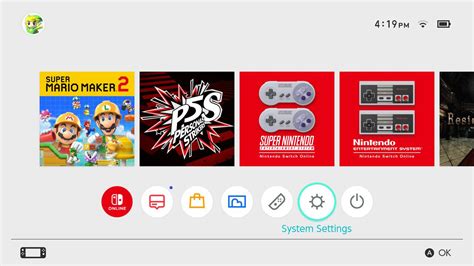
- Regularly Check Storage: Go to System Settings > Data Management to monitor your space usage.
- Perform System Updates: Keep your Switch’s system software up to date. Updates often include performance enhancements and bug fixes.
- Restart Your Console: Occasionally, a full power-off and restart can clear temporary files and refresh the system, similar to a computer.
- Avoid Filling Your microSD Card Completely: While tempting, leaving a small buffer (e.g., 5-10GB) on any storage device can sometimes help with performance and longevity.
Conclusion: A Smarter Switch Experience
Optimizing your Nintendo Switch’s storage is an ongoing process, but by understanding its storage mechanisms, investing in a good microSD card, and regularly managing your game library, you can significantly enhance your gaming experience. More space means more games, and smarter management translates to a faster, more reliable console. Dive into your settings today and take control of your Switch’s potential!