





Optimize Switch storage for maximum game installs & big downloads?
The Ever-Growing Need for Switch Storage
The Nintendo Switch, with its vast library of incredible games, often leaves players facing a common dilemma: running out of storage space. Between massive digital downloads, numerous smaller indie titles, and ever-expanding game updates, managing your Switch’s capacity efficiently is crucial for an uninterrupted gaming experience. This guide will walk you through the best practices to optimize your Switch storage, allowing for maximum game installs and seamless big downloads.
Understanding Your Switch’s Storage Landscape
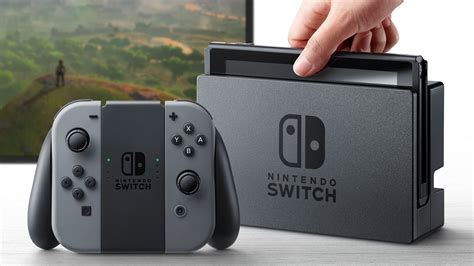
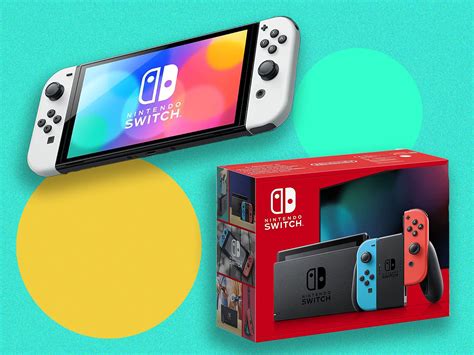
Your Nintendo Switch comes with 32GB (or 64GB for OLED models) of internal storage, a significant portion of which is reserved for the system itself. This leaves a relatively small amount for games and other data. Fortunately, the Switch supports microSD cards, which are your primary solution for expanding storage.
Internal Storage vs. MicroSD Card
- Internal Storage: Best for critical system files and save data. Some games can be installed here, but space is limited.
- MicroSD Card: The go-to for installing digital games, downloadable content (DLC), and software updates. Game performance typically isn’t impacted by running games from a fast microSD card.
Choosing the Right MicroSD Card
Selecting the correct microSD card is perhaps the most critical step in optimizing your Switch’s storage. Not all cards are created equal.
Capacity Recommendations
- 128GB – 256GB: Good for casual players with a mix of physical and digital games.
- 400GB – 512GB: Ideal for most digital-heavy gamers, offering a significant amount of space.
- 1TB: For hardcore digital collectors, this offers maximum peace of mind, though it’s a larger investment.
Speed Matters: UHS-I and U3
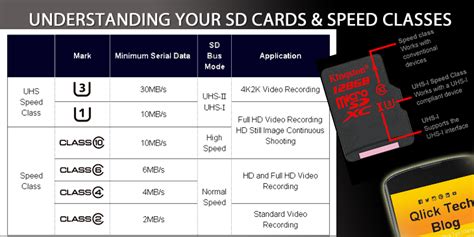
Nintendo recommends using a microSD card that supports UHS-I (Ultra High Speed Phase I) with a read speed of 60-95 MB/s. Look for cards with a “U3” speed class rating, which guarantees a minimum write speed of 30 MB/s, ensuring smooth game loading and update installations.
Managing Installed Games and Downloads
Once you have a suitable microSD card, knowing how to manage your games effectively is next.
Archiving vs. Deleting Software
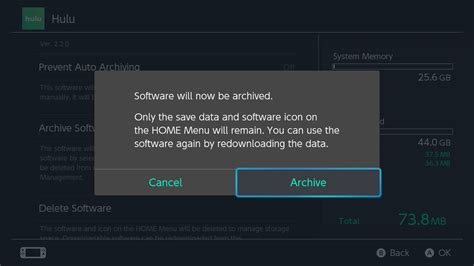
- Archiving Software: This is your best friend for temporary space clearing. Archiving removes the game data but keeps its icon on your Home screen and, crucially, preserves all your save data. You can redownload the game anytime from the eShop or your user page.
- Deleting Software: This removes the game data and its icon. While it frees up space, you’ll need to redownload it entirely if you want to play it again. Important: Deleting does not delete your save data, which is stored separately.
To manage software, go to System Settings > Data Management > Manage Software. Here you can see how much space each game occupies and choose to archive or delete it.
Prioritizing Physical vs. Digital
While digital games are convenient, physical game cartridges require significantly less internal or microSD card space, as the core game data is on the cartridge. Updates and DLC will still consume storage, but the base game footprint is minimal.
Handling Save Data and Other Files
Save data on the Switch is a unique beast. It is always stored on the console’s internal memory and cannot be moved to a microSD card. This means even if you archive or delete a game, your progress is safe, but it will continue to occupy a small amount of your internal storage.
Cloud Saves with Nintendo Switch Online
For peace of mind and data backup, a Nintendo Switch Online subscription offers Cloud Saves for most games. This backs up your save data to the cloud, protecting it in case your console is lost or damaged. It also allows you to transfer saves easily between consoles.
Screenshots and Videos
The Switch allows you to capture screenshots and record video clips. These are initially saved to the internal memory but can be easily moved to your microSD card. Periodically review your captured media and delete or move unnecessary files to free up space. Go to Album > Select image/video > Press ‘A’ for Options > Copy to microSD card (if applicable).
Advanced Tips for Peak Optimization
- Regular Audits: Periodically check your “Data Management” section (System Settings > Data Management) to identify games you no longer play or large files taking up space.
- Delete Demos: Game demos, once played, often linger and consume valuable space. Delete them once you’re done.
- Consolidate Games: If you have multiple microSD cards, consider getting one larger card to avoid swapping and better manage your library.
Conclusion
Optimizing your Nintendo Switch storage is an ongoing process, but by understanding how your console stores data, investing in a high-quality microSD card, and regularly managing your game library, you can ensure a smooth and expansive gaming experience. Don’t let storage limitations hinder your enjoyment of the Switch’s incredible catalog – take control of your data today!


