Nintendo Switch storage full? Top tips to free up space for new games.
Running out of space on your Nintendo Switch is a familiar frustration for many gamers. With an ever-growing library of incredible titles, both digital and physical, the console’s internal 32GB (or 64GB on the OLED model) quickly fills up. Add in game updates, DLC, screenshots, and video captures, and you’ll find yourself staring down a ‘storage full’ message just when you want to download that exciting new release. But don’t despair! There are several effective ways to reclaim precious gigabytes and ensure your Switch is always ready for your next adventure.
Understanding Your Switch’s Storage
Before you start deleting, it’s helpful to know what’s taking up space. Your Switch has internal system memory, and if you have one, a microSD card for expanded storage. Most games, especially digital ones, will reside primarily on one of these. Save data, however, is almost always stored internally by default, and usually takes up very little space compared to game files.
To check your current storage situation:
- From the HOME Menu, select System Settings.
- Scroll down and select Data Management.
- Here you can see the remaining space on your System Memory and microSD Card (if inserted), as well as manage individual software.
The Golden Rule: Archive, Don’t Just Delete Software
When you delete software from your Switch, you remove the entire game file, including updates and DLC. If it’s a digital title, you’ll need to re-download everything to play it again. If it’s a physical game, you’ll still need the game card, but the updates and DLC will need to be re-downloaded. Archiving, however, is a much smarter option for digital games.
Archiving a game deletes the software data but leaves its icon on your HOME Menu and, crucially, preserves your save data. This means if you want to play it again, you can simply select its icon, and the system will prompt you to re-download the game. Your progress will be exactly where you left off!
How to Archive Software:
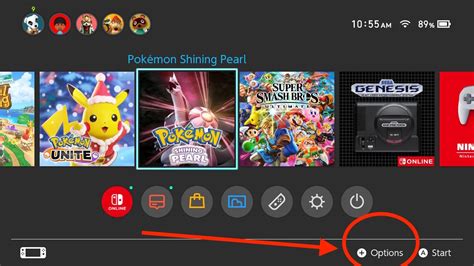
- From the HOME Menu, highlight the game you wish to archive.
- Press the + or – button to open the Options menu.
- Select Data Management, then Archive Software.
- Confirm your choice by selecting Archive.
Delete Unnecessary Save Data (Carefully!)
While game save data typically occupies minimal space, deleting it can sometimes be necessary, especially if you have many games you no longer play and want to completely clear their footprint. Be warned: deleting save data is permanent and cannot be recovered unless you have a backup via Nintendo Switch Online’s Save Data Cloud.
Steps to Delete Save Data:
- From the HOME Menu, select System Settings.
- Scroll down and select Data Management.
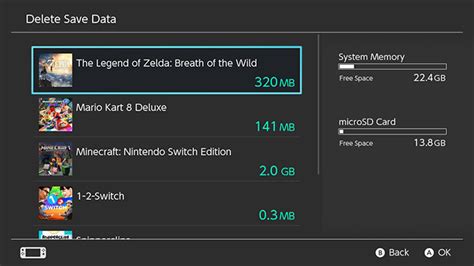
- Select Delete Save Data.
- Choose the game whose save data you wish to delete and confirm.
Manage Screenshots and Video Captures
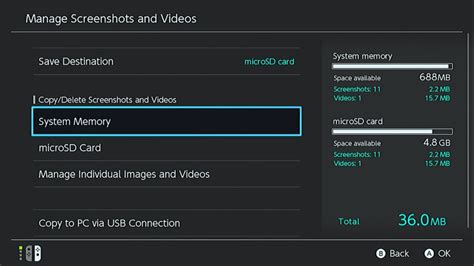
It’s easy to accumulate hundreds, if not thousands, of screenshots and video clips over time, especially if you’re a prolific content creator or just love documenting epic moments. These media files can take up significant space, particularly longer video captures. Regularly reviewing and deleting old or unwanted captures can free up a surprising amount of room.
How to Clear Media Files:
- From the HOME Menu, select Album.
- Highlight the screenshot or video you want to delete.
- Press the A button, then select Delete. You can also select Delete Multiple to remove several items at once.
Offload to a Larger microSD Card
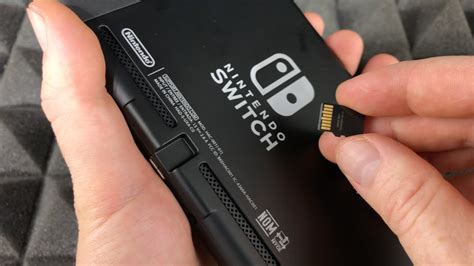
For most Switch owners, investing in a high-capacity microSD card is the ultimate long-term solution. Digital games, updates, and DLC take up the bulk of storage, and a large microSD card (up to 2TB) can dramatically expand your Switch’s capacity.
If you already have a microSD card but it’s full, consider upgrading to an even larger one. The process involves transferring data from your old card to the new one using a computer, or simply re-downloading games once the new card is inserted.
Re-download Digital Titles As Needed
Remember that any digital game you’ve purchased is tied to your Nintendo Account. Even if you completely delete a game (software data and save data), you can always re-download it from the Nintendo eShop’s ‘Redownload’ section or directly from your HOME Menu if you archived it. This means you can freely delete games you’re not actively playing, knowing you can always get them back later.
Conclusion
Don’t let a full storage drive hold you back from enjoying the vast library of Nintendo Switch games. By regularly managing your software, archiving instead of deleting, cleaning up media files, and considering a larger microSD card, you can ensure your console always has room for the next big adventure. Happy gaming!