





My Switch storage is full. What’s the best way to free space for new games?
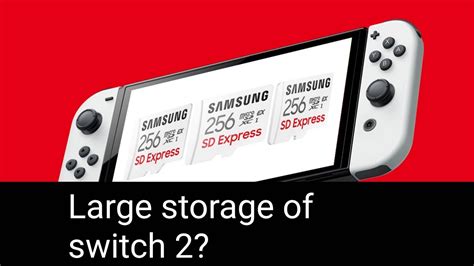
Running out of space on your Nintendo Switch is a common plight for many gamers. With an ever-growing library of digital titles, updates, and downloadable content, the console’s internal 32GB (or 64GB for OLED models) fills up surprisingly fast. But don’t despair! There are several effective ways to reclaim storage and make room for that next must-play game.
Understanding Your Switch Storage
Before diving into solutions, it’s helpful to understand what consumes your Switch’s precious storage. Your console has internal memory, but most of your digital games, updates, and DLC are stored either there or on a microSD card. Save data, screenshots, and video captures also take up space. The biggest culprits are usually the games themselves, especially large AAA titles.

Quick & Easy Solutions: Archive or Delete Software
The fastest way to free up significant space is by managing your installed software. The Switch offers two primary options:
- Archive Software: This is often your best first step. Archiving a game removes its core data from your system but crucially keeps your save data intact. If you later want to play the game again, you can re-download it from the eShop or your user page without losing your progress. This is perfect for games you’ve finished or aren’t actively playing but might want to revisit.
- Delete Software: This option completely removes the game and all associated updates/DLC. While it frees up the most space, it also deletes your save data for that game unless you have Nintendo Switch Online (NSO) and cloud saves are enabled for that title. Only choose this if you’re absolutely sure you don’t need the game or its save data, or if your save data is securely backed up via NSO.
To do this:
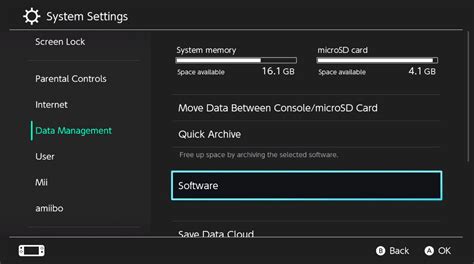
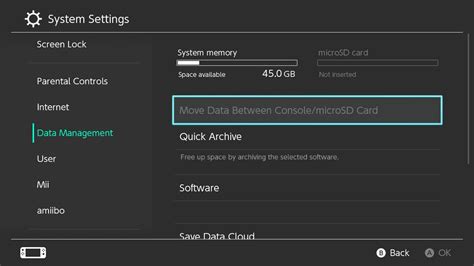
- Go to System Settings > Data Management > Manage Software.
- Select the game you want to manage and choose “Archive Software” or “Delete Software.”
Don’t Forget Screenshots and Video Captures
While individual screenshots and video clips don’t take up much space, they can accumulate over time, especially if you’re a prolific capture artist. Regularly reviewing and deleting old or unwanted media can free up a surprising amount of space.
- Go to Album from the Home menu.
- Select the images/videos you wish to delete. You can delete them individually or in batches.
- For larger transfers, consider moving them to a PC using a USB-C cable or by taking out your microSD card.
The Long-Term Solution: Get a MicroSD Card
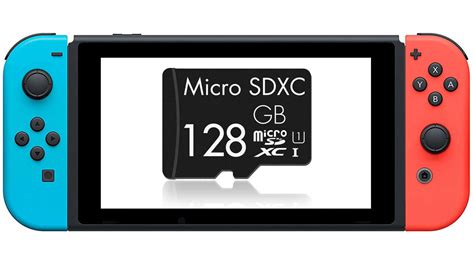
If you primarily download digital games, a microSD card is less of an option and more of a necessity. The Switch supports microSD, microSDHC, and microSDXC cards up to a whopping 2TB (though 128GB, 256GB, or 512GB are more commonly used and provide excellent value). Installing a microSD card immediately expands your storage capacity significantly.
Once inserted, new downloads will automatically default to the microSD card. For existing games on internal storage, you’ll need to archive them and then re-download them to the microSD card to move them.
Save Data: A Special Case
It’s crucial to understand that save data is almost always stored on the console’s internal memory, even if the game itself is on a microSD card. This data is small, but vital. When you archive or delete a game, your save data usually remains intact (unless you specifically choose to delete save data from Data Management > Delete Save Data, which is a separate action).
For added peace of mind, consider subscribing to Nintendo Switch Online. This service includes Cloud Save Data Backup, which automatically uploads most of your game saves to the cloud, protecting them even if your console is lost or damaged.
Best Practices for Storage Management
To keep your Switch running smoothly and avoid future storage woes, adopt these habits:
- Regularly Check Storage: Periodically visit Data Management in System Settings to see what’s taking up space.
- Archive Games You’re Not Playing: It’s quick, easy, and preserves your save data.
- Transfer Screenshots/Videos: Move these to a computer or external drive if you want to keep them but free up Switch space.
- Consider Physical Cartridges: For very large games you know you’ll keep forever, physical cartridges don’t take up internal storage for the base game (though updates and DLC still will).
Conclusion
A full Nintendo Switch storage doesn’t have to put an end to your gaming adventures. By strategically archiving unused games, managing your media, and most importantly, investing in a high-capacity microSD card, you can ensure there’s always plenty of room for new digital experiences. Implement these tips, and you’ll be downloading your next favorite game in no time.


