My Switch storage is full! How to free space for new games?

Running out of storage on your Nintendo Switch is a surprisingly common problem, especially for avid gamers with a growing digital library. Whether you’re downloading new titles or snapping countless screenshots, that precious internal space can fill up fast. The good news is that freeing up room is straightforward, and often doesn’t mean sacrificing your favorite games forever. Let’s dive into the best ways to reclaim your Switch’s storage.
Check Your Current Storage Situation
Before you start deleting things at random, it’s wise to see what’s actually hogging the most space. Your Switch offers a clear breakdown of where your storage is being used.
- From the HOME Menu, select System Settings.
- Scroll down the left-hand menu and select Data Management.
- Here you’ll see ‘Check Free Space’ and ‘Manage Software’. This section will show you how much space is taken up by software, save data, screenshots, and videos, both on your console’s internal memory and any inserted microSD card.
Archive Software (Most Recommended)
This is often the best first step. Archiving software deletes the game data from your console but keeps its icon on your HOME Menu and, crucially, preserves all your save data. You can re-download the game at any time if you own it digitally or have the game card.
- From the HOME Menu, select System Settings.
- Go to Data Management > Manage Software.
- Select the game you wish to archive.
- Choose ‘Archive Software’. A confirmation message will appear.
Archiving is ideal for games you might want to play again someday but don’t need installed right now. It’s a quick way to free up significant space without permanent loss.
Delete Software (When You’re Sure)
Deleting software completely removes both the game data and its icon from your HOME Menu. Like archiving, it preserves your save data, which is stored separately. You would need to re-download the game from the eShop or insert the game card again to play it.
- From the HOME Menu, select System Settings.
- Go to Data Management > Manage Software.
- Select the game you wish to delete.
- Choose ‘Delete Software’. Confirm your decision.
This is useful for games you’ve finished and don’t plan on replaying, or demos that you’ve completed.

Manage Screenshots and Video Captures
High-quality screenshots and especially video clips can eat up a surprising amount of storage over time. Regularly review your captures.
- From the HOME Menu, select the Album icon.
- Browse through your captures. You can select individual items to delete, or use the ‘Delete All’ option if you’ve already backed them up.
- To transfer them, you can either share them to a smart device (for individual items) or connect your Switch to a computer via USB to copy them over.
Consider deleting old captures or backing them up to a computer or cloud service (like Facebook or Twitter directly from the Switch) if they’re taking up too much space.
Check for Corrupted Data and Updates
Occasionally, software updates or corrupted data can take up unnecessary space. While rare, it’s worth checking.
- Go to System Settings > Data Management.
- Look for ‘Manage Software’ and see if any entries seem unusually large for what they are, or if you notice any ‘Corrupted Data’.
- You can also check for redownloadable data for games. Sometimes, update data can take up space even if the game isn’t fully installed.
Expand Your Storage with a microSD Card (Best Long-Term Solution)
If you frequently find yourself running out of space, the most effective and long-term solution is to invest in a microSD card. The Nintendo Switch supports microSD, microSDHC, and microSDXC cards up to 2TB (though 2TB cards are currently not available commercially). Game data and downloads will automatically prioritize the microSD card once inserted.
- Purchase a high-speed microSD card (UHS-I compatible, with a read speed of 60-95 MB/s).
- Turn off your Nintendo Switch.
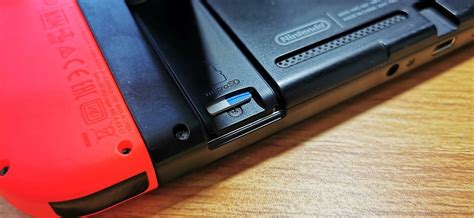
- Open the kickstand on the back of the console to reveal the microSD card slot.
- Insert the microSD card, ensuring it clicks into place.
- Power on your Switch.
You can even move existing software from your console’s internal memory to the microSD card:
- Go to System Settings > Data Management > Move Data Between System / microSD Card.
- Select the software you wish to move.
What About Save Data?
It’s important to note that save data is almost always stored on the console’s internal memory and cannot be moved to a microSD card. However, save data typically takes up very little space (megabytes, not gigabytes), so it’s rarely the primary cause of a full Switch. Nintendo Switch Online subscribers can back up their save data to the cloud.
Conclusion
Don’t let a full storage drive hold you back from exploring new worlds! By regularly checking your data management settings, archiving games you’re not currently playing, deleting old captures, and most importantly, utilizing a microSD card, you can ensure your Nintendo Switch always has room for the next big adventure. Happy gaming!