





My Switch storage is full. How do I free space for new games?
Is Your Nintendo Switch Storage Bursting? Here’s How to Free Up Space
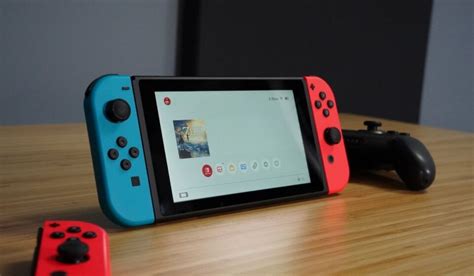
It’s a familiar scenario for any avid Nintendo Switch gamer: you’re browsing the eShop, eager to download the latest title, only to be met with the dreaded ‘not enough free space’ message. The Switch, with its modest internal storage (32GB or 64GB for OLED models), fills up quickly, especially with large digital downloads. But don’t despair! There are several effective ways to clear out room for your next gaming obsession.
1. Check Your Current Storage Situation
Before you start deleting indiscriminately, it’s wise to see exactly what’s hogging your space. This will help you prioritize what to remove.
How to check:
- From the HOME Menu, select System Settings.
- Scroll down the left-hand menu and select Data Management.
- Here, you’ll see a breakdown of your system memory and any inserted microSD card, showing how much space is used by software, save data, and screenshots/videos.
2. Archive Software (The Best Option for Digital Games)
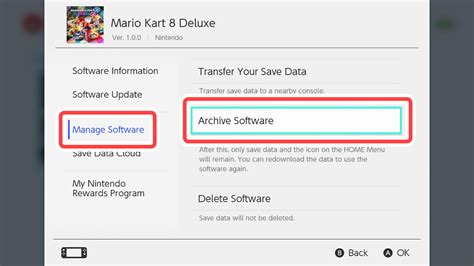
For most digital games, archiving is your best friend. When you archive software, the game icon remains on your HOME Menu, but the large game data is deleted. Your save data, however, is kept intact. This means if you ever want to play the game again, you can redownload it, and pick up right where you left off!
How to archive:
- From the HOME Menu, highlight the game you wish to archive.
- Press the + or – button to open the Options menu.
- Select Data Management, then choose Archive Software.
- Confirm your choice when prompted.
3. Delete Software (When Archiving Isn’t Enough or for Physical Games)
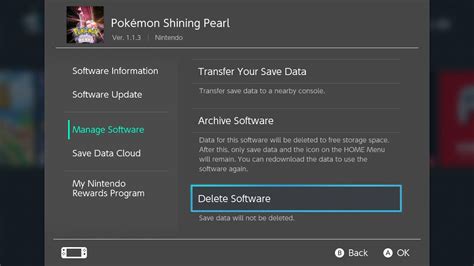
Deleting software is a more drastic step than archiving, as it removes both the game data and the game icon from your HOME Menu. Like archiving, it typically leaves your save data untouched. This option is useful for games you own physically (cartridges), as you can always reinsert the cartridge and re-download any updates without losing your progress. It’s also an option for digital games you’re confident you won’t play again and want to remove completely from your view.
How to delete:
- From the HOME Menu, highlight the game you wish to delete.
- Press the + or – button to open the Options menu.
- Select Data Management, then choose Delete Software.
- Confirm your choice when prompted.
Alternatively, from the System Settings > Data Management > Manage Software, you can select specific software titles and choose to ‘Archive Software’ or ‘Delete Software’ from there.
4. Understand and Manage Save Data
It’s crucial to understand that game save data is very small compared to game software and is stored separately. When you archive or delete a game, your save data is usually preserved. Only delete save data if you are absolutely sure you no longer need it, as it cannot be recovered once gone (unless backed up to the cloud).
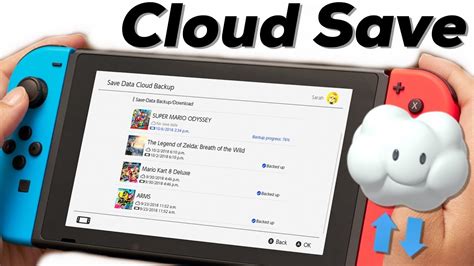
Cloud Saves (Nintendo Switch Online): If you have a Nintendo Switch Online subscription, many games automatically back up your save data to the cloud. This provides an extra layer of security. You can check the status of cloud saves in System Settings > Data Management > Save Data Cloud.
5. Upgrade Your microSD Card (The Ultimate Solution)
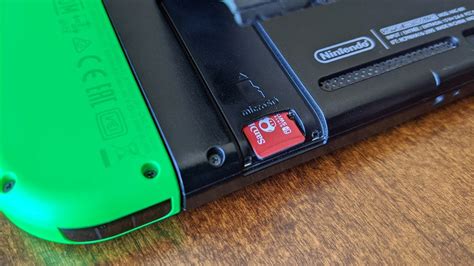
If you find yourself constantly managing space, the most effective long-term solution is to invest in a larger microSD card. The Nintendo Switch supports microSD, microSDHC, and microSDXC cards up to 2TB. Modern high-capacity cards are relatively affordable and provide a massive boost to your storage capacity.
How to transfer data to a new card:
- Ensure your Switch is powered off.
- Remove the old microSD card and insert the new, larger one.
- Any new downloads will automatically go to the new card. For data already on your old card, you can use a computer to copy the Nintendo folder from the old card to the new one. (Make sure your computer can read both card types.)
Conclusion
Running out of space on your Nintendo Switch is a common problem, but it’s easily remedied. By regularly archiving games you’re not currently playing, selectively deleting software you own physically, and most importantly, expanding your storage with a high-capacity microSD card, you can ensure there’s always room for the next big adventure. Happy gaming!


