





My Switch storage is full! Best ways to free up space for more digital games?

The Digital Game Hoarder’s Dilemma Solved
Few feelings are as disheartening for a gamer as seeing the dreaded “Not enough free space” message pop up on their Nintendo Switch. With an ever-growing library of incredible digital titles, the Switch’s internal 32GB (or 64GB for OLED) storage can feel laughably small. But don’t despair! There are several effective strategies you can employ to reclaim precious gigabytes and make room for your next gaming obsession.
Why Your Switch Storage Fills Up So Fast
Modern games are getting larger, and even smaller indie titles can add up. Here’s what’s typically hogging your space:
- Digital Game Data: The biggest culprit. Downloaded titles, especially AAA games, can easily be 10-20GB each.
- Game Updates: Even physical game cartridges require digital updates that reside on your console’s storage.
- Downloadable Content (DLC): Expansions and extra content also take up space.
- Screenshots and Video Captures: While individual files are small, hundreds or thousands can accumulate.
- Save Data: Crucially, save data for all your games is stored internally.
Immediate Solutions: Freeing Up Space Now
1. Archive Software (The Best First Step)
Archiving a game removes its core game data from your console but keeps its icon on the Home menu and, more importantly, keeps your save data intact. This means you can redownload the game later without losing your progress.
How to Archive:
- From the Home menu, highlight the game you want to archive.
- Press the ‘+’ or ‘-‘ button to open the Options menu.
- Select “Manage Software” > “Archive Software.”
2. Delete Software (When You’re Done for Good)
Deleting software removes both the game data and its icon from your Home menu. Like archiving, it generally preserves your save data (which is stored separately). You might choose this for games you’re certain you won’t play again soon, or if you need to free up a significant amount of space quickly. You can always redownload digital titles you own from the eShop.
How to Delete:
- From the Home menu, highlight the game.
- Press the ‘+’ or ‘-‘ button.
- Select “Manage Software” > “Delete Software.”
3. Clear Out Screenshots and Video Captures
These can surprisingly add up, especially if you frequently capture moments. While save data is sacred, screenshots and videos are often less critical and can be easily backed up or deleted.
How to Delete Media:
- From the Home menu, select “Album.”
- Browse your captures. You can select individual items, multiple items, or even entire dates to delete.
- Alternatively, move them to a microSD card or transfer them to a smart device/PC.
Long-Term Solution: Get a MicroSD Card
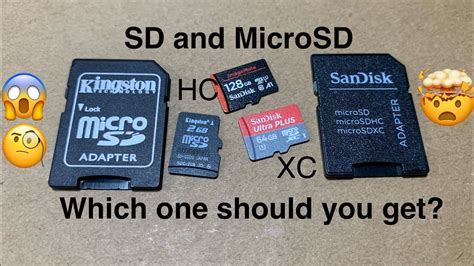
This is by far the most effective and essential strategy for any digital Switch owner. A high-capacity microSD card dramatically expands your storage, allowing you to download dozens, if not hundreds, more games without constantly juggling internal space.
Choosing the Right MicroSD Card
- Capacity: Aim for at least 128GB, but 256GB, 512GB, or even 1TB are highly recommended if your budget allows.
- Speed: Look for cards rated UHS-I (Ultra High Speed Phase I) compatible with at least a Speed Class 3 (U3) or Video Speed Class V30 for optimal game loading times. Reputable brands like SanDisk, Samsung, and Kingston are good choices.
Moving Games to a MicroSD Card
Once you insert a microSD card, new downloads will automatically go there by default. To move existing games from internal storage to the card, you’ll need to archive them and then redownload them. When redownloaded with a microSD card inserted, they will be stored on the card.
Managing Your Data Effectively
- Regular Checks: Periodically check your storage usage (System Settings > Data Management) to see what’s taking up the most space.
- Nintendo Switch Online Cloud Saves: If you’re a subscriber, take advantage of cloud saves. While this doesn’t free up console space directly, it provides a crucial backup of your progress, giving you peace of mind if you ever need to delete or reformat your console.
Conclusion
Running out of space on your Nintendo Switch is a common problem, but one with many straightforward solutions. By strategically archiving games, deleting unnecessary media, and most importantly, investing in a high-capacity microSD card, you can ensure your Switch is always ready for your next digital adventure without compromise. Happy gaming!


