





My Switch storage is full. Best way to free up space for more games?

Running out of space on your Nintendo Switch is a common plight for many gamers. With an ever-growing library of fantastic digital titles and regular updates, the console’s internal 32GB (or 64GB for OLED models) can fill up surprisingly fast. But fear not, freeing up room for more adventures isn’t as daunting as it seems. Let’s explore the best strategies to reclaim that precious storage.
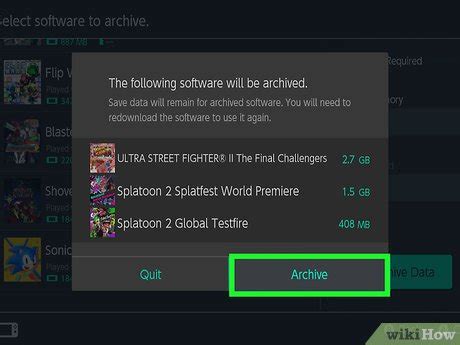
1. Archive Software You’re Not Currently Playing
This is often the quickest and least painful way to free up significant space. When you “archive” a game, the game data itself is deleted from your console or microSD card, but the game icon remains on your HOME Menu. Crucially, your save data for that game is preserved. This means if you want to play it again later, you simply select the icon to redownload it, and you’ll pick up right where you left off.
To archive a game:
- From the HOME Menu, highlight the game you wish to archive.
- Press the “+” or “-” button to open the Options menu.
- Select “Manage Software” > “Archive Software.”
- Confirm your choice.
2. Delete Software (If You’re Sure)
While archiving is generally preferred, there might be instances where you want to completely delete a game, including its icon from the HOME Menu. Like archiving, deleting software also preserves your save data (unless you specifically delete save data separately). The main difference is the icon disappears, and you’d need to go to the eShop or your user profile’s redownload list to get it back.
To delete a game:
- From the HOME Menu, highlight the game.
- Press the “+” or “-” button to open the Options menu.
- Select “Manage Software” > “Delete Software.”
- Confirm your choice.
This method is useful for demos, games you’ve finished and don’t intend to replay, or titles you simply didn’t enjoy.
3. Check Your Save Data (and Cloud Backups)
Game save data typically doesn’t take up a huge amount of space compared to the game files themselves, but it’s worth checking, especially for games with extensive save files. The good news is that save data is separate from game data and usually stored on the console’s internal memory.
If you have a Nintendo Switch Online subscription, your save data is often automatically backed up to the cloud. This provides an excellent safety net and means you rarely need to worry about losing progress if you delete a game’s main data or even transfer consoles.
To manage save data:
- Go to System Settings > Data Management > Delete Save Data.
- Be very careful when deleting save data, as it’s irreversible and cannot be redownloaded. Only delete if you are absolutely sure you no longer need it.
4. Invest in a Larger microSD Card (The Ultimate Solution)
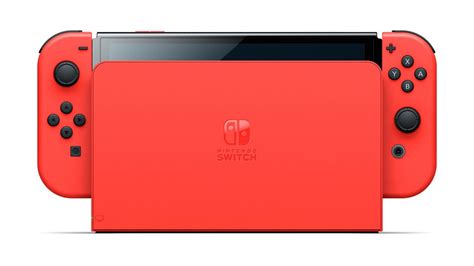
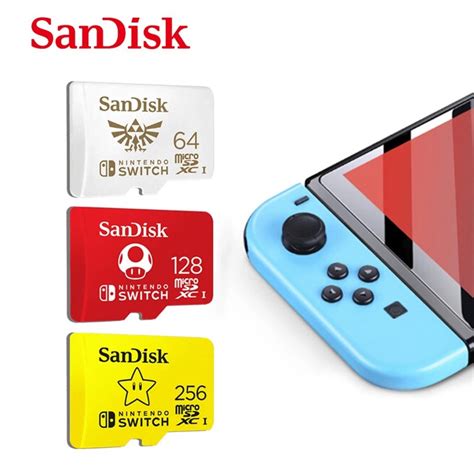
For most users, the most effective and long-term solution to storage woes is to upgrade to a larger microSD card. The Nintendo Switch supports microSD, microSDHC, and microSDXC cards up to a whopping 2TB (though 512GB or 1TB cards are more commonly used and provide ample space). Once inserted, the Switch will automatically use the microSD card for new game downloads, screenshots, and videos.
If you already have games on your internal memory and want to move them to a new microSD card:
- Ensure your new microSD card is inserted into the Switch.
- Go to System Settings > Data Management > Move Data Between System / microSD Card.
- Select the games you wish to transfer.
This process moves the entire game data, freeing up your console’s internal storage for save data and system updates. A high-speed microSDXC card from a reputable brand (like SanDisk, Samsung, or Lexar) is recommended for optimal performance.
5. Clear Out Screenshots and Video Captures
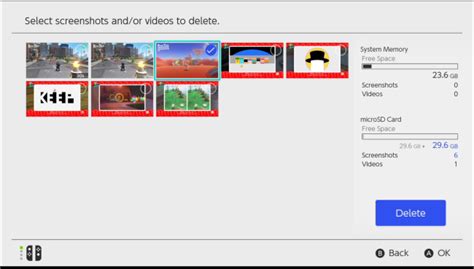
While often overlooked, a vast collection of screenshots and video clips can also eat into your storage. If you frequently use the capture button, these files can accumulate quickly. You can manage them directly from the Album on your HOME Menu.
- Go to Album from the HOME Menu.
- Select a screenshot/video, then press “A” for options.
- Choose “Delete” or “Copy to microSD Card” (if it’s on internal memory).
- Consider transferring important captures to a computer or uploading them to social media to free up space on your console.
Future Storage Management Tips
To avoid frequent storage headaches, consider these habits:
- Prioritize Digital vs. Physical: Physical game cartridges use very little internal storage, only for save data and patches. Digital games, however, take up full space.
- Regularly Archive: Make it a habit to archive games you haven’t touched in months.
- Monitor Downloads: Be mindful of the file size of new downloads, especially large AAA titles.
By employing these strategies, you’ll be able to keep your Nintendo Switch running smoothly with plenty of room for all the incredible games Nintendo and third-party developers have to offer. Happy gaming!


