My Switch storage is full. Best way to free space for new games?

Understanding Your Switch’s Storage Situation
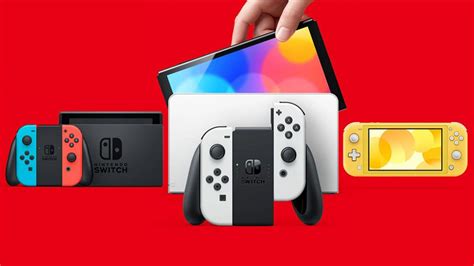
It’s a familiar plight for many Nintendo Switch owners: you’re excited for a new game, only to be met with the dreaded “insufficient free space” message. The Switch’s internal storage (typically 32GB or 64GB for the OLED model) can fill up surprisingly fast, especially with large digital game downloads, updates, and accumulated screenshots or video captures. Before you can dive into new adventures, you’ll need to make some room.
The first step in any storage management plan is to assess your current situation. Navigate to your Switch’s HOME Menu, then select System Settings > Data Management. Here, you’ll see a breakdown of your memory usage, showing how much space is consumed by software, save data, screenshots, and videos on both your console’s internal memory and any inserted microSD card.
The Primary Solution: Archiving Software
For digital games, archiving is often the quickest and most convenient way to free up significant space. When you archive software, the game data itself is deleted from your console or microSD card, but its icon remains on your HOME Menu, along with any save data. This allows for easy re-downloading whenever you want to play it again, without losing your progress.
To archive a game, highlight its icon on the HOME Menu, press the ‘+’ or ‘-‘ button, then select Data Management > Archive Software. Confirm your choice, and watch as your available storage space increases. This method is ideal for games you might want to revisit but aren’t actively playing right now.
When Archiving Isn’t Enough: Deleting Software
While archiving is great, sometimes you might want to completely remove a game, especially if it’s a physical cartridge game whose digital update data is taking up space, or a digital title you’re certain you’ll never play again. Deleting software completely removes the game data from your system. Crucially, your save data is typically stored separately and usually isn’t deleted when you remove the game software.
To delete software, follow the same steps as archiving but choose “Delete Software” instead. Be careful when deleting; while digital games can be re-downloaded from the eShop (assuming you still own them), any updates or DLC associated with physical games would need to be re-downloaded if you decide to play them again.
![How To Delete Games On Nintendo Switch [The right way!] - Alvaro Trigo ...](/images/aHR0cHM6Ly90czMubW0uYmluZy5uZXQvdGg/aWQ9T0lQLnRsREZ1aDVUVU9tVExmNGUwYUM1X2dIYUVLJnBpZD0xNS4x.webp)
Managing Screenshots and Video Captures
Over time, your collection of epic screenshots and memorable video clips can quietly consume a surprising amount of space. The Switch allows you to capture a lot of media, and if you’re not regularly clearing it out, it can add up.
You can view and manage your media by going to the HOME Menu > Album. From here, you can select individual screenshots or videos to delete. For larger management, consider transferring them. If you have a microSD card inserted, you can transfer your media from the console’s internal memory to the card (System Settings > Data Management > Manage Screenshots and Videos > Copy to microSD Card). Once on the microSD card, you can easily transfer them to a computer or other storage device for safekeeping.
The Ultimate Solution: Upgrading Your MicroSD Card
If you primarily download digital games or simply have a large library, the most effective long-term solution is to invest in a larger microSD card. The Nintendo Switch supports microSD, microSDHC, and microSDXC cards up to 2TB (though 128GB, 256GB, or 512GB are more commonly used and offer excellent value).
Once you insert a new microSD card, your Switch will automatically use it for new game downloads. If you want to transfer existing digital games from your console’s internal memory to the new card, you’ll need to archive and re-download them, or perform a system transfer to move all data, including save files, to the new card. A larger microSD card provides peace of mind and significantly expands your storage capacity, allowing you to install many more games without worry.
A Note on Save Data and Cloud Backups
It’s important to remember that game save data is usually very small in comparison to game software. The Switch typically stores save data separately from the game itself. When you archive or delete a game, your save data usually remains on the console (or within your user profile) unless you specifically choose to delete it. For added security, consider subscribing to Nintendo Switch Online, which offers cloud save backups for most games, protecting your progress even if something happens to your console.
Final Thoughts on Storage Strategy
Managing your Switch’s storage is an ongoing task, especially as new and exciting games continue to be released. By regularly archiving games you’re not playing, moving media files, and investing in a high-capacity microSD card, you can ensure your Nintendo Switch always has enough room for your next gaming adventure. Prioritize what you play most, and don’t be afraid to clear out older titles to make way for new experiences.