





How to optimize Switch & console settings for best gameplay performance?

Unlocking Your Console’s Full Potential
Whether you’re battling foes, racing against the clock, or exploring vast open worlds, an optimized console setup can significantly enhance your gaming experience. Beyond simply plugging in and playing, a few tweaks to your Nintendo Switch and other console settings can lead to smoother frame rates, reduced input lag, and a more visually stunning adventure. This guide will walk you through essential adjustments to get the most out of your hardware.
Display Settings: Visual Fidelity & Responsiveness
Your TV or monitor is your window into the game world, making its settings crucial for optimal performance.
Resolution and Refresh Rate
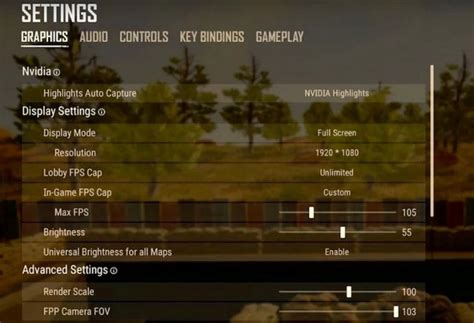
- Console Output: Ensure your console is set to output the highest resolution your display supports (e.g., 1080p, 4K). For Switch, this is typically 1080p when docked.
- TV/Monitor Refresh Rate: Match your display’s refresh rate if possible. While most consoles output at 60Hz, some monitors support higher rates. Ensure your TV’s HDMI input is configured for the best signal.
HDR and Color Calibration
If your display supports HDR, enable it on both your console and TV. However, sometimes over-aggressive HDR can introduce input lag or unnatural colors. Calibrate your TV’s color settings (brightness, contrast, sharpness, color temperature) using built-in TV calibration tools or a professional guide to achieve accurate visuals without oversaturation.
Game Mode on TVs
Most modern TVs have a ‘Game Mode’ (or similar setting like ‘PC Mode’). Activating this mode typically bypasses much of the TV’s internal image processing, drastically reducing input lag. This is perhaps the single most impactful visual setting for competitive gaming.
Network Settings: Lag-Free Online Play
For online multiplayer, a stable and fast internet connection is paramount. Even small amounts of lag can ruin the experience.
Wired vs. Wireless
Always prioritize a wired (Ethernet) connection over Wi-Fi for your console. Ethernet offers superior stability, lower latency, and faster speeds, significantly reducing ping and packet loss. For Nintendo Switch, you’ll need an official or third-party USB-to-Ethernet adapter for docked mode.
DNS Settings and QoS
- Custom DNS: Experiment with public DNS servers like Google DNS (8.8.8.8, 8.8.4.4) or OpenDNS (208.67.222.222, 208.67.220.220). Sometimes, these can offer faster resolution times than your ISP’s default.
- Quality of Service (QoS): If your router supports QoS, configure it to prioritize your console’s network traffic. This ensures that downloads or other network activities from other devices don’t hog bandwidth when you’re gaming.
Audio Settings: Immersion and Awareness
While often overlooked for performance, good audio can provide crucial situational awareness in games and heighten immersion.
- Headphones vs. Speakers: Use quality gaming headphones for spatial audio and clearer sound cues, especially in competitive titles.
- Audio Output Format: Set your console’s audio output to the best format your sound system supports (e.g., Linear PCM, Bitstream Dolby/DTS). For headphones, often stereo or uncompressed formats are best.
- In-Game Audio Mix: Adjust in-game sound settings to prioritize elements like footsteps or dialogue over background music, if the game allows.
System Maintenance: Keeping Your Console Sharp
Just like a PC, consoles benefit from regular upkeep.
Software Updates
Always ensure your console’s operating system and your games are up to date. Updates often include performance enhancements, bug fixes, and stability improvements.
Storage Management
While not always a direct performance booster, keeping adequate free storage space can prevent issues with game installs, updates, and save data. For Switch, consider an SD card for expanded storage. Avoid filling your internal storage to the absolute brim if possible.
Clearing Cache
Periodically clear your console’s cache. This can resolve minor glitches, improve loading times, and free up temporary data. Consult your console’s specific support page for instructions on how to perform this.

Controller and Input Settings
Your interaction with the game is through your controller.
- Sensitivity and Dead Zones: Adjust in-game controller sensitivity to suit your playstyle. Reduce dead zones (the area where stick movement doesn’t register) if available, but be careful not to introduce stick drift.
- Button Mapping: Customize button layouts for comfort and efficiency, especially in games that allow it.
- Vibration Feedback: While immersive, turning off vibration can sometimes conserve controller battery and, for some players, improve focus.
Nintendo Switch Specific Optimizations
The Switch, with its hybrid nature, has unique considerations.
- Performance Mode (if applicable): Some Switch games offer a ‘performance’ or ‘quality’ mode. Prioritize performance for higher frame rates.
- Battery Life Management: In handheld mode, lower screen brightness, disable rumble, and put the console to sleep when not playing to extend battery life. For peak performance, ensure the battery is well-charged or use it while charging.
- Docked vs. Handheld Performance: Remember that many Switch games run at a higher resolution and sometimes a more stable frame rate when docked compared to handheld mode.
Conclusion
Optimizing your console settings is a continuous process of experimentation and fine-tuning. By paying attention to your display, network, audio, and system maintenance, along with platform-specific adjustments for the Nintendo Switch, you can significantly elevate your gaming experience. Dive into your console’s settings menus today and unlock its true potential for unparalleled gameplay performance.


