How to optimize phone settings for better mobile game battery life and performance?
Unlock Peak Mobile Gaming Performance and Battery Life
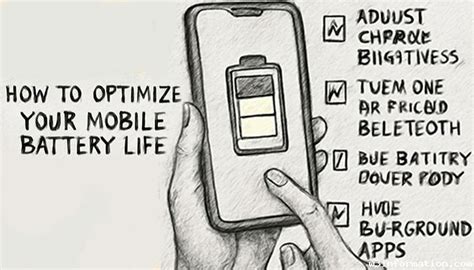
Mobile gaming has evolved dramatically, offering console-quality experiences right in your pocket. However, intense graphics and demanding gameplay can quickly drain your phone’s battery and lead to frustrating performance drops. Fortunately, with a few strategic adjustments to your device’s settings, you can significantly improve both battery longevity and overall gaming fluidity. This guide will walk you through the essential optimizations for a superior mobile gaming experience.

Prioritize Performance for Lag-Free Gameplay
Achieving smooth, lag-free gameplay is crucial for competitive and immersive mobile gaming. Many phones come with dedicated features or hidden settings that can be tweaked to unleash your device’s full potential.
1. Activate Game Mode or Performance Mode
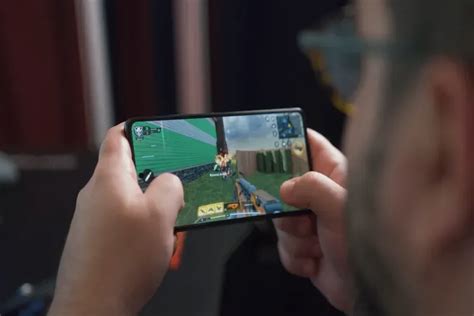
Most modern smartphones, especially those designed with gaming in mind, include a ‘Game Mode’ or ‘Performance Mode’ feature. These modes typically prioritize CPU/GPU resources for the active game, block notifications, and sometimes even optimize touch response. Ensure this mode is enabled and configured to your preference for each game you play.
2. Manage Background Apps and Notifications
Apps running in the background consume RAM and CPU cycles, which can divert resources away from your game. Before a gaming session, close all unnecessary background applications. Additionally, disable non-essential notifications or put your phone in ‘Do Not Disturb’ mode to prevent interruptions and reduce background processing.
3. Adjust Refresh Rate and Resolution (If Available)
Higher refresh rates (e.g., 90Hz, 120Hz) offer a smoother visual experience, but they demand more power. If your phone supports variable refresh rates, consider setting it to a lower fixed rate for games that don’t benefit much from high refresh or when battery life is critical. Similarly, lowering your screen resolution (if your phone allows it) can free up GPU resources and boost frame rates, though at a slight cost to visual fidelity.

4. Utilize Developer Options (Android)
For Android users, Developer Options offer advanced tweaks. Enable ‘Force 4x MSAA’ for improved graphics quality in OpenGL ES 2.0 games, or ‘Disable HW overlays’ to reduce GPU load. Experiment with ‘Background process limit’ to restrict how many apps can run in the background. Always proceed with caution when adjusting developer options, as incorrect settings can affect system stability.
Extend Your Gaming Sessions: Battery Life Optimization
While boosting performance is exciting, it often comes at the expense of battery life. Here’s how to strike a better balance and keep your gaming sessions going longer.
1. Lower Screen Brightness and Disable Auto-Brightness
The screen is one of the biggest power consumers. Reduce your screen brightness to a comfortable level, especially when playing indoors. Disabling auto-brightness prevents the sensor from constantly working and adjusting, saving a small amount of power.
2. Disable Vibration and Haptic Feedback
Haptic feedback and vibration motors consume a surprising amount of power. Turn off keyboard vibrations, touch feedback, and in-game vibration unless it’s essential for your gameplay experience.
3. Limit Location Services, Bluetooth, and Wi-Fi Scanning
Unless your game requires precise location data or a Bluetooth peripheral, turn off GPS, Bluetooth, and Wi-Fi scanning. These services constantly search for connections, draining battery in the background.
4. Use Power Saving Modes Wisely
While ‘Game Mode’ prioritizes performance, your phone’s general ‘Power Saving Mode’ focuses on battery conservation. If you’re not playing a graphically intensive game or need to squeeze out extra playtime, enabling a light power-saving mode can limit background activity and CPU speed, extending battery life without severely impacting simpler games.

General Tips for a Superior Mobile Gaming Experience
Beyond specific settings, a few general practices can also contribute to better overall performance and battery health.
Keep Your Device Cool
Overheating is a significant enemy of both performance and battery health. A hot phone will automatically throttle its CPU and GPU to prevent damage, leading to frame drops. Play in a cool environment, remove your phone case if it traps heat, and consider using external cooling accessories during long sessions.
Update Your Operating System and Games Regularly
Software updates often include performance enhancements, bug fixes, and battery optimizations. Keep both your phone’s OS and your games updated to benefit from the latest improvements.
Optimize Storage
A full storage can slow down your device. Regularly clear app caches, delete unnecessary files, and uninstall games or apps you no longer use to free up space and ensure smooth operation.
Conclusion
Optimizing your phone settings for mobile gaming doesn’t require advanced technical knowledge. By understanding the impact of various features on performance and battery life, you can tailor your device to meet your gaming needs. Experiment with these settings, find the balance that works best for you, and enjoy a smoother, longer-lasting mobile gaming experience.