





How to optimize Nintendo Switch settings for smoother gameplay of all game types?
Unlock Your Nintendo Switch’s Full Potential
The Nintendo Switch offers an incredible library of games, from sprawling open-world adventures to fast-paced competitive online titles. However, even the most dedicated gamer might encounter occasional hiccups, frame drops, or input lag that can detract from the experience. Fortunately, by making a few simple adjustments to your console’s settings, you can significantly enhance performance and ensure smoother gameplay, no matter the game type.
Essential System Updates
Keeping Your Software Current
One of the most fundamental steps to ensuring optimal performance is to keep your Nintendo Switch’s system software up-to-date. Nintendo frequently releases updates that improve system stability, enhance features, and sometimes even boost game performance. Always check for the latest update by going to System Settings > System > System Update. Ensure your console is connected to the internet and allow it to download and install any available updates.
Optimizing Internet Connection for Online Play
Wi-Fi Setup and DNS Settings
For online multiplayer games, a stable and fast internet connection is paramount. While Wi-Fi is convenient, a wired connection (using a LAN adapter, sold separately) offers superior stability and lower latency. If Wi-Fi is your only option, ensure you’re connected to a 5GHz network if available, as it generally offers faster speeds and less interference than 2.4GHz. You can also experiment with custom DNS settings (like Google DNS or Cloudflare DNS) found under System Settings > Internet > Internet Settings > [Your Network] > Change Settings to potentially improve connection speeds and reliability.
Display and Output Settings
Resolution, RGB Range, and TV Match
When playing on a TV, navigate to System Settings > TV Output. For most modern TVs, setting the TV Resolution to 1080p is ideal, even if the Switch sometimes renders games at lower resolutions internally. Set the RGB Range to “Full Range” if your TV supports it (check your TV’s manual), as this can result in richer colors and deeper blacks. Lastly, ensure “Match TV Power State” is enabled so your Switch wakes or sleeps with your TV.
Data Management for Performance
Freeing Up Space and MicroSD Cards
A cluttered internal storage can sometimes contribute to slower load times or minor performance hitches. Regularly manage your data by archiving software you don’t frequently play (System Settings > Data Management > Manage Software). Archiving removes the game data but keeps your save data, allowing you to redownload it later. For ample storage, investing in a high-quality microSD card (UHS-I compatible with a speed class of 10 or higher) is crucial. Install new games directly to the microSD card to keep your console’s internal memory free for system processes.
Controller & Input Calibration
Ensuring Responsive Controls
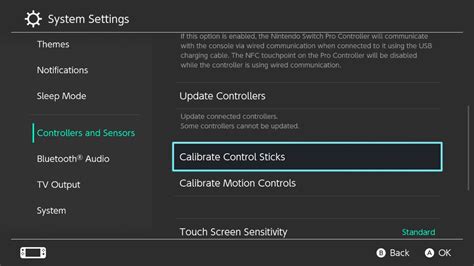
Input lag can be incredibly frustrating. Periodically calibrate your Joy-Con or Pro Controller’s control sticks and motion controls. Go to System Settings > Controllers and Sensors. Here you can find options to “Calibrate Control Sticks” and “Calibrate Motion Controls.” This ensures your inputs are registered accurately and responsively. You can also turn off controller vibration in this menu if you find it distracting or want to conserve a tiny bit of battery.
Power Management and Sleep Mode
Maximizing Playtime and Stability
While the Switch’s sleep mode is convenient, leaving games suspended for extended periods can sometimes lead to minor issues. Occasionally restarting your console fully (hold the POWER Button > Power Options > Restart) can clear system memory and resolve minor bugs. In System Settings > Sleep Mode, you can adjust settings like ‘Auto-Sleep (Playing on Console Screen)’ to a longer duration if you find it sleeping too quickly during gameplay.
Advanced Game-Specific Tweaks
In-Game Options
While most of the optimizations are system-wide, some individual games offer their own in-game settings that can impact performance. This might include options for graphical fidelity, resolution scaling, or even performance modes. Always check the options menu within each game, especially for graphically intensive titles, to see if there are any settings you can adjust to prioritize frame rate over visual flair.
Conclusion
By taking the time to review and adjust these Nintendo Switch settings, you can significantly enhance your gaming experience. A well-optimized console means less frustration and more immersive gameplay, allowing you to fully enjoy every adventure the Switch has to offer. Happy gaming!


