





How to optimize console storage for more Switch & PS5 games?

The Ever-Growing Challenge of Console Storage
As game file sizes continue to balloon, keeping enough storage on your Nintendo Switch and PlayStation 5 can feel like a constant battle. Whether it’s the latest blockbuster or a collection of indie gems, running out of space is a common frustration. Fortunately, there are several effective strategies to optimize your console’s storage, ensuring you always have room for new adventures.
Nintendo Switch Storage Solutions
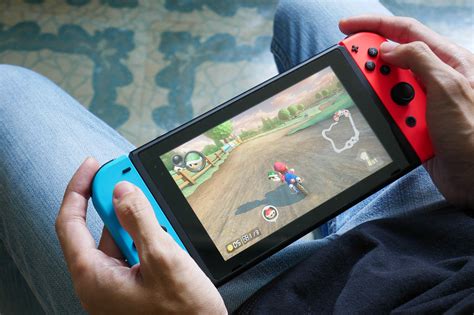
The Nintendo Switch comes with relatively modest internal storage – 32GB for the original and Lite models, and 64GB for the OLED model. A significant portion of this is reserved for the system itself, leaving limited space for digital games, updates, and screenshots. This makes external storage almost essential for most users.
Expand with a microSD Card
The most straightforward way to boost your Switch’s capacity is by adding a microSD card. The Switch supports microSD, microSDHC, and microSDXC cards up to 2TB (though 1TB is currently the largest commercially available). Investing in a high-speed card (UHS-I compatible with a speed class of 10 or higher) will ensure smooth game loading and performance. Once inserted, the Switch will automatically use the microSD card for new game downloads.
Digital vs. Physical Games
While physical game cartridges don’t take up significant space on your console’s internal memory (only save data and patches do), digital downloads live entirely on your system or microSD card. If you’re a fan of digital titles, a large microSD card is non-negotiable. Consider buying physical copies of larger games if you want to conserve digital space.
Archiving Software and Deleting Data
Nintendo offers an ‘Archive Software’ feature. This deletes the game data but keeps the game icon on your Home menu and saves your game progress. You can redownload the game at any time from the eShop or your user page. For software you know you won’t play again, you can simply delete it entirely, which removes both the game data and the save data (unless cloud save is enabled).
PlayStation 5 Storage Optimization
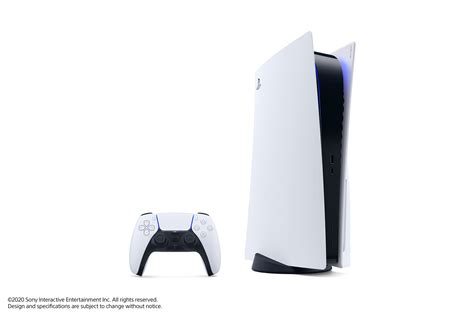
The PS5 comes with a custom 825GB SSD, but once the operating system and essential files are accounted for, users are left with roughly 667GB of usable space. Given that many PS5 titles easily exceed 50-70GB, this space can fill up quickly.
Internal M.2 SSD Expansion
The PS5 supports internal storage expansion via a compatible PCIe Gen4 M.2 NVMe SSD. This is the only way to expand the high-speed storage that can directly run PS5 games. You’ll need an SSD that meets specific speed and size requirements (e.g., sequential read speed of 5,500MB/s or faster, with a heatsink). Installation requires opening a panel on the console but is relatively simple.

External USB Storage for PS4 Games
For your PlayStation 4 game library, an external USB hard drive or SSD is an excellent and more affordable solution. PS5 games cannot be played directly from an external USB drive, but PS4 games can be. This frees up your internal M.2 SSD for PS5-specific titles. You can also use an external drive to store PS5 games (but not play them), transferring them back to the internal SSD when you want to play.
General Storage Management Tips for Both Consoles
Uninstall Unused Games
It sounds obvious, but regularly reviewing your game library and uninstalling titles you’ve completed or no longer play is crucial. You can always redownload them later if you change your mind.
Delete Old Screenshots and Videos
Both Switch and PS5 allow you to capture screenshots and video clips. These can accumulate rapidly and consume significant space. Regularly go through your media gallery and delete anything you don’t need or have already backed up to a cloud service or external device.
Manage Game Updates and Patches
Game updates and patches, while necessary, can sometimes add to the game’s overall footprint. Keep an eye on your console’s storage breakdown to see which games are taking up the most space, including their updates.
Utilize Cloud Saves
While cloud saves don’t free up local storage for game installations, they ensure your precious game progress is backed up. Nintendo Switch Online and PlayStation Plus subscriptions both offer cloud save functionality, providing peace of mind when deleting game data.

Conclusion
Running out of space on your Switch or PS5 doesn’t have to be a barrier to enjoying new games. By strategically using microSD cards for Switch, M.2 SSDs and external USB drives for PS5, and adopting good data hygiene practices like uninstalling unused games and managing media, you can keep your consoles optimized and ready for countless hours of gaming fun.


