





How to maximize Nintendo Switch storage for more digital games?
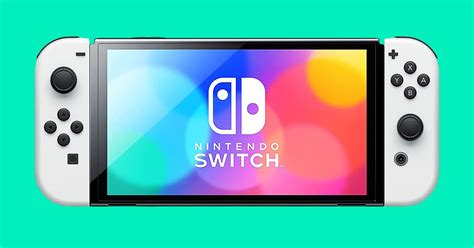
The Nintendo Switch, with its vast library of incredible digital titles, often leaves players facing a common dilemma: limited storage. While the console comes with 32GB (or 64GB for the OLED model) of internal memory, a significant portion is reserved for the system, leaving surprisingly little room for games, updates, and DLC. Fortunately, there are several effective strategies to maximize your Switch’s storage, ensuring you never have to delete a beloved title to make space for a new adventure.
Understanding Your Switch’s Storage Landscape
Before diving into solutions, it’s crucial to understand how your Switch manages data. Internal storage holds system software, game saves, downloaded games, and screenshots/videos. Physical game cartridges don’t install the entire game onto your system, but updates, patches, and DLC still require internal or microSD card space. Digital-only titles, of course, consume the most space.
The Essential Upgrade: Investing in a MicroSD Card
The single most impactful way to expand your Nintendo Switch’s storage is by adding a high-capacity microSD card. The Switch supports microSD, microSDHC, and microSDXC cards up to a whopping 2TB, although 1TB is currently the largest commercially available and practical option for most users.
Choosing the Right MicroSD Card
- Capacity: For avid digital game collectors, 256GB, 512GB, or even 1TB are popular choices. Consider your gaming habits – if you buy many large digital titles, aim higher.
- Speed: Look for cards with a high read speed (e.g., 90-100MB/s) and a UHS-I speed class (U3 is ideal). While the Switch doesn’t fully utilize the fastest speeds, a quicker card can reduce game loading times slightly. A V30 or A1/A2 rating also indicates good performance for applications.
- Brand: Stick with reputable brands like SanDisk, Samsung, or Lexar to ensure reliability and performance.
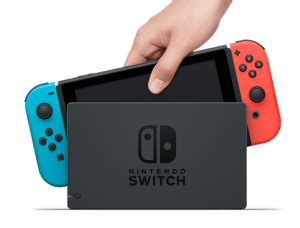
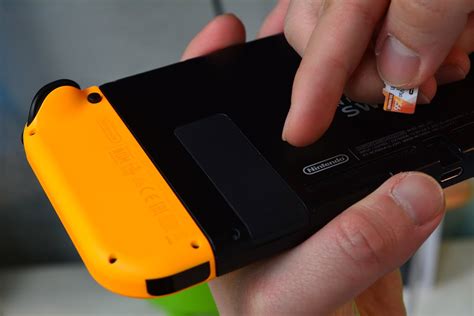
Installing a microSD card is simple: just open the kickstand on the back of your Switch and insert the card into the slot. The console will automatically recognize it and begin using it for new downloads.
Smart Management of Existing Games and Data
Even with a large microSD card, smart management of your game library is key to efficient storage use.
Archiving vs. Deleting Software
- Archiving: This is your best friend. Archiving a game removes its core data from your system or microSD card but keeps the game icon on your Home menu and, crucially, preserves your save data. You can redownload the game anytime from the eShop or your user page. This is perfect for games you’ve finished but might want to revisit.
- Deleting: Deleting software removes the game entirely, including its icon. While it also preserves save data, you’ll need to navigate the eShop to find and redownload it. Only delete if you’re absolutely certain you won’t play the game again soon.
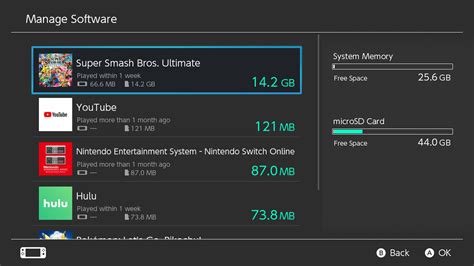
To manage software, go to System Settings > Data Management > Manage Software.
Moving Data Between Storage
The Switch allows you to move downloaded software data between your internal storage and a microSD card. This is useful if you want to consolidate games onto your microSD or free up internal space for specific purposes. Save data, however, cannot be moved to a microSD card; it always resides on the internal memory (and optionally in the cloud).
Utilizing Cloud Saves (Nintendo Switch Online)
While not a direct storage expansion, a Nintendo Switch Online subscription offers Cloud Save Data Backup. This is vital for protecting your progress in case of console damage or loss, and it indirectly frees up your mind from worrying about save data space, as those are tiny compared to game files.
Clearing Unnecessary Media
Screenshots and video captures can accumulate surprisingly quickly. Regularly review and delete any unwanted media from your Album. You can also transfer them to a computer via USB or wirelessly to a smart device, or even to a microSD card for long-term storage off the console.
Best Practices for Long-Term Storage Health
- Regular Audits: Periodically check your “Data Management” settings to see what’s taking up the most space.
- Prioritize microSD: Always aim to download new games directly to your microSD card if one is inserted.
- Backup Saves: Ensure critical game saves are backed up to the cloud via Nintendo Switch Online.
Conclusion
Don’t let limited storage hinder your Nintendo Switch gaming experience. By strategically investing in a high-capacity microSD card and adopting smart game management habits like archiving and regularly clearing media, you can significantly expand your console’s ability to hold more digital games. With these tips, you’ll have ample space for every adventure, big or small, that the Nintendo Switch eShop has to offer.


